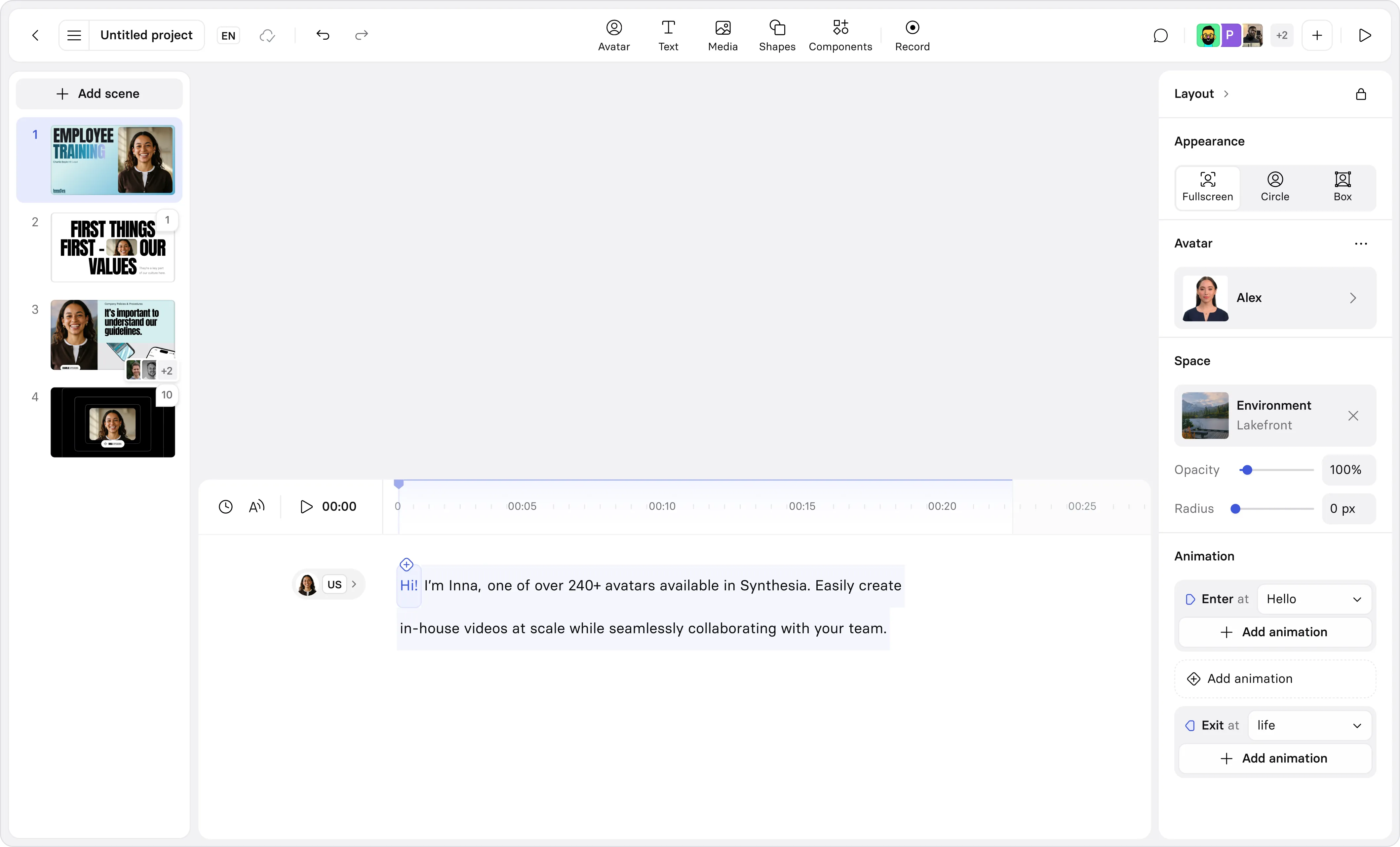
Editing in the script box: AI video assistant 3.0
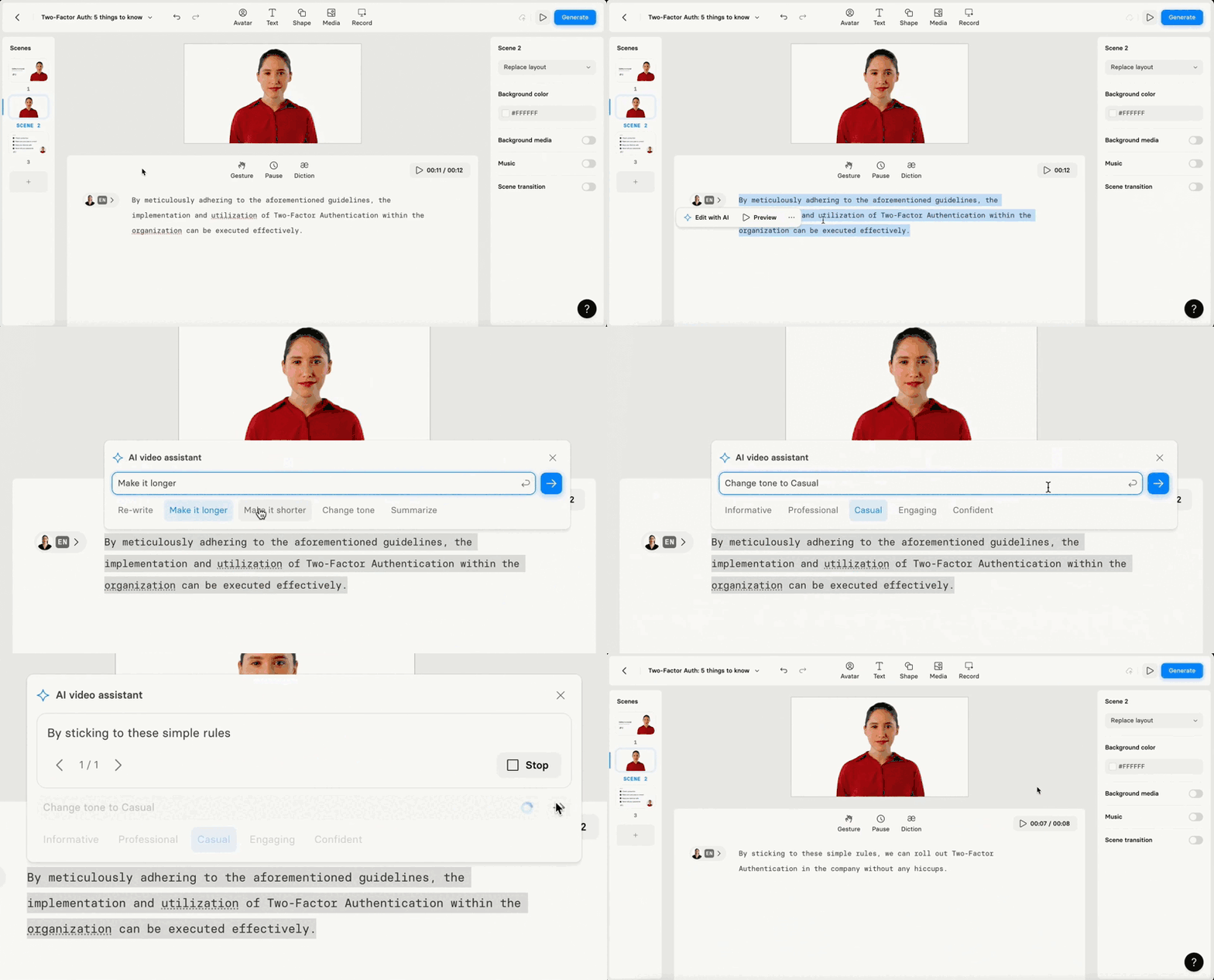
AI video assistant 3.0 allows you to edit and refine text in the script box: rewrite, optimize length, adapt tone, or summarise.

See what Synthesia can do for you
We're excited to share the latest update to our Synthesia platform: AI video assistant 3.0. This feature allows you to edit and refine text in the script box.
What you can do?
Rewrite: use to check your word choices and fix it.
Optimize length: make the script shorter or longer.
Adapt tone of voice: make your script sound informative, professional, casual, engaging or confident.
Summarise: highlight key points from the text you entered.
Why it's cool?
You can transform any text into a well-crafted script. You don't need skills to create a video that sounds great.
How to Use AI Video Assistant 3.0:
Open the video:create the new one or the one you've edited already. Make sure you have some text on the scene.Highlight any part of the script- Click
Edit with AI:re-write text, make it longer or shorter, change tone of voice (casual, professional, friendly, etc) or summarise. - Check the result. If you are happy with it,
replacethe original text orregenerate it
Adapt any text you have into a script that engages people and makes them want to listen.
Happy creating!

Get the skills, insights, and support to help you scale