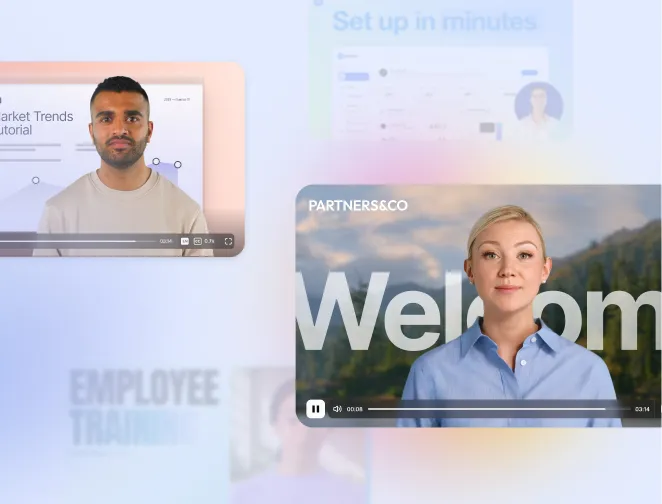
Create on-brand videos with Brand Kit 2.0
Set a default Brand Kit, and we'll apply your colors, fonts, logos, and avatars automatically—so every new video starts on brand.
See what Synthesia can do for you
Today, we're introducing Brand Kit 2.0 — a faster way to keep every Synthesia video on brand. Available for Enterprise.
How it works and why it matters
Before, staying on brand meant manually picking colors, fonts, and logos every time you started a new video (or hoping everyone remembered the "right" settings).
With Brand Kit 2.0, you can set up your brand once, then apply it automatically when you create new videos—so your team moves faster, and your videos look consistent from the first draft.
Here's what you can do:
- Automatically apply your Brand Kit when you start a new video
- Turn docs, decks, and links into branded videos with AI Video Assistant
- Apply Brand Kit styling to Templates and scenes as you build in the Editor
Why it matters
- Create polished videos faster, without starting from scratch
- Help more people on your team create on-brand content (no design help needed)
- Build trust with consistent, recognizable video styling
How to use
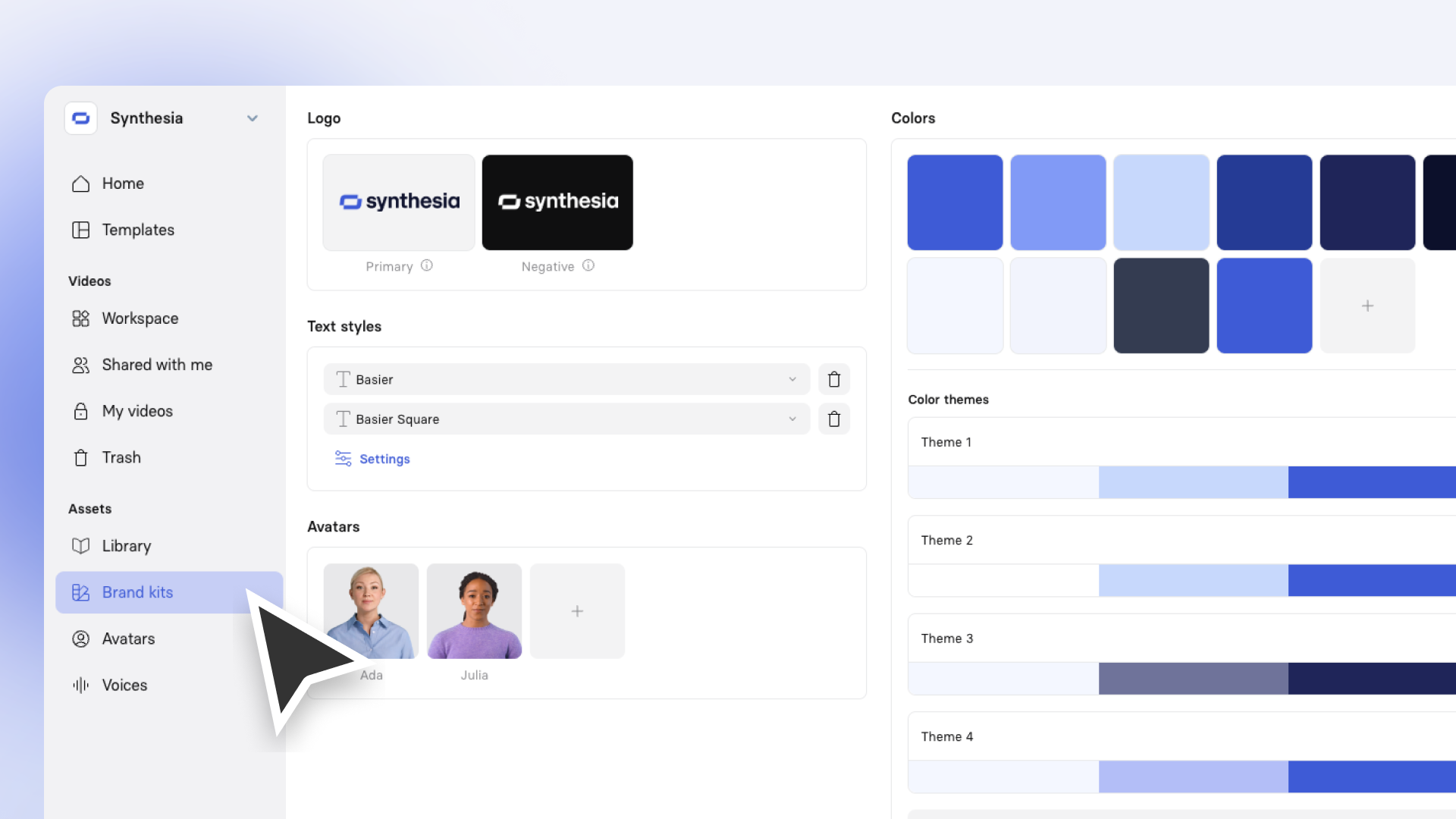
First, create a Brand Kit. Add your color palette, logos, preferred Avatars, and fonts. We'll automatically create themes (color kits) that can be applied to your videos.
Turn any doc, deck, or link into a branded video
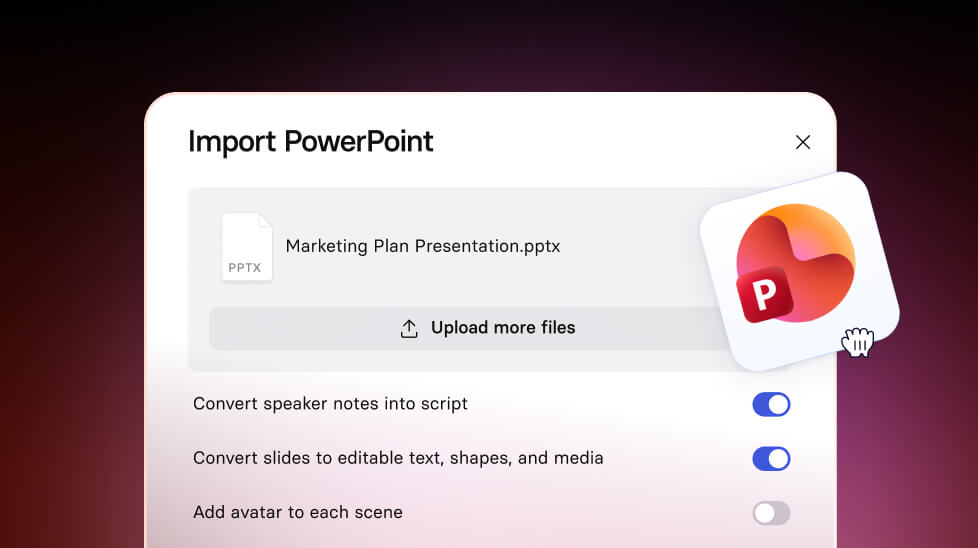
- Upload a PDF, PPTX, or URL to AI Video Assistant
- Choose a Template, preview it with your Brand Kit applied, and confirm your default Brand Kit is selected
- Start generating your script (and regenerate if you want a different draft)
Apply your Brand Kit to a Template
- Select a Template
- Preview it with your Brand Kit applied
- Start creating your video
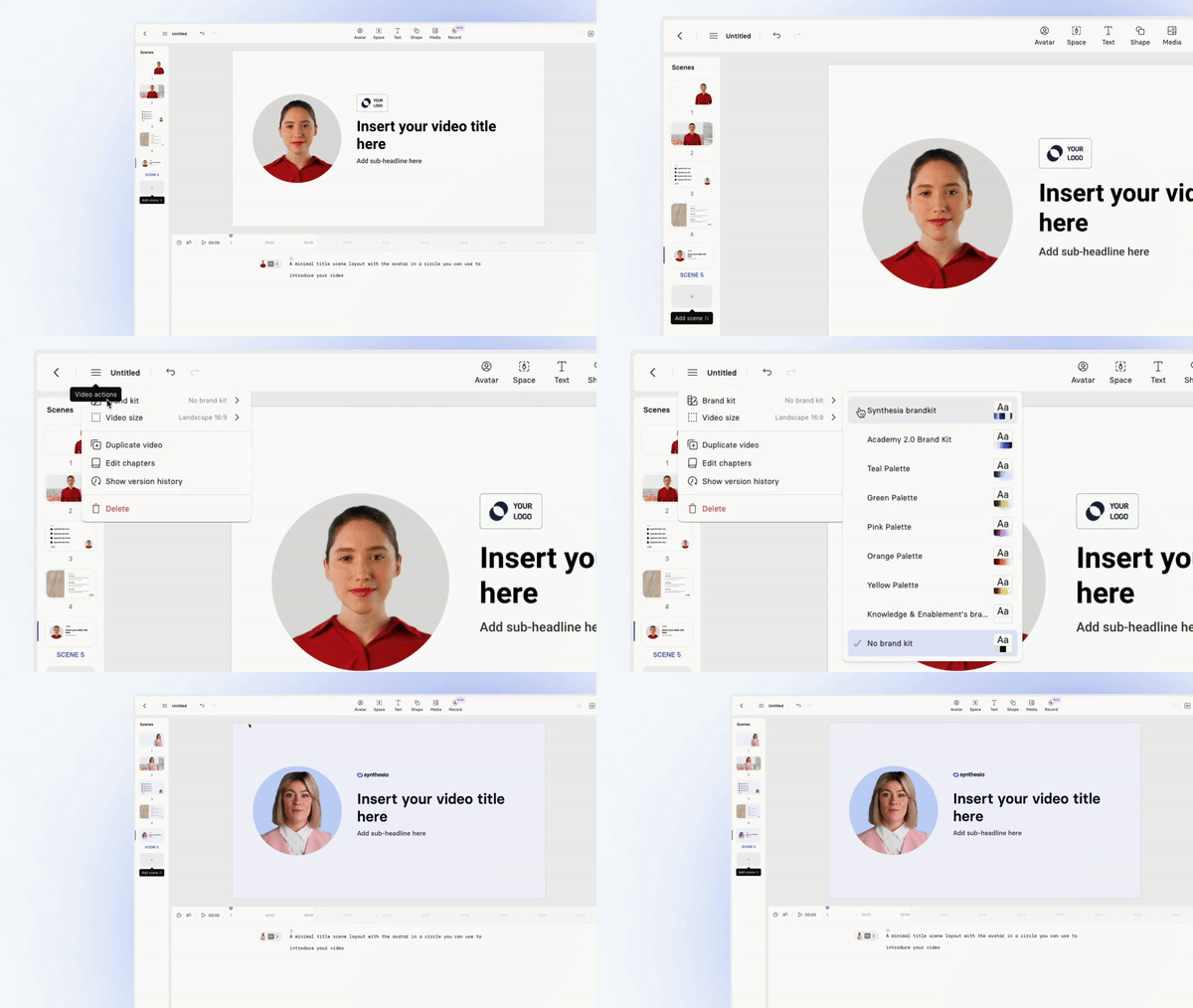
Apply your Brand Kit to scenes in the Editor
- Add scenes from Templates
- Apply your Brand Kit to update the styling across your video
For more on how it works, check out our documentation.
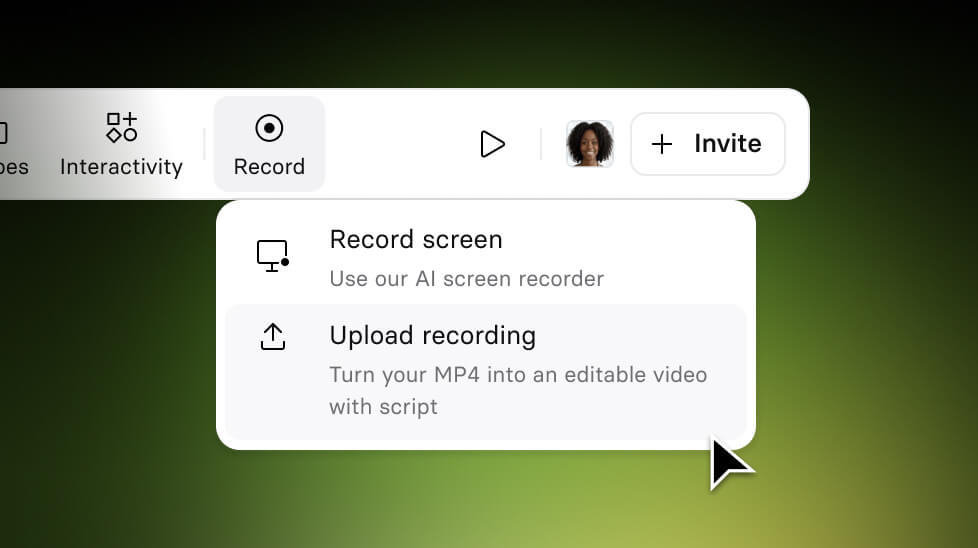
Turn External Screen Recordings into editable Synthesia videos
Upload any screen recording (MP4) and Synthesia automatically converts it into a fully editable video.
Get the skills, insights, and support to help you scale