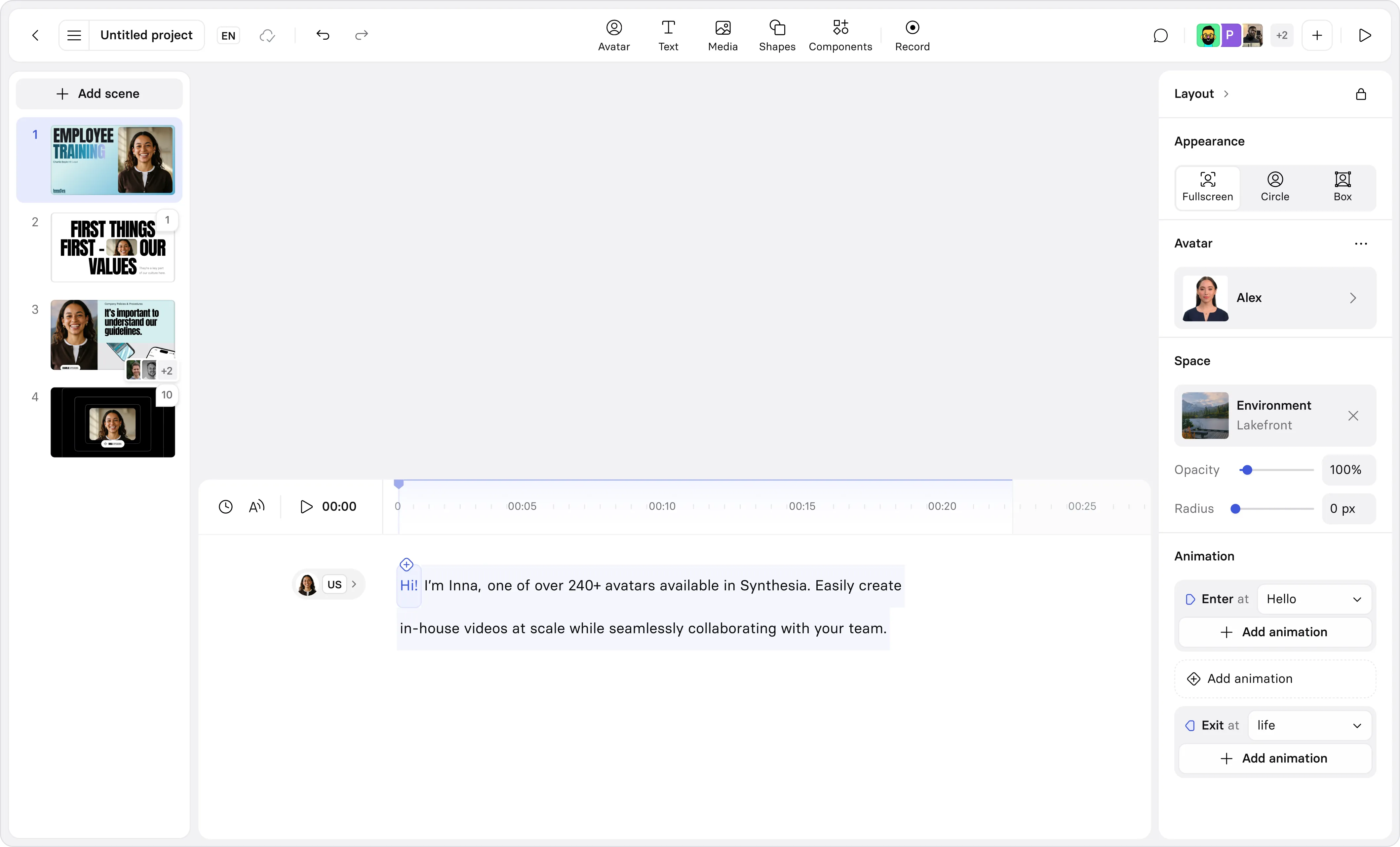
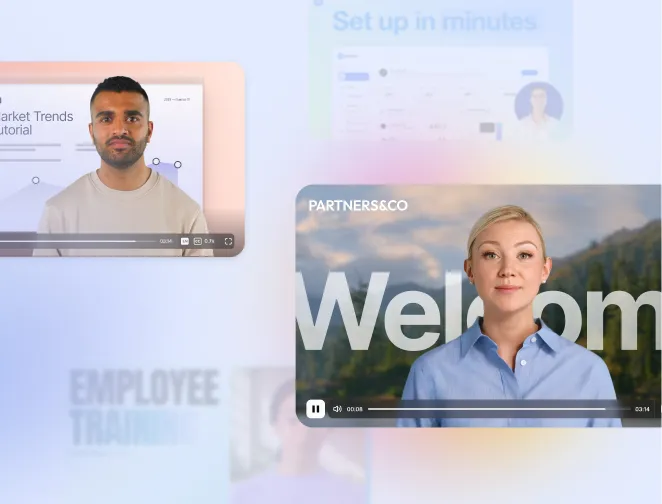
Turn External Screen Recordings into editable Synthesia videos
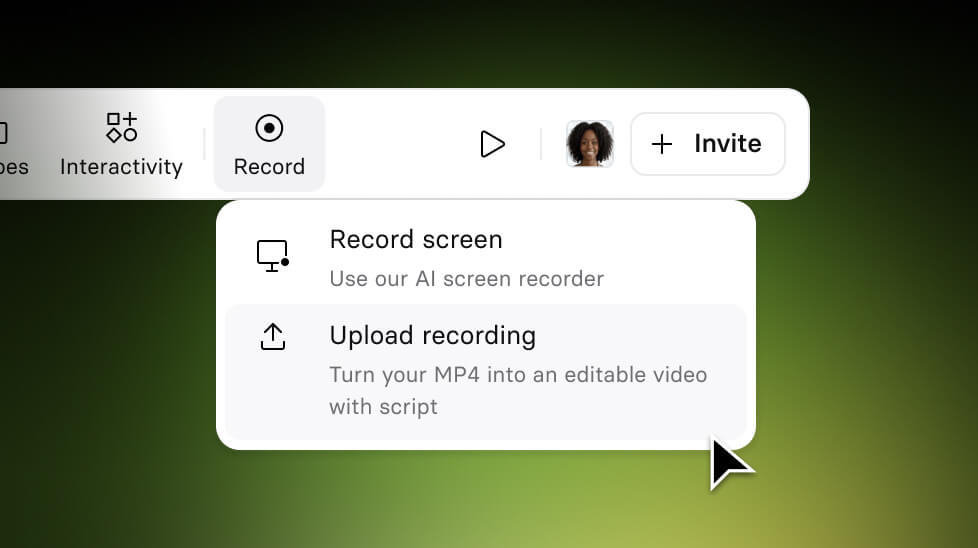
Upload any screen recording (MP4) and Synthesia automatically converts it into a fully editable video.
See what Synthesia can do for you
You can now upload an external screen recording (MP4) directly into the Editor — and we’ll automatically:
- Transcribe the voiceover into an editable script
- Remove filler words
- Split long recordings into structured scenes
- Turn it into a fully editable Synthesia video
Available on all plans.
Why it matters
Bring your own recording from anywhere (QuickTime, Camtasia, OBS, etc.) and save time by instantly converting it into a script-based, structured video. Without having to rebuild everything manually.
This unlocks new workflows: subject matter experts screen record in their preferred tool → then creators refine in Synthesia, teams blocked from using browser extensions can still use the full structured workflow, and legacy training videos can be modernized without re-recording.
In short: you don’t have to start your transcript from scratch anymore when you upload a screen recording – Synthesia automatically transcribes it for you into an editable script.
How to try it
- Open the Editor on an existing Synthesia video
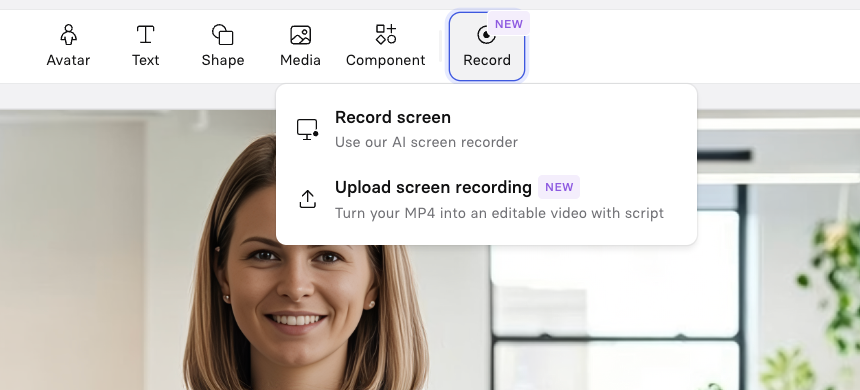
- Select Upload Screen Recording
- Upload your MP4 (up to 500MB, max duration of 30min)
- Review and refine your auto-generated script and scenes
To learn more about today’s release, check out our documentation.
More updates
Keep layouts looking polished for your translated videos
Translate videos without text overflow—translations adapt to each text box, and long strings scale down to keep your slides looking polished.
.png)
Get the skills, insights, and support to help you scale