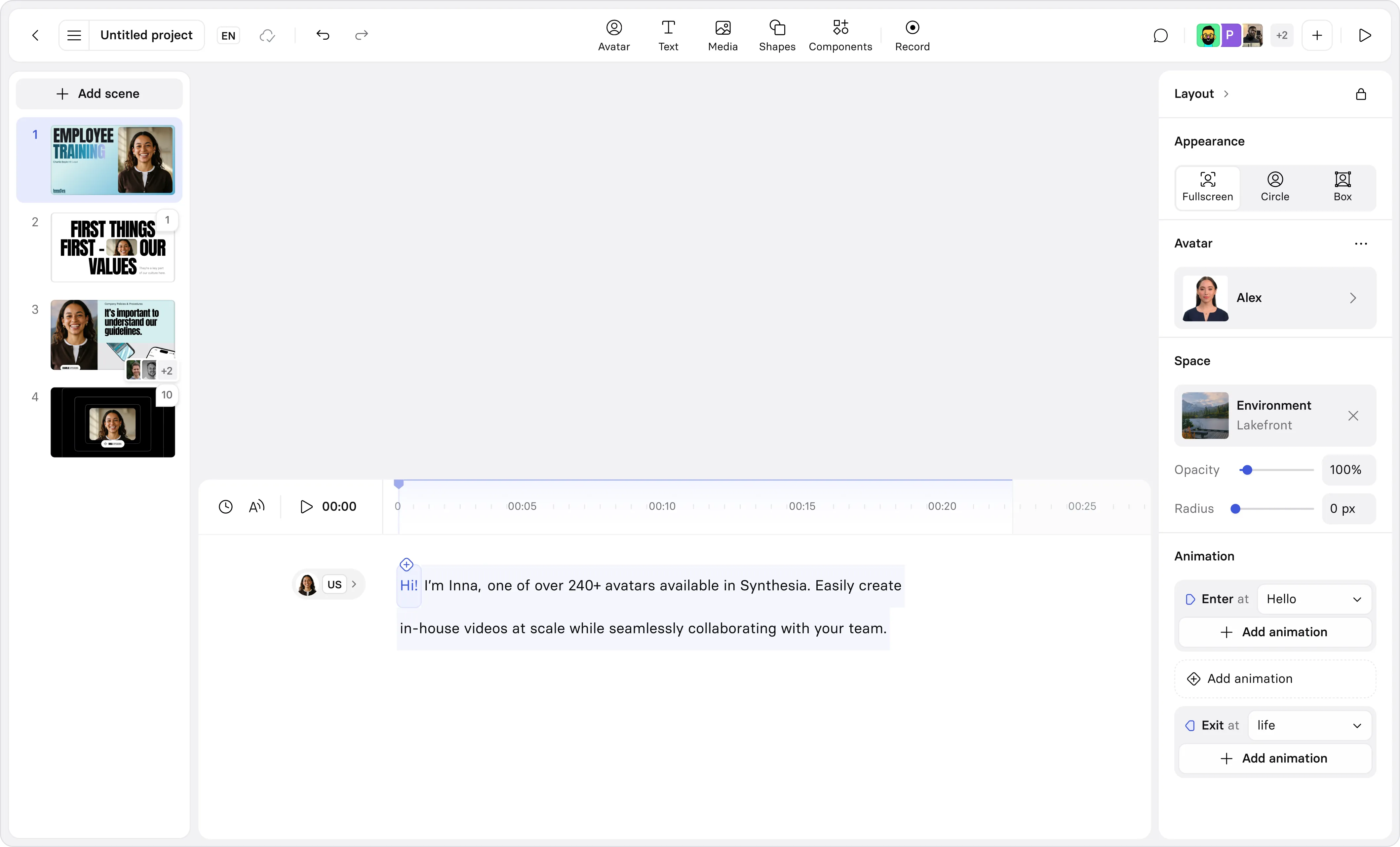
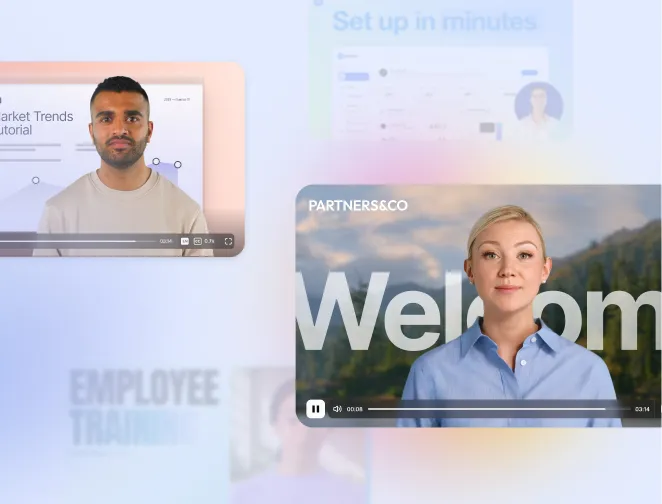
Turn External Screen Recordings into editable Synthesia videos
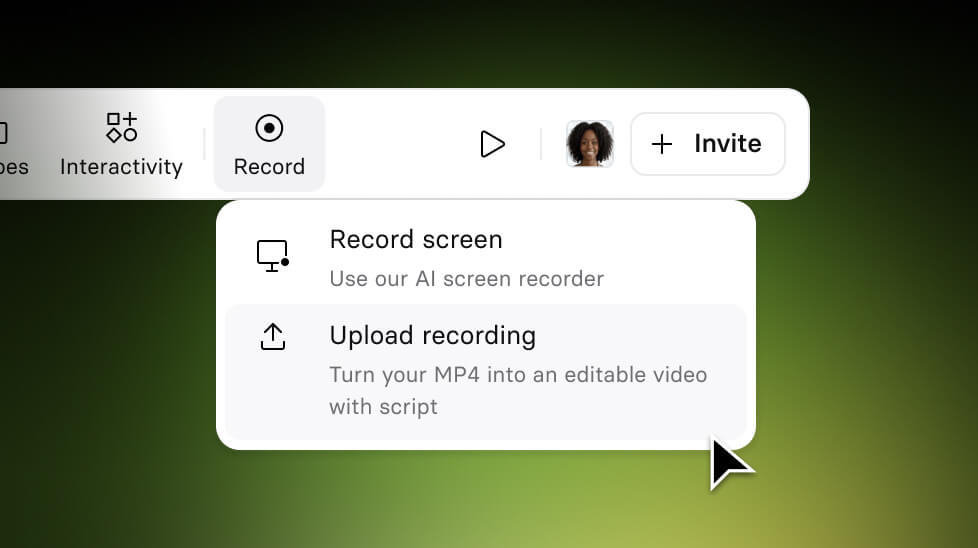
Upload any screen recording (MP4) and Synthesia automatically converts it into a fully editable video.
See what Synthesia can do for you
You can now upload an external screen recording (MP4) directly into the Editor — and we’ll automatically:
- Transcribe the voiceover into an editable script
- Remove filler words
- Split long recordings into structured scenes
- Turn it into a fully editable Synthesia video
Available on all plans.
Why it matters
Bring your own recording from anywhere (QuickTime, Camtasia, OBS, etc.) and save time by instantly converting it into a script-based, structured video. Without having to rebuild everything manually.
This unlocks new workflows: subject matter experts screen record in their preferred tool → then creators refine in Synthesia, teams blocked from using browser extensions can still use the full structured workflow, and legacy training videos can be modernized without re-recording.
In short: you don’t have to start your transcript from scratch anymore when you upload a screen recording – Synthesia automatically transcribes it for you into an editable script.
How to try it
- Open the Editor on an existing Synthesia video
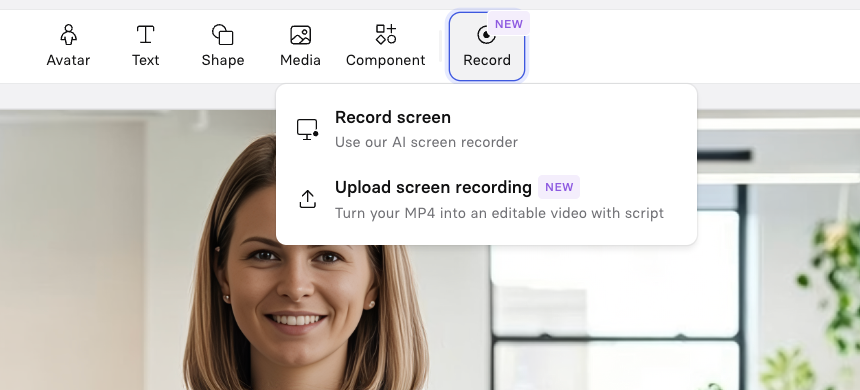
- Select Upload Screen Recording
- Upload your MP4 (up to 500MB, max duration of 30min)
- Review and refine your auto-generated script and scenes
To learn more about today’s release, check out our documentation.

Get the skills, insights, and support to help you scale