



The 18 Best AI Video Generators in 2026 (Tried & Tested)

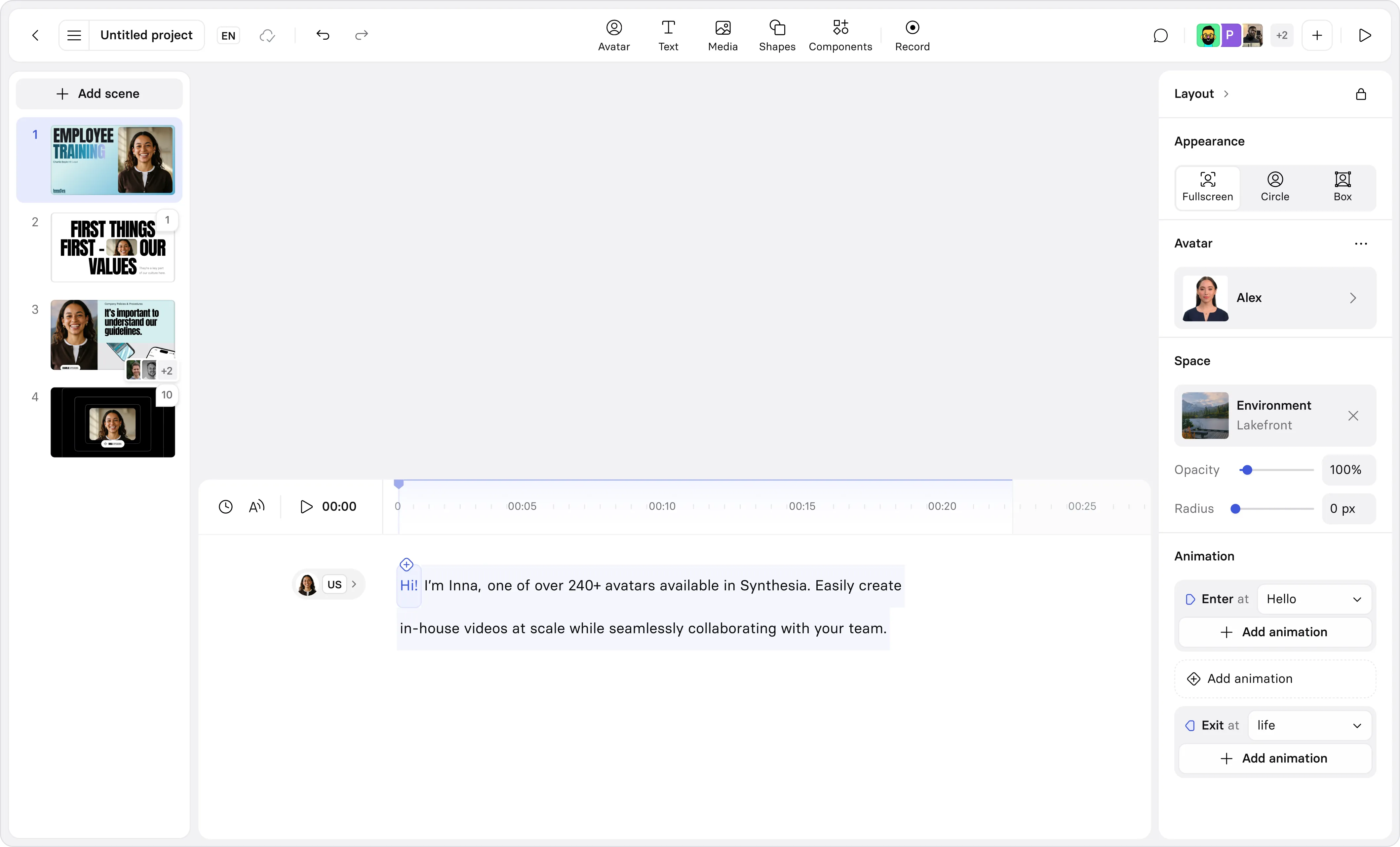
Create AI videos with 240+ avatars in 160+ languages.
I’ve spent my whole career working in video, and even I find it hard to keep up with how fast AI video is evolving.
To find out which AI video generators are worth your time, I’ve personally tested a range of the leading tools for both cinematic and practical use cases.
My ranking of the best AI video generators
Best AI video generators for cinematic videos
Below is my list of the 12 best AI video models for creative AI video projects.
Check out the video below to quickly see them compared side by side with the same prompt, or read on for my full review of each tool.
- Veo 3: Most realistic visuals with strong audio integration
- Seedance 2: Most cinematic output but hard to access
- Gemini Omni: Best filmmaking tool with automatic multi-shot generation
- Kling 3.0: A stable, controllable, production-ready cinematic generator
- Runway Gen-4.5: Strong camera motion but weak detail stability
- Luma Ray3: Most beautiful UX with elegant visual output
- PixVerse 5.5: Good for short, dynamic, social-ready videos
- Grok Imagine: Good for creative, imaginative, emotionally driven visuals
- Wan 2.6: A reliable flexible tool for unrestricted prompts
- Pika 2.5: Playful, low-res tool for viral-style content
- Adobe Firefly: Strong image engine, weak video generation
- Hailuo 2.3: Outdated video quality, not competitive
Best AI video model aggregators
To access a large selection of AI video models from one place (and one subscription), I use these tools:
- Higgsfield: Best all-around platform
- Krea: Best for automation workflows
- Freepik: Best for design workflows
Best AI video generators for work
These are the best AI video creation platforms for practical and business use cases:
- Synthesia: Best for avatar-driven internal comms and training videos
- Creatify: Ultra-fast UGC-style ad generation from a single image
- Invideo: One-prompt marketing videos with strong storytelling but slow rendering
How I test cinematic AI video generators
I ran the same set of prompts through each of the cinematic AI video generators to generate a fair comparison.
My test prompt
"A cinematic aerial shot of a floating city above glowing clouds at golden hour. The camera follows a cloaked traveler riding a hovering speeder, weaving between crystal towers suspended in the air.
Below, rivers of light flow between floating islands with waterfalls pouring into mist. Airships drift past in the background, their metallic hulls reflecting sunlight and lens flare. Magic runes flicker on tower surfaces as drones circle.
The traveler's cape ripples in the wind while the camera performs a smooth tracking orbit with natural motion blur and shallow depth of field. Soft volumetric rays pierce through the clouds, creating prismatic reflections.
Hyper-realistic textures (metal, glass, fog), cinematic teal-orange color grading, and a warm, atmospheric tone."
My evaluation criteria
Once the tools had generated a video based on my prompt, I used these criteria to assess the outcome and make my judgments:
- Accuracy: Whether the video correctly follows the prompt, without missing any elements or adding hallucinations
- Realism: How believable the visuals and physics are of the video content, including lighting, textures, and motion
- Consistency: If the objects, motion, and details hold together in a stable way across frames
- Creativity: How the tool interprets the prompt to make it more interesting or engaging
- Audio quality: If the sound is clean and synced to the video content
- Performance: How long the tool took to generate the video and how streamlined the user experience was
- Constraints: If there were limitations around clip length, cost, access, and other factors
1. Veo
How to get access
- Try Veo 3 via Synthesia's AI Playground [FREE - click on the 'Creative' tab]
- Try Veo 3 via Flow [FREE]
- Buy a Google AI plan [PAID]
Quick summary
- Best for: Cinematic realism with strong integrated audio
- Max resolution: Up to 4K
- Max clip length: ~6–8 sec
- Generation time: ~5–7 min
- Audio: Yes, clean and well-synced
My experience
Pros
- Veo 3's output feels cinematic, detailed, and visually polished. It's one of the strongest AI video models available.
- The model offers very high prompt accuracy. That means that the videos it generated tended to follow what I asked for in my prompt very closely without many instances of hallucinations.
- Veo 3's integrated audio is really strong. In my example you can hear the noise of the speeder and some epic-sounding music. Throughout my testing I found that the Veo 3 audio was clean and well-synced.
Cons
- Veo 3 is quite expensive to use, with a higher cost per clip compared to most of the other models on this list.
- The max clip length of 6 to 8 seconds is on the shorter end of the range you see across other AI video models, which can be a pain as it limits storytelling flexibility in cases where a longer shot would be ideal.
- Veo 3's camera motion often feels a bit restrained and less dynamic. In my test I asked for a "smooth tracking orbit", but I didn't really get it.
My verdict
Veo 3 is definitely one of the best AI video generation models available. It offers users cinematic, detailed, and visually rich outputs alongside audio that is context-aware and works together with the visuals in a really impressive way.
I recommend Veo 3 for filmmakers, storytellers, and designers working on premium narrative or branded visuals who don't mind paying extra for quality.
2. Seedance
How to get access
- No free access available yet
- Via Dreamina/CapCut [PAID]
Quick summary
- Best for: Cinematic motion and camera dynamics
- Max resolution: 720p
- Max clip length: ~15 sec
- Generation time: ~2–3 min
- Audio: Yes
My experience
Pros
- ByteDance's model has extremely strong camera choreography and motion dynamics which feel intentional and film-like. I'd say that the camera motion is one of the major advantages of Seedance 2 compared to Veo 3.
- Seedance 2 allows you to generate clips up to 15 seconds in length which I think is a big advantage. Seedance's video generation time is also one of the fastest of any model on this list.
- Seedance's built-in audio is high-quality and creates immersive sounds with both environmental and musical audio layers.
- The model offers one of the best physics simulations of any AI video generator on my list too. Again, I'd say it's probably comparable to Veo 3.
Cons
- Seedance 2 is still a very new model, so most of the downsides are related to access and pricing. At the time of writing, there's no reliable way to get free access.
- If you're OK with paying, then I'd suggest using one of the AI video model aggregators I cover later in this post, but that's still a relatively expensive option.
- Video resolution is limited to a maximum of 720p, which can hold back your videos in terms of output quality.
- I also found that the prompt adherence was sometimes a bit sensitive and inconsistent, and that it felt like my prompts were being interpreted rather than being treated as instructions to strictly follow.
- Whenever prompt adherence is an issue the end result is that you need more generations to get exactly what you want, which makes the model even more expensive to use.
My verdict
Seedance 2 is pretty amazing and in my opinion is the best model available right now. The model particularly excels in motion, camera intelligence, and realism, and in my opinion is much closer to true cinematic AI video production than any of the other models on this list.
If you're interested in making AI videos for storytelling, film concepts, or high-end visual work, then I highly recommend trying out Seedance 2.
Despite it currently being a pain to get access and the resolution limitations, I'm expecting this model to be regarded as the market leader once it becomes widely available. Of course, there could be another new model that comes out and changes that.
3. Gemini Omni
How to get access
Quick summary
- Best for: AI filmmaking suite with automatic multi-shot generation
- Max resolution: 720p standard (1K/2K download, 4K Ultra tier)
- Max clip length: ~10 sec
- Generation time: ~1 min
- Audio: Yes
My experience
Pros
- I tested Gemini Omni via Google Flow. The model is very fast - I generated this 10 second test clip within 1 minute.
- Omni automatically generates multi-shot sequences like the one you can see in my test output above. It does a good job of selecting the shots and definitely makes the video feel more cinematic.
- The model maintains strong scene consistency across these different cuts, with the character, environment, and lighting all holding correctly across the different shots.
- After generation you can iterate on your video by chatting with the conversational editor and providing additional image and video references. This ability to progressively refine your scenes is Omni’s main strength.
- I’d recommend trying Omni as an editing layer on top of videos you generate in Seedance or Veo.
Cons
- While testing Gemini Omni I found that fast moving objects (especially drones) still deformed and smeared during rapid movement - you can see it in my test output. I could most likely have fixed this easily, but my rule with these test outputs is to give you my first generation with no edits.
- While I really liked the automatic multi-shot sequencing, the feature naturally means that your manual camera control is limited. The model decides the cuts rather than you the user, which could be a problem on some video projects.
- I had quite a lot of trouble with my prompt being rejected, which gave me the impression that Omni’s content moderation might be a little heavy-handed. My test prompt worked on the other models without any issue.
My verdict
Gemini Omni provides users with a really great AI-powered editing environment, but I think in terms of pure output quality it sits below Seedance and Veo.
Since Seedance and Veo produce stronger output, I’d use Omni as an AI-powered editor rather than a standalone generator.
4. Kling
How to get access
- Try Kling with free monthly credits [FREE]
Quick summary
- Best for: Controllable cinematic video generation
- Max resolution: 4K
- Max clip length: ~15 sec
- Generation time: ~4–7 min
- Audio: Yes
My experience
Pros
- My first reaction that they have dramatically improved the stability and predictability of this model compared to earlier versions
- This has resulted in a model with excellent prompt fidelity that followed the instructions in my prompt accurately with minimal deviation.
- I really liked how Kling 3 handled my test, and the output really highlights the strengths of the model when it comes to realistic lighting, physics, and environmental behavior. The motion, reflections, and clouds all feel grounded.
- The camera motion in Kling 3 is great and close to Seedance 2 in terms of quality.
- Kling 3 also offers a max video length of 15 seconds, which is also in line with Seedance 2 and much longer than Veo 3.
- Kling 3 also offers some pretty cool multi-shot workflows that add production-level control which power users will probably enjoy.
Cons
- My main gripe with Kling 3 is that the amazing prompt adherence does come with a downside. I found that the latest model produces output that is slightly less creatively unpredictable than other models or earlier versions of Kling.
- In some cases that's a good thing, but sometimes the little bits of interpretation that a model does adds color to a video, and I do sometimes think Kling 3 could benefit with being a little bit more experimental with its interpretation of my prompt.
- Aside from that, I found that some complex moving objects (e.g. drones) can still result in minor distortions in video generation.
- Kling 3 is also a bit slow when it comes to video generation time.
My verdict
Kling 3 prioritizes control, consistency, and usability over raw creative randomness, and I think that makes it a very useful model and a strong choice if you want predictable and cinematic results that you can actually build a project around.
Overall, I'd say Seedance 2, Veo 3, and Kling 3 make up my three favorite and most utilized AI video models, and when you combine them you can handle pretty much any creative AI video project you can think of.
5. Runway
How to get access
Quick summary
- Best for: Camera motion and creative workflows
- Max resolution: 720p
- Max clip length: ~10–12 sec
- Generation time: ~5+ min
- Audio: No native audio in video generation
My experience
Pros
- Runway's strongest feature is its camera motion. You can direct the camera to take a wide range of shots and they all look smooth and cinematic.
- Runway is quite different to the other models we've looked at so far in this list, in that a lot of its value comes from the creative ecosystem that Runway has built around it. The model offers upscaling, restyling, scene expansion, and workflow chaining. These are all tools for more advanced users, but the Runway interface is also clean and intuitive for beginners.
- I think Runway is probably best suited for users who want a strong creative platform with editing tools and advanced workflows.
Cons
- Runway doesn't offer built-in audio generation natively in video output. It does offer built-in tools for audio, voice and SFX, which offer more room for customization and tweaking to get the audio you want, but that also means additional steps to get a video with sound which less advanced users would probably rather avoid.
- I found that Runway's physics is pretty average compared to the top competitors on this list, and I also noticed a lot of blur and distortion during motion. I think you can see some of that come through in my test output above.
My verdict
Runway 4.5 feels like more of a creative experimentation platform than a production-ready AI video generation tool. I think it's a strong platform for ideation, but that it struggles with realism and consistency when it comes to actually generating the final video output. To put it simply, I think Veo, Seedance, and Kling are all much better at generating videos that I want to watch.
I see Runway as a useful toolkit as part of a broader AI video generation workflow, but not very useful as a primary video generation tool. If you are a filmmaker or creative director looking to explore visual concepts, or if camera movement and composition matter more for your project than realism, then Runway might also be a good option for you.
6. Luma
How to get access
- Try Luma Dream Machine [FREE]
Quick summary
- Best for: Aesthetic visuals and artistic scenes
- Max resolution: Up to 4K (tested via Firefly)
- Max clip length: ~5–10 sec
- Generation time: ~2–7 min depending on mode
- Audio: No native audio
My experience
Pros
- Luma's Ray3 model provides strong, artistic outputs with excellent color, lighting, and composition. I found that the model performs particularly well when prompting for calm, atmospheric, and nature-based scenes.
- Luma's Dream Machine interface itself is beautiful and intuitive. I think it's one of the best-designed AI video tools available, and it offers a variety of customization options including camera controls, presets, and start/end frames.
- I also liked the Modify editor and Boards features, which I think are useful additions in terms of creative workflows that the tool can support.
- Luma Ray3 offers up to 4K upscaling capabilities at a relatively accessible price point.
- I found the Ray3 model to be pretty stable and reliable across my test generations too.
Cons
- Luma doesn't support native audio or lip sync. AI video models without native audio are now really at a major disadvantage given that most of the top-tier models do now support it.
- You can see in my test above that Luma Ray3 struggled with complex motion and fast-moving scenes. The physics also appears to break down during moments of dynamic camera movement. While the above video you see is my first generation, this wasn't an isolated incident.
- While I found the model aesthetically impressive, any complex motions seem to get messy often and objects often got blended together unnaturally.
My verdict
Luma is a fun tool to use, and the Ray3 model does well for certain scenes. I recommend giving it a try if you are trying to generate scenes where atmosphere, elegance and visual storytelling are your priority. It's a much better fit for slower, artistic scenes, but is definitely not suited for action-heavy, dialogue-driven, or realism-critical projects.
7. PixVerse
How to get access
- Try PixVerse (free daily credits) [FREE]
Quick summary
- Best for: Short-form cinematic and social content
- Max resolution: 1080p
- Max clip length: ~5–6 sec
- Generation time: ~1–2 min
- Audio: Yes
My experience
Pros
- After playing around with PixVerse I think that it's capable of generating videos with strong cinematic atmospheres.
- The prompt adherence was solid and I particularly liked the camera movement (see my test output above), which I found to be dynamic, engaging, and really helped to add energy to my scenes.
- The city in my test scene felt larger and more impressive than I’d intended, which I think helps create a cinematic sense of scale.
- The model also has decent built-in audio generation that did a good job of matching the mood of my scenes.
- PixVerse is also a very practical model in that it has both very quick generation times and affordable pricing which includes generous free credit allowances.
- The model also offers a preview mode, which goes a long way to helping reduce costs when you're iterating on a video (I wish all AI video generation models had this feature). I also found PixVerse to be very easy to use, and definitely more accessible than some of the higher-end models I mention further up the list.
Cons
- The main weakness of PixVerse is the very short maximum clip duration of only 6 seconds, which I found very limiting when I was looking to generate something with more depth or complex storytelling. Obviously you can stitch clips together but it still limits the kind of shots you can create.
- PixVerse does offer built-in audio generation when generating video, but the audio quality felt a bit noisy and less polished than some of the other options on this list, like Seedance or Veo for example.
- Another issue I noticed on a few occasions was the loss of detail and stability whenever I tried a fast camera movement.
- More generally I'd also say that the realism and fine details are just a bit more limited compared to the other top-tier models on this list.
My verdict
I think that PixVerse is worth using as a complementary tool, rather than as your primary video generator.
It prioritizes speed, accessibility, and visual impact over realism and depth. I don't think it's very suitable for long-form storytelling or high-end film work, but it is great for quick experiments, ads, and viral-style videos.
I could also see a place for it as a tool for short-form, social-first video content.
8. Grok Imagine
How to get access
- No free video generation
- Buy a Grok plan [PAID]
Quick summary
- Best for: Creative concepts and cinematic mood
- Max resolution: 720p
- Max clip length: ~15 sec
- Generation time: ~1.5–2 min
- Audio: Yes
My experience
Pros
- Grok Imagine's biggest strength is how it visually interprets your prompt in extremely creative and imaginative ways. The model has a unique fantasy aesthetic that stands out from the other more realism-focused tools, and I noticed that it's really great at turning scenes into narrative and emotionally driven moments. I also liked Grok Imagine's cinematic lighting and atmospheric design.
- The model offers integrated audio generated with both music and ambient sound which I think does a good job of matching up with my scenes.
- Grok Imagine can generate video output of up to 15 seconds, which allows you a lot of room to get creative. The video generation time is also one of the fastest on this list.
Cons
- Grok Imagine's output is limited to 720p resolution, which caps the overall production quality you can get out of the model.
- I think that the output from Grok Imagine is less predictable due to its stylized and interpretive nature. This is a bit of a weakness when you are looking for precise execution of a prompt that contains specific details or a lot of direction.
- In general Grok Imagine's physics and motion consistency can be unreliable, especially when compared to the top-tier models. I also noticed some occasional loss of fine detail and visual sharpness.
My verdict
Grok Imagine is a highly creative, imagination-first video generator rather than a realism-focused tool. I think it's one of the more interesting tools available right now.
As a result, it's great for emotional storytelling, mood, and visual experimentation, but not ideal for video projects where realism and/or prompt adherence is critical.
I think it's best used during ideation, but after you've got your concept it's best to move to other more controllable tools.
9. Wan
How to get access
- Try Wan with daily free credits [FREE]
Quick summary
- Best for: Reliable generation and flexible prompts
- Max resolution: 1080p
- Max clip length: ~5–15 sec
- Generation time: ~1–5 min
- Audio: Yes
My experience
Pros
- Wan is the least sensitive model when it comes to content restrictions. If you have a prompt that is getting blocked on other models for whatever reason, Wan is the model that is most likely to generate your video.
- Wan can generate clips up to 15 seconds long and has built-in audio generation. It's also a very cheap model to run and seemed to be very reliable during my testing (i.e. there were no failed generations). All of this means that Wan is a great model to get a concept shot with audio generated quickly, cheaply, and without fuss.
- While I acknowledge that the quality of my Wan test clip isn't amazing, it does have good motion coherence and I think some of the detailing is impressive too.
Cons
- Wan has lower overall cinematic depth compared to the top-tier models (like Veo, Seedance, and Kling). Its output is often quite stylized and quite cartoon-like, so it's probably not the best model to use if you're going for cinematic realism.
- I also found that Wan's physics was often on the weaker side and the general stability of the model was questionable.
- Wan supports built-in audio generation, but in several of my test generations the audio contained unwanted artifacts and lacked realism.
- One other issue I had with Wan was the limited editing and post-generation control.
My verdict
Wan isn't a high-end cinematic model, but it is highly practical and dependable. It's a model that prioritizes usability and flexibility over realism and polish, and I think it excels as a "workhorse" generator when other models might fail due to content moderation restrictions.
10. Pika
How to get access
- Try Pika with free monthly credits [FREE]
Quick summary
- Best for: Viral clips and social content
- Max resolution: 480p on free plan
- Max clip length: ~5–10 sec
- Generation time: ~2–4 min
- Audio: No
My experience
Pros
- I found that Pika was fast and easy to use as a creative sandbox, and that the Free plan makes it very accessible for testing and experimentation.
- Compared to earlier versions of Pika that I have played around with, there's a notable improvement in prompt coherence and color grading.
Cons
- I think the video output from my testing of Pika is pretty disappointing. The video lacks depth, realism and any real cinematic quality, and I also think that the motion physics looks particularly simplified and weak.
- Pika doesn't support audio generation at all.
- Overall I think that Pika isn’t suitable for cinematic nor commercial-grade output.
My verdict
I think Pika falls behind in terms of realism, physics, and overall quality of video output.
The platform feels more like a creative playground than a serious video production tool, and for that reason I see it as best suited for quick, fun, and experimental content or for testing ideas.
11. Adobe Firefly
How to get access
Quick summary
- Best for: Adobe ecosystem and concept visuals
- Max resolution: 1080p
- Max clip length: ~5 sec
- Generation time: ~60–75 sec
- Audio: No
My experience
Pros
- I think the main selling point of Adobe Firefly is that it sits within the Adobe ecosystem, which is familiar to a large number of creators. That means you can enjoy seamless integration with other Adobe tools like Photoshop and Premiere.
- The platform offers high-quality image generation with creative and varied outputs, which comes in handy when you are working with image-to-video workflows.
- The Firefly model also has very fast generation times and I found the model to be stable and reliable throughout my testing. I think this makes Adobe Firefly a useful model for concept exploration and early-stage motion ideas.
Cons
- The overall quality of video output is pretty weak compared to the better models both in terms of realism and cinematic depth.
- I also had issues with prompt coherence with a number of my test generations missing key details I specified in my prompt.
- I think the limited level of camera and motion control is apparent in my test output above - I see no signs of a tracking orbit shot in this clip.
- Adobe Firefly doesn't support integrated audio generation.
- The model is also expensive with what feels like an unreasonably high credit usage per generation.
My verdict
I'd only really recommend using Adobe Firefly if you really need an AI video generation tool that sits within a broader Adobe workflow. Aside from that use case, I think I'd avoid it.
It feels like an early-stage video tool and clearly falls behind the competition in terms of the realism, motion and storytelling quality of its output, although it does have one bright spot in its image generation capabilities.
To put it simply, I don't think Adobe Firefly is a competitive standalone AI video generator.
12. Hailuo
How to get access
Quick summary
- Best for: Stylized visuals
- Max resolution: 1080p (lower for longer clips)
- Max clip length: ~6–10 sec
- Generation time: ~3–12 min depending on mode
- Audio: No
My experience
Pros
- When the video generation worked, I felt like the video output was overall relatively stable. By that I mean there were no unwanted artifacts in the final output.
- I think the colors are quite pleasant, especially on the main character, and the fabric of the character's cloak also shows an interesting and unique style.
Cons
- I struggled with quite a number of generation errors and prompt restrictions while testing Hailuo. Generation errors cost money and take me out of the flow of working, so I really tend to avoid a model that has issues with this.
- Hailuo also doesn't offer any type of audio generation. I think built-in audio generation is more or less table stakes to be a competitive AI video generation model now.
- Most importantly, Hailuo's video output quality wasn't really up to standard. I found the level of realism to be very lacking and the overall visual quality to be outdated. Looking at my test output I feel like this is something I would have expected from an AI video model a year or two ago, but not now.
- The test video output also demonstrates minimal camera movement and a lack of cinematic depth. I think the low level of detail in distant objects and environments is also noticeable.
My verdict
Overall, I wouldn't recommend using Hailuo in its current state, and I don't see an obvious use case for this model. It feels outdated and it's not competitive with the better models available.
Comparison table
AI video model aggregators
The main way I tested the tools listed in this article was using AI video model aggregators. These platforms gave me access to multiple AI video models in one place. So, instead of relying on a single model, I was able to experiment across tools and select the best video result(s).
For me, the advantages of AI video aggregators are:
- Efficiency: Test tools and compare video output in one environment, which makes it much easier to select the best generated video and iterate quickly. And for professional purposes, select the AI video generation platforms that have the most compatible workflows and automation for their organization.
- Cost savings: Many AI video aggregators charge credits for video generation, but they’re still more affordable than subscribing to multiple tools.
Here are my 3 favorite AI video aggregator platforms:
1. Higgsfield
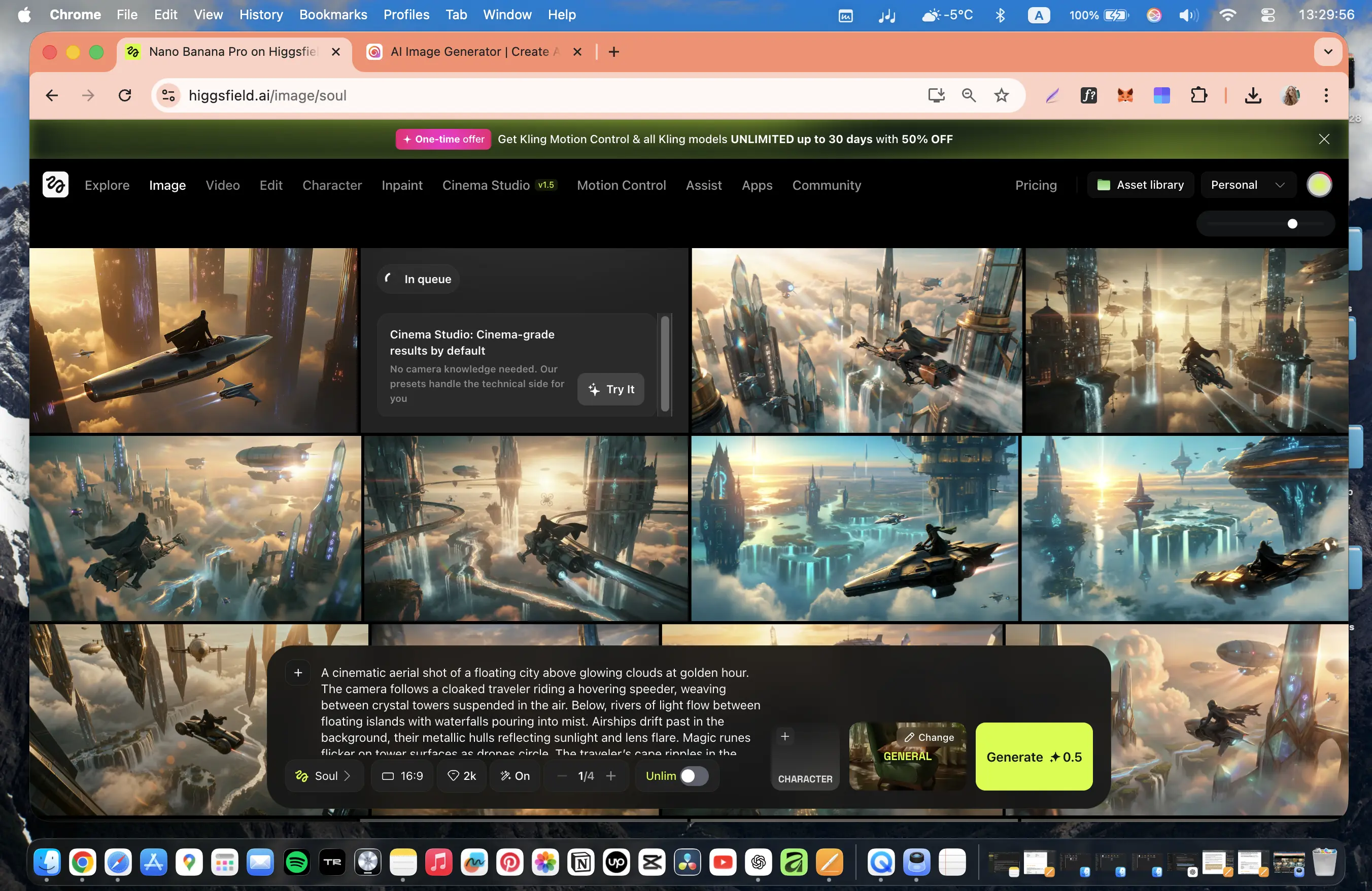
Higgsfield is my favorite AI aggregator which I have used daily for almost two years.
It offers a wide range of AI image and video generation models which are all accessible via a clean and user-friendly interface.
The platform often gives users access to the latest AI models very quickly (within a day or so of them becoming publicly available), and often with free unlimited use during testing periods. This is probably the biggest advantage for me as I love to play around with the newest AI video generation tech.
The ultimate plan costs $49/month, and includes unlimited AI photo generation, which is great when storyboarding and when using image-to-video models. I think the price is pretty good value for money.
I think Higgsfield is useful for a wide range of diverse use cases, including working with short films, ads, AI influencers, and branded content.
2. Krea
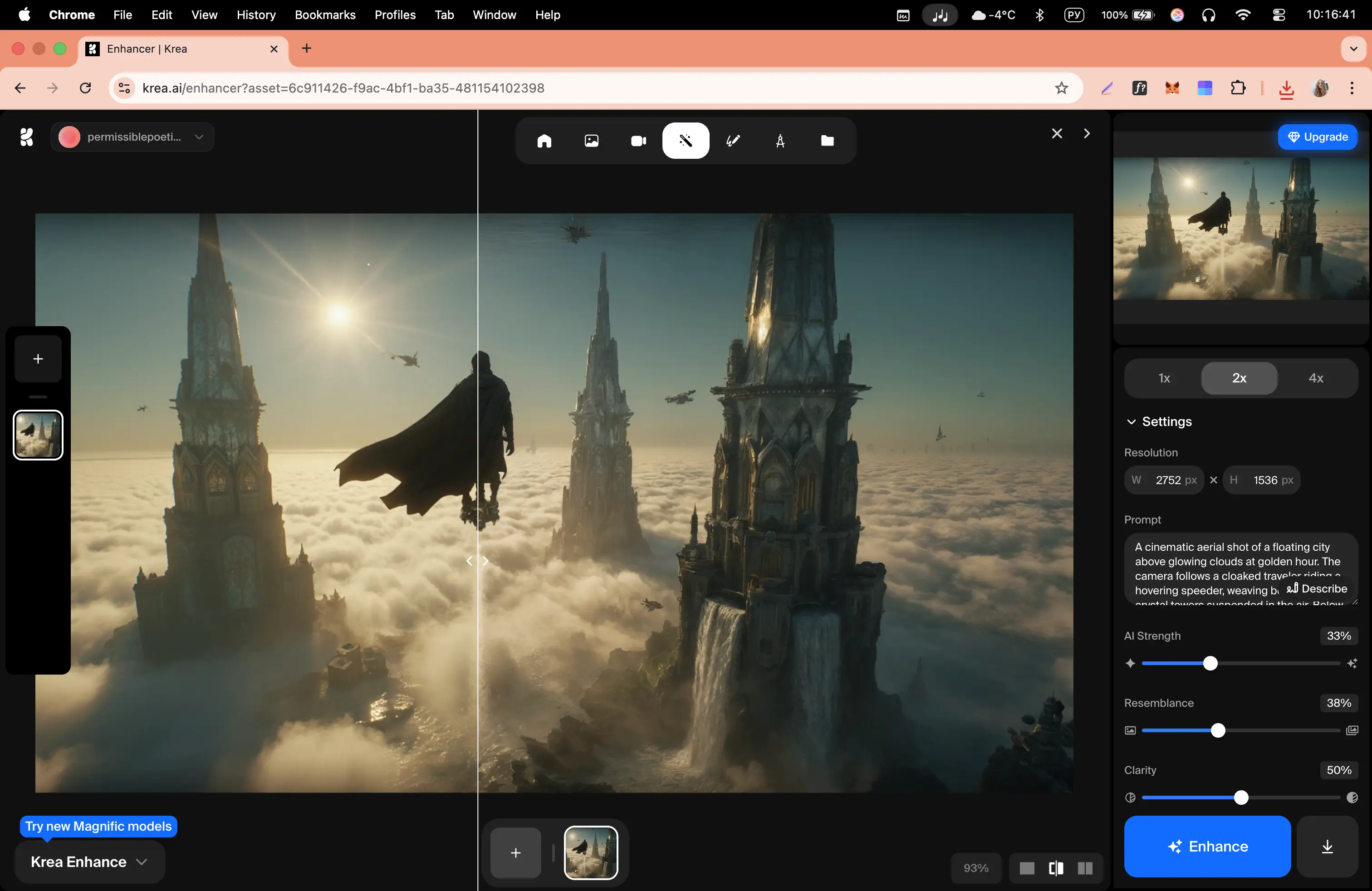
Krea is another powerful AI video model aggregator that I like to use.
I don't use it as my daily tool simply because the pricing isn't as competitive as Higgsfield, and also it doesn't offer unlimited AI image generation.
However, Krea does include a wide range of AI models covering image, video, 3D, and motion, as well as various automation workflows.
Krea's other selling point is that it offers advanced features like node-based workflows that are not common in other aggregators. I've found that these workflows make the platform particularly strong for repeatable pipelines and automation-driven work.
3. Freepik

Freepik is another AI video model aggregator that I've tested, and I think it's pretty great. It was originally a platform for stock photos, but has now evolved into a full AI-powered creative workspace.
Similarly to the other options in this list, it offers a combination of the top image and video generation models.
Like Krea, it also includes several node-based workflows and design-focused tools, and like Higgsfield, it offers unlimited AI image generation.
It wraps it all up in a clean and intuitive user interface.
AI video generators for work
Here are my three favorite AI video generators for work, with each one covering a different use case.
1. Synthesia
How to get access
- Try Synthesia [FREE]
Quick summary
- Best for: Training, onboarding, internal communications, sales enablement, and localized content
- Output types: Avatar-led videos
- Input: Prompt, script, document, or URL
My experience
Pros
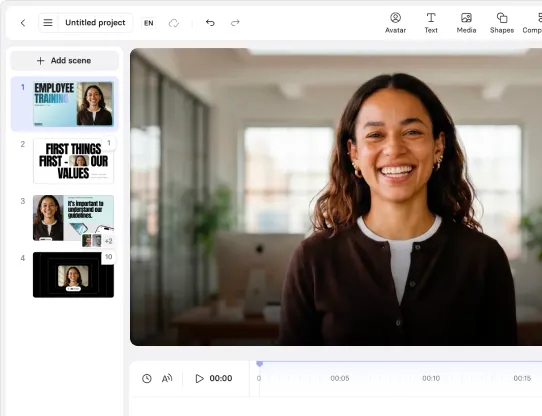
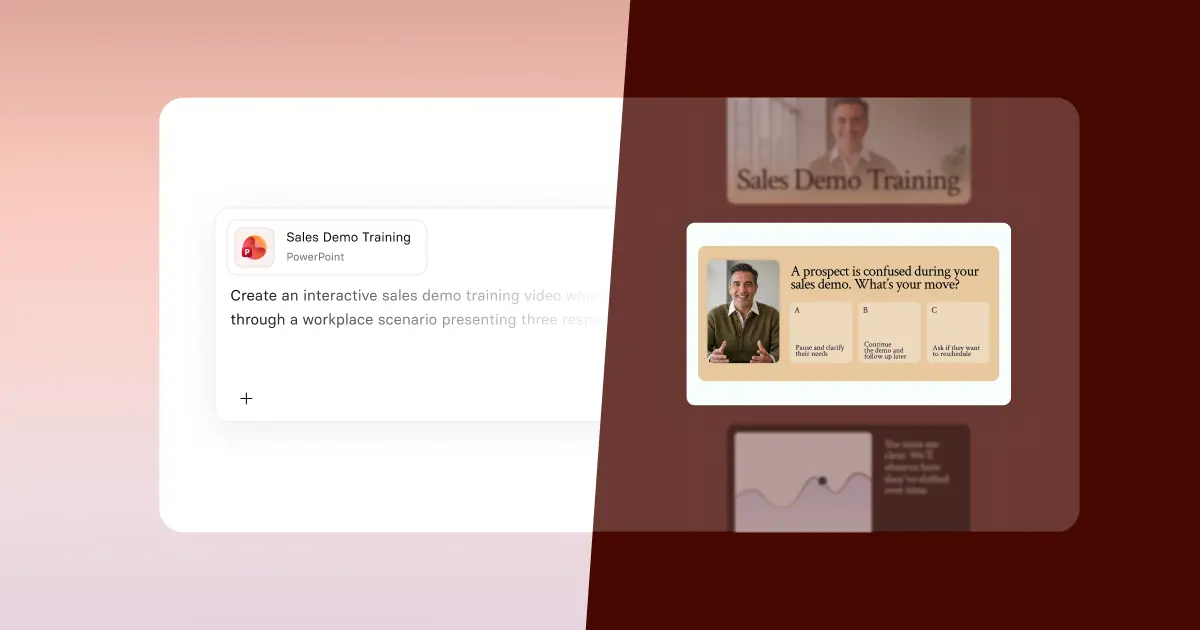
- Synthesia is an AI video generation platform built for enterprise. It makes it easy to generate high-quality AI videos with avatars, motion graphics, interactivity, animations, and AI-generated video and image assets. You start with a prompt, a document, a script, or a URL and build a video from there by iterating with the platform's Assistant.
- The AI avatars are super-high quality and you can customize them and get them to take actions, which gives you a lot of flexibility in the types of videos you can make.
- You can easily make a Synthesia personal avatar that looks like you from an image or a quick recording on phone or laptop.
- Another strength of Synthesia is that it's great for video localization. You can generate videos in over 160 languages, and you can use the platform's AI dubbing tool to translate any video into over 130 languages.
- Synthesia is also integrated with Veo 3, so you can generate custom B-roll for your video using some of the best AI video models.
- Synthesia-generated videos are best suited to enterprise use cases like training, enablement, and internal comms.
Cons
- Synthesia is built for enterprise video use cases, which means that it isn't really suitable for anything cinematic. I recommend sticking to the creative models I reviewed earlier for that kind of video project.
- Since Synthesia is enterprise-focused, there's also quite strict content moderation in place. This means that if your prompt has any hint of anything slightly violent, offensive, or political, it probably won't get generated.
My verdict
Synthesia is proven as the go-to tool for businesses that want to make AI-powered video creation easy. It's used by over 90% of the Fortune 100 to create videos for training, sales and enablement, and allows users to easily turn scripts, documents, webpages, or slides into engaging video without any of the drawbacks of traditional video production.
2. Creatify
How to get access
- Try Creatify [FREE]
Quick summary
- Best for: UGC-style ads, performance marketing, rapid ad testing
- Output types: Avatar-led ads, product videos, image ads
- Input: Product image, brand info, basic description
My experience
Pros
- Creatify is positioned as a tool for making UGC-style avatar video ads for use in performance marketing (i.e. ads for Meta, Instagram, etc). I made the UGC-style ad above as a test and I think it came out pretty well.
- The Creatify platform is easy to use with a simple workflow that allows you to quickly generate full ads from a single product image, with a large part of the work (i.e. the script creation, the avatar, and subtitle generation) being automated for you.
- The avatars themselves are pretty great, with a wide range of presenters, tones, and styles to choose from so that you can find one that matches the tone of your ad. I think they look super realistic.
- You can easily generate multiple ad variations for testing, and there is a direct integration with platforms like Meta and TikTok to make it easy to get your Creatify-generated videos live and generating conversions.
Cons
- I think Creatify specifically works well for simple products or promotions, but I found that it struggles a bit when real-world context or interaction is needed in your ad.
- The platform is great at what it was designed for, which is UGC-style ads, but the output feels very template-driven and non-cinematic by design, so while it's great for the performance marketing use case, I don't recommend trying to use Creatify to generate any other types of videos.
My verdict
I think Creatify is a fantastic tool for performance marketing that is ideal for quickly generating large amounts of decent quality ad creatives for testing in real campaigns.
It's less suitable for premium branding, storytelling, or high-end creative work.
3. Invideo
How to get access
- Try Invideo [FREE]
Quick summary
- Best for: Generating full marketing videos from a single brief
- Output types: Social media ads, product videos
- Input: Text brief, product details, images
My experience
Pros
- Invideo makes it possible to generate a complete marketing video with a script, visuals, voiceover, and editing all from a quick prompt and some product info and images.
- I think that the test video output above demonstrates strong storytelling and marketing logic straight from the brief I provided, and placement of the product in the video looks realistic.
- The platform can generate videos with resolutions up to 1080p with a consistent style, and the videos are fully editable after generation, which allows you to easily iterate.
- I think Invideo is best suited to product promotion and ads. It can save you a lot of time and expense compared to traditional video production, and the output quality, while not perfect, is good enough for a lot of marketing video use cases.
Cons
- The biggest drawback I found with testing Invideo was the generation time. It took me up to 1 hour to generate some of the longer videos I attempted.
- I also found the generation process to be somewhat unstable, as there were a number of times when the generation progress reset to 0% or just stopped moving.
- Overall I think the output was very good, but I did spot a few inaccuracies in the representation of the product in the video. These would probably require iteration or manual fixes if I needed a final polished output for public-facing marketing content.
My verdict
I found Invideo to be a powerful AI video generator for marketing use cases. I think it's best used for generating social media ads and product videos where you need near production-ready outputs with minimal inputs.
While it has some issues with generation time and reliability, it's definitely worth trying if you want marketing video production without a lot of resources.
Kyle Odefey is a London-based filmmaker and Video Producer at Synthesia. His content has reached millions across TikTok, LinkedIn, and YouTube, even inspiring an SNL sketch, and has been featured by CNBC, BBC, Forbes, and MIT Technology Review.
Frequently asked questions
What’s the best AI video generator for cinematic videos?
I think the best AI video generator for cinematic videos is either ByteDance's Seedance 2 or Google's Veo 3. Seedance 2 offers much longer video output, shorter generation times, and excels at complex physics and dynamic movement, while Veo 3 has strengths in character consistency and offers higher resolution output. I often combine both models in my workflow depending on the shot I'm after, so I suggest you do the same.
What’s the best AI video generator for enterprise use cases like training, enablement, and internal comms?
Synthesia is the best AI video generator for enterprise. It combines a super realistic AI avatar generator with an easy to use PowerPoint-style video editor and the ability to add interactivity, motion graphics, and AI-generated assets to allow you to generate enterprise-ready video in more than 160 languages.
What’s the best AI video generator for UGC-style performance marketing ads?
Creatify is the best AI video generator for UGC-style performance marketing ads, as it has realistic UGC-style AI avatars, an easy to use workflow for generating ad variations, and integrates seamlessly with the main ad platforms like Meta and Tik Tok.
What’s the best AI video generator for social media marketing videos?
Invideo is the best AI video generator for social media marketing videos, as it makes it easy to generate high quality (1080p) product-focused marketing videos with a simple brief and some images of your product.
What is an AI video model aggregator?
AI video model aggregators are platforms that give you access to multiple AI video models in one place for one subscription.
What’s the best AI video model aggregator?
I think Higgsfield is the best AI video model aggregator, because it offers a wide range of AI image and video generation models for a reasonable price with a clean and user-friendly interface. It also tends to give you access to new models very quickly.

.webp)

.webp)