



How to Use Veo 3.1 for Free (in 1 Minute)

Create AI videos with 240+ avatars in 140+ languages.
Veo 3 is one of the most advanced AI video models available today, capable of generating realistic, cinematic video clips from simple text prompts.
While you typically need a subscription to use Veo 3, you can try it for free using Synthesia’s AI Playground. This lets you generate short video clips directly in your browser, with no downloads or technical setup required.
Here is how to use Veo 3.1 for free in just a few steps.
Step 1: Sign up for a free Synthesia account
Start by creating a free Synthesia account. You can sign up using your email address or a Google account.
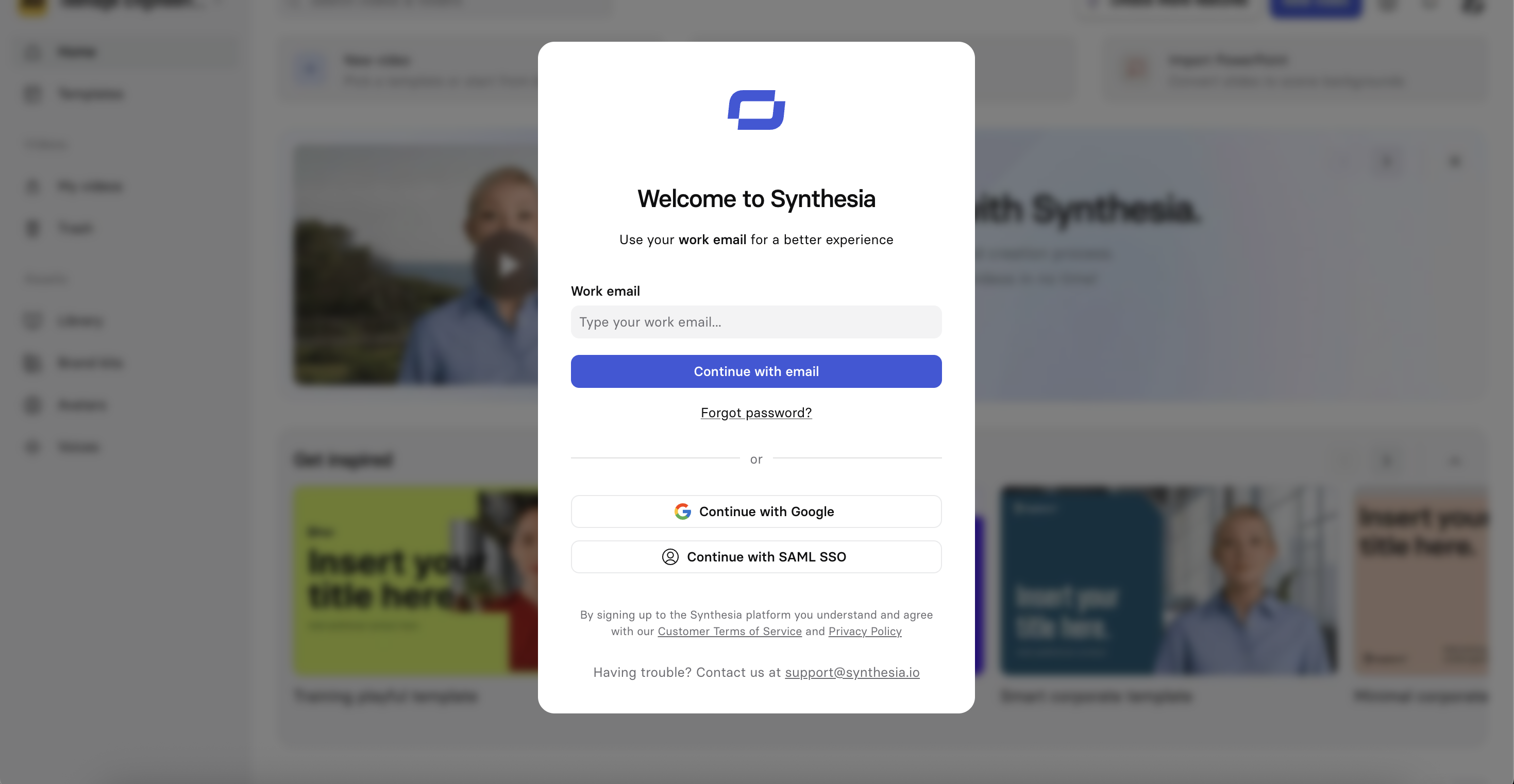
Verify via the code sent to your inbox.
Step 2: Navigate to the AI Playground
After logging in and going through the onboarding steps, navigate to the AI Playground which can be found in the left-hand sidebar from the main Synthesia dashboard.
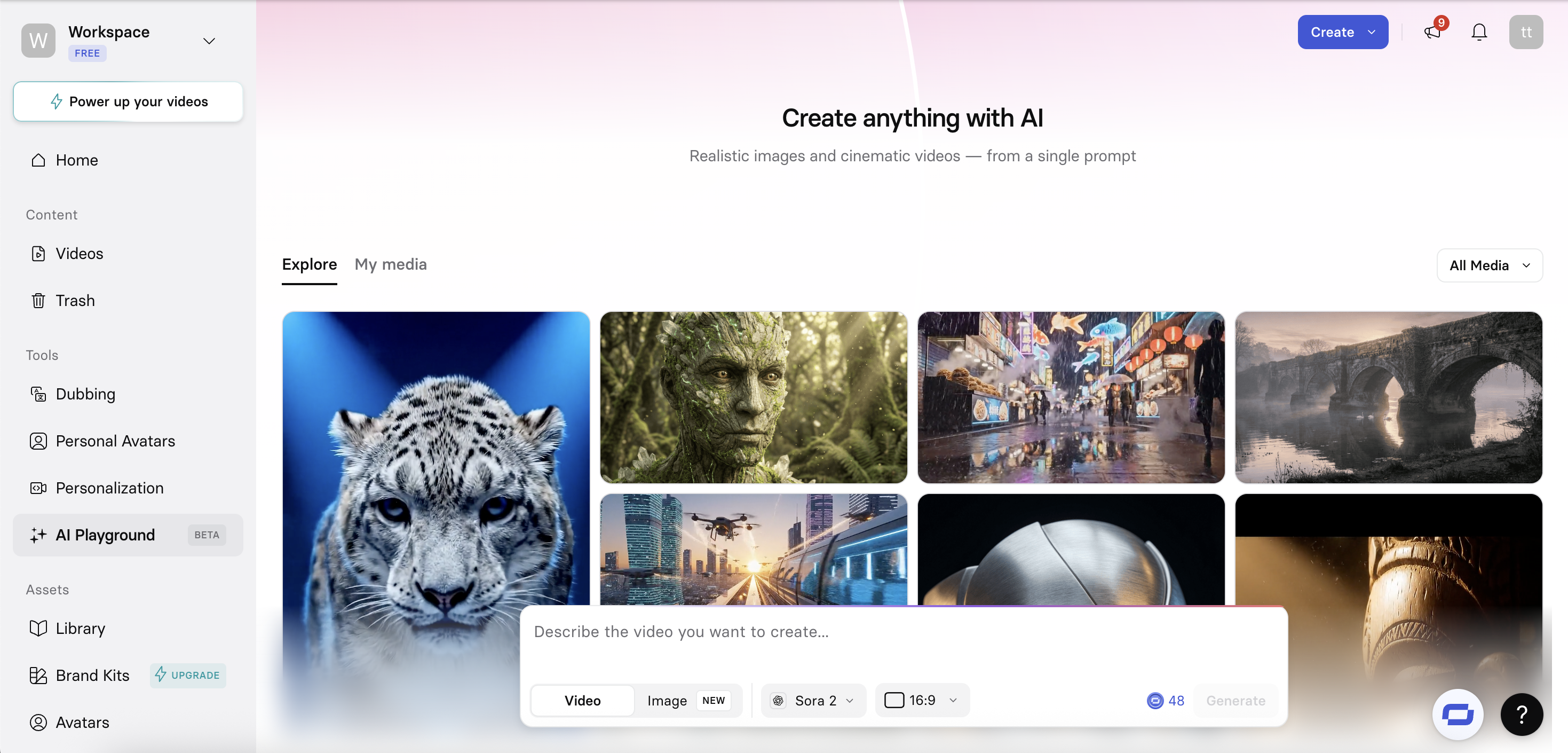
The AI Playground is where you can generate video clips and images using text prompts. It allows you to test multiple generative AI models in one place and quickly compare results.
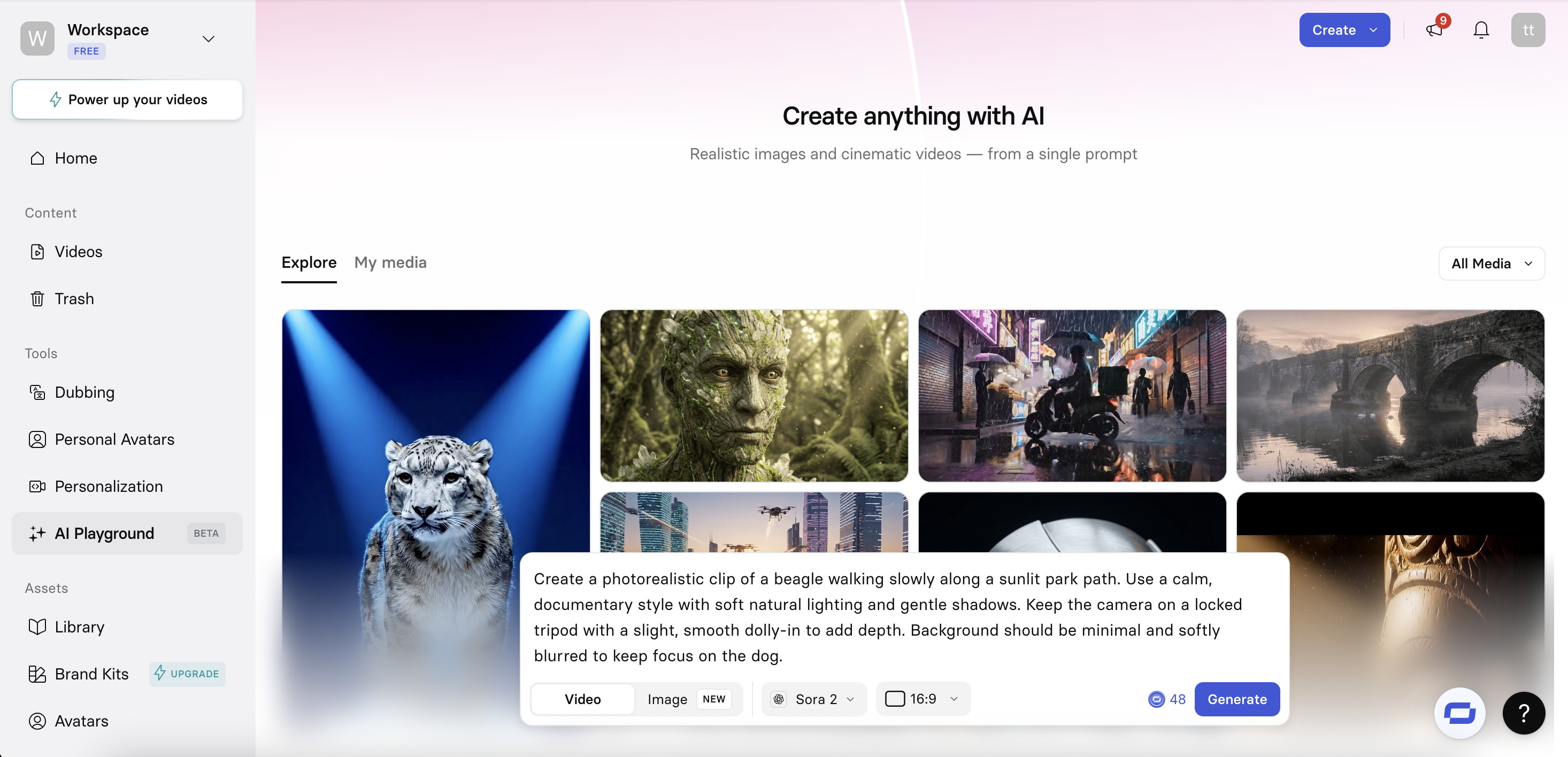
Step 3: Input your prompt
In the prompt field, describe the video you want to generate. The more specific your prompt is, the better the results will be.
Step 4: Switch to Veo 3
Before generating the video, make sure you select a Veo 3 model. Currently you can choose from Veo 3.1 and Veo 3.1 Fast.
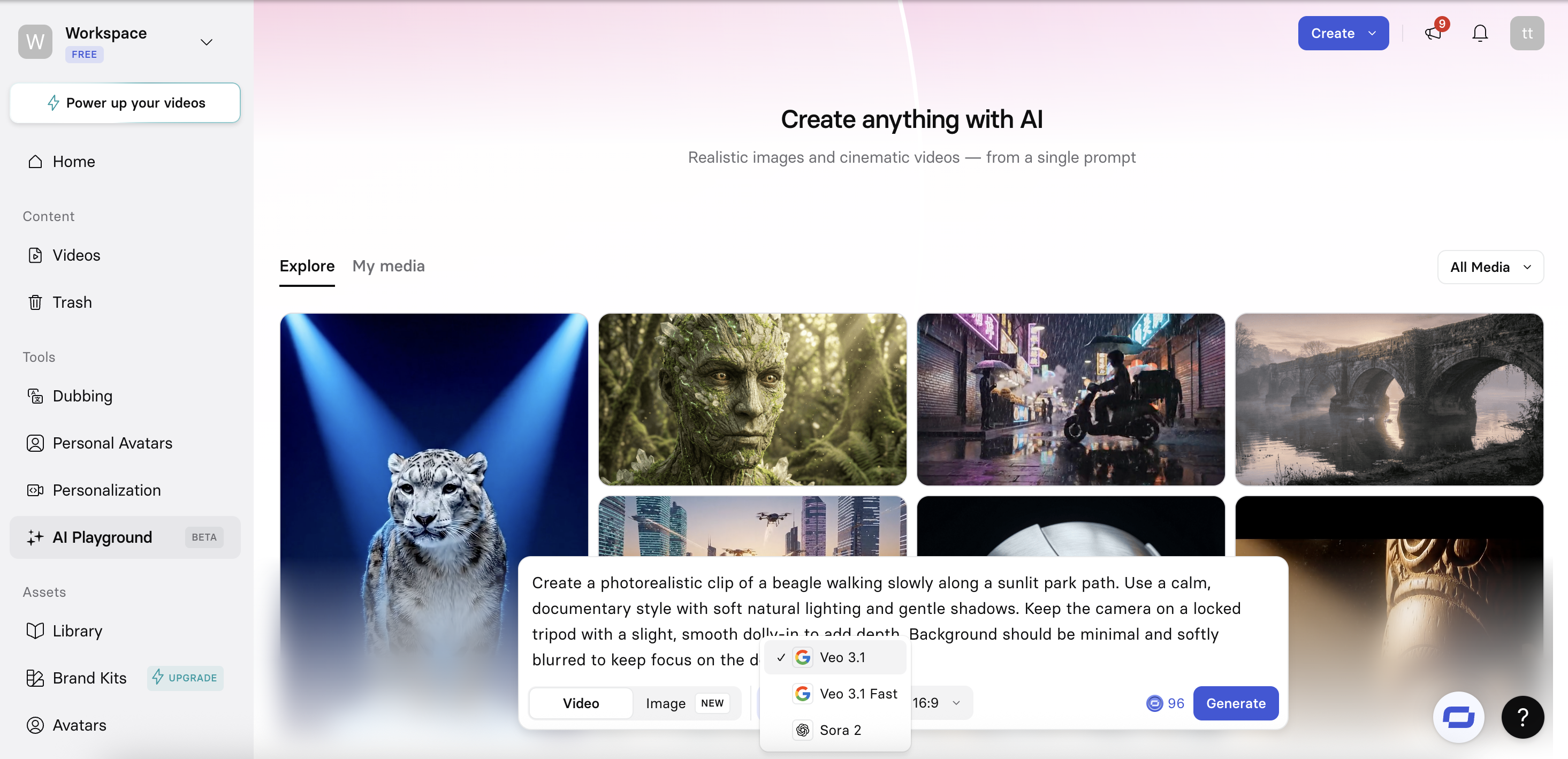
You can also change the video aspect ratio, opting for 16:9 or 9:16.
Step 5: Generate video
After submitting your prompt, your video clip will begin generating.
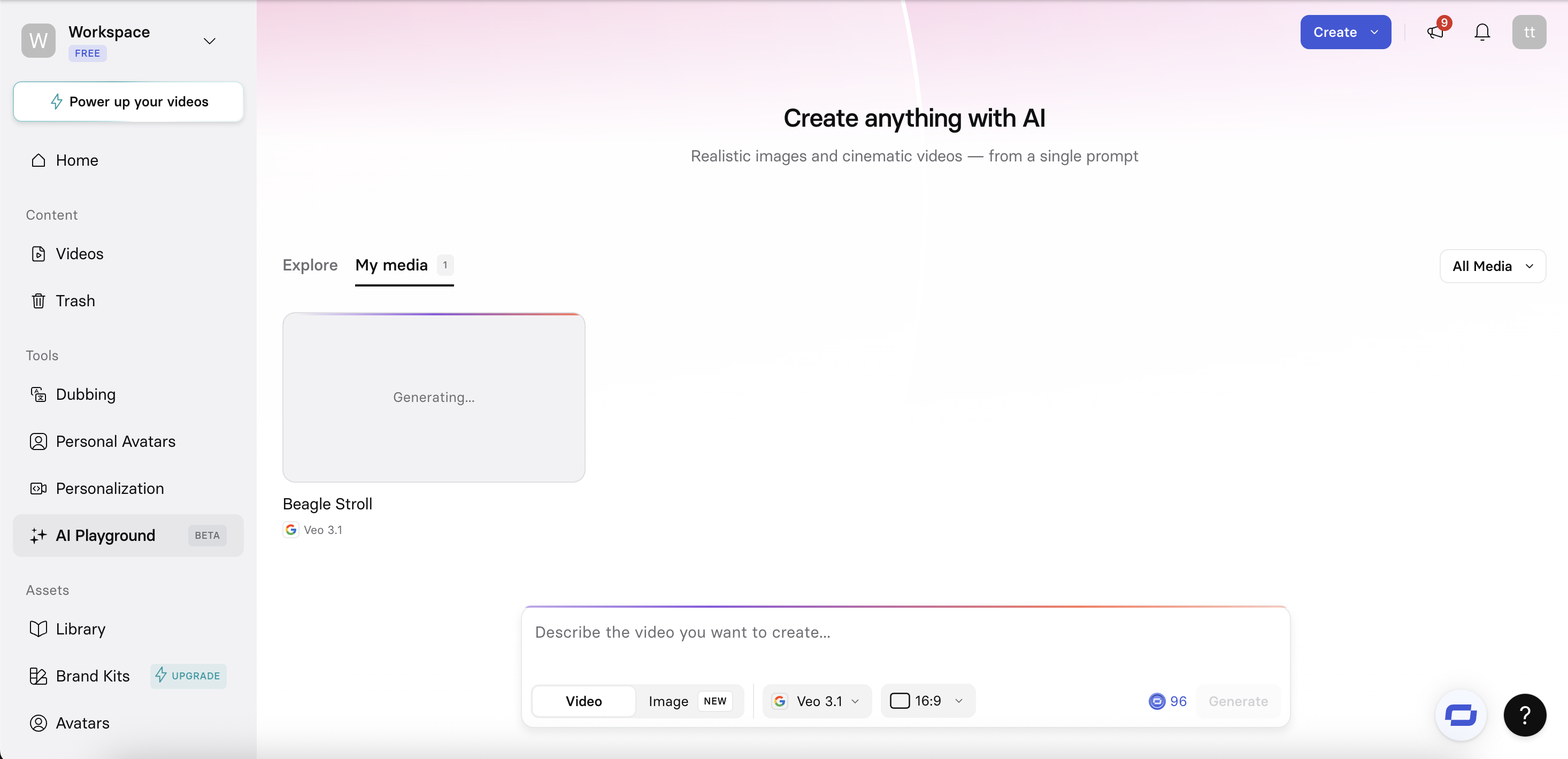
It will take a few moments to generate, Whilst waiting, you can explore the pre-generated visuals in the AI Playground, or explore other areas of the Synthesia platform.
Step 6: Share, download, or start creating with your clip
Once your clip is ready, you can:
- Preview the full video
- Share it using a link or invite collaborators
- Download the clip in your preferred format
- Reuse the prompt and make adjustments to change the output
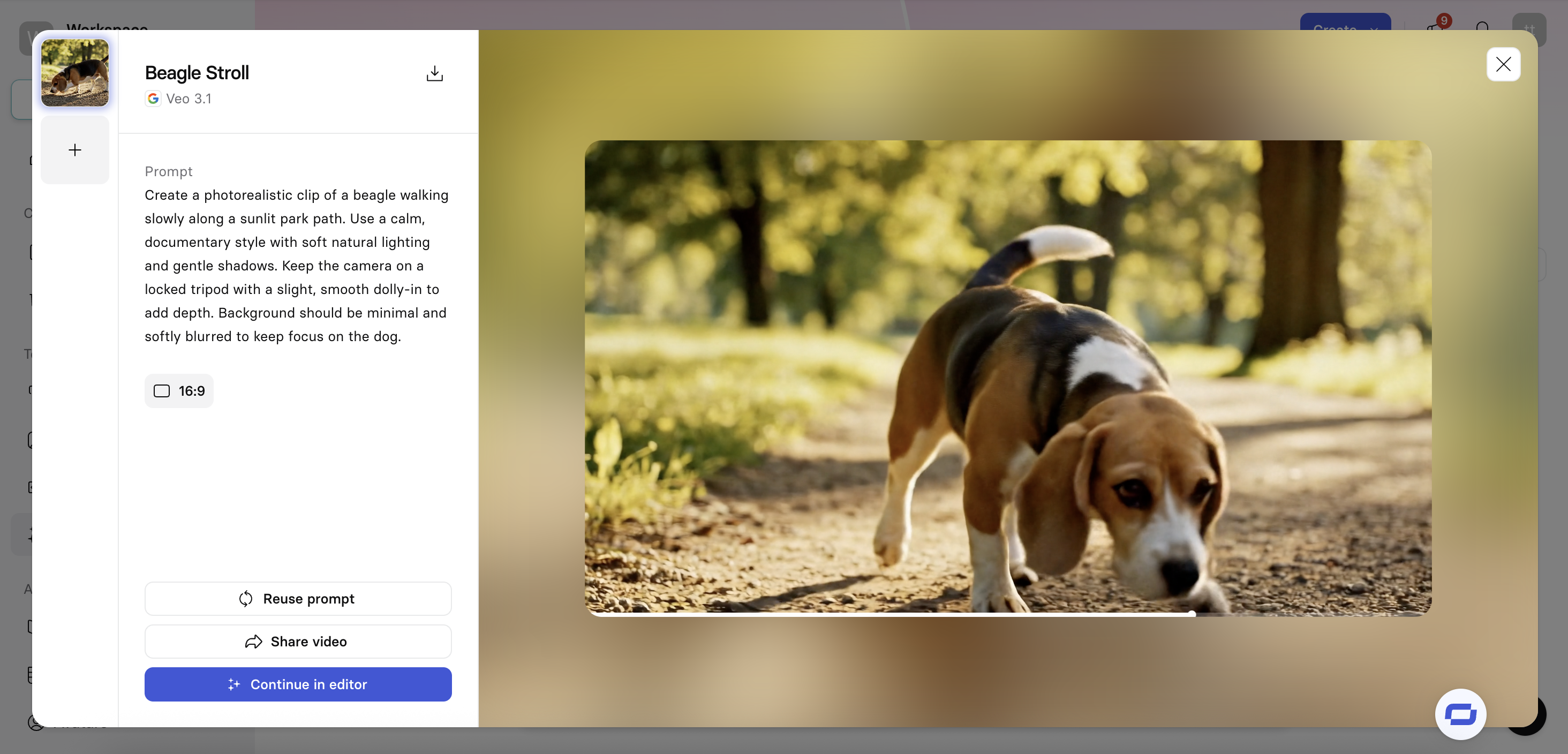
Step 7: Create a video from your clip in the Synthesia editor
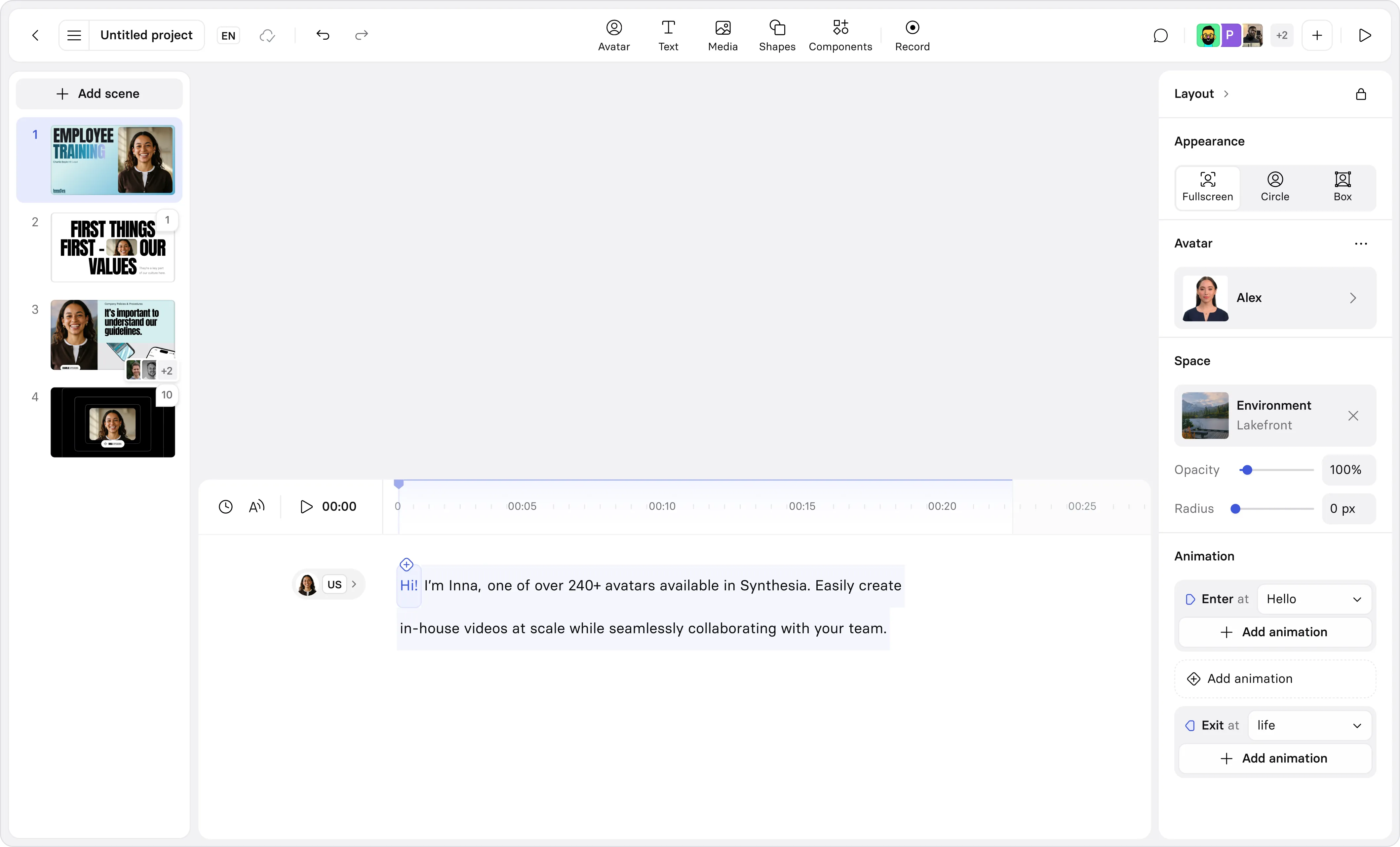
To turn your Veo 3 clip into a complete video, open it in the Synthesia editor by clicking 'Continue in editor'.
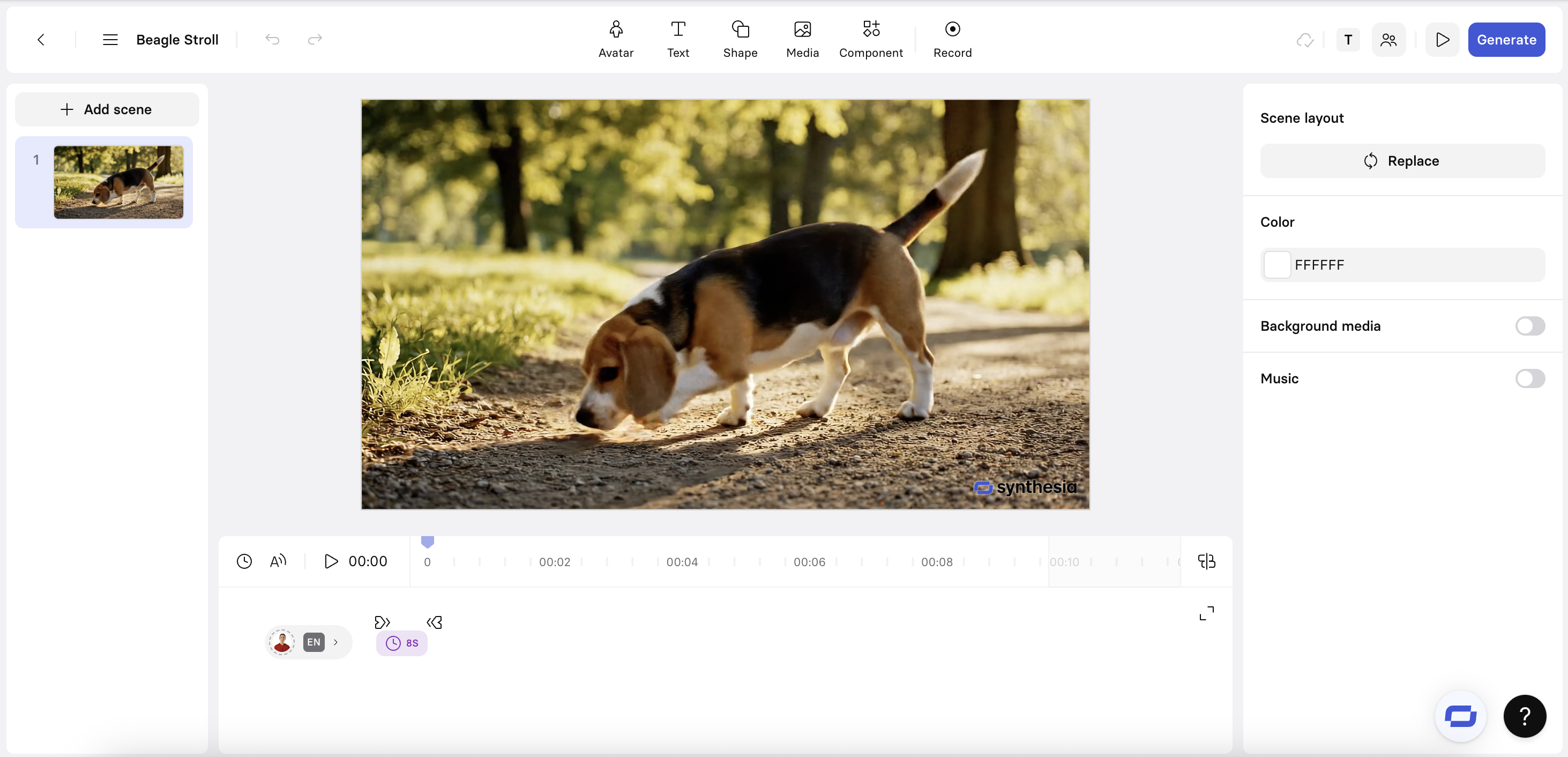
The editor is where you can turn AI generated clips into complete, engaging videos using:
- Realistic AI avatars and natural sounding voiceovers
- Interactive elements such as quizzes, CTAs, and branching scenarios
- Script to narration with automatic timing across scenes
- AI translation to localise voiceovers and captions at scale
- Built in captions and subtitles with fully editable timings
- Brand controls including colours, fonts, logos, lower thirds, and reusable styles
- Templates for common video formats, with duplication flows to help you move faster
- Collaboration tools like shareable links, comments, and version history for reviews
You can also generate additional Veo 3 clips directly inside the editor, as well as generative AI image assets with models like FLUX.2 and Nano Banana Pro.
You can also use Veo 3.1 to make avatars perform actions and interact with their environments.
Kyle Odefey is a London-based filmmaker and Video Producer at Synthesia. His content has reached millions across TikTok, LinkedIn, and YouTube, even inspiring an SNL sketch, and has been featured by CNBC, BBC, Forbes, and MIT Technology Review.

.webp)