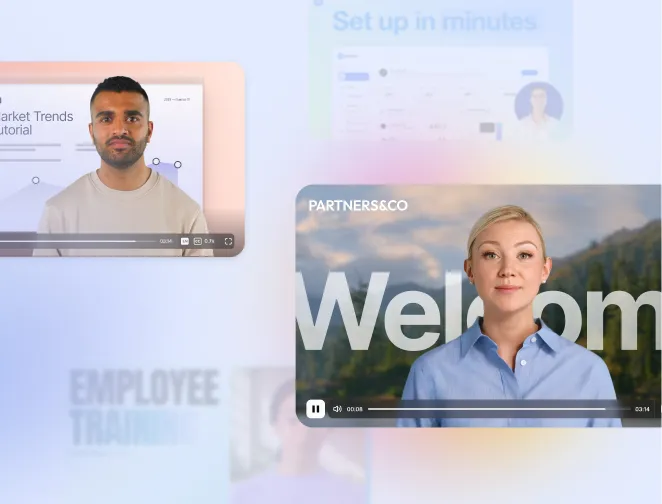




Convert PowerPoints into engaging eLearning videos.
✋ Raise your hand if you’ve suffered death by PowerPoint — decks with 47 bullets per slide, 9-point font, and diagrams that require a microscope.
Now imagine you take that deck and upload it into a tool that promises you can turn a PowerPoint into eLearning in minutes. What do you have? An experience that’s even harder to sit through.
In a meeting, a presenter can explain, skip ahead, and translate chaos into a message. On-demand, a bad deck is just…a bad deck — only now there’s no one there to save it. That’s why the real work isn’t conversion. It’s design.
Converting PowerPoint to eLearning is easy. Converting a good PowerPoint to eLearning is what makes it effective.
This guide gives you a practical checklist to turn your slide deck into eLearning that people can understand, apply, and remember.
Step 1: Prepare your slides
PowerPoint is built to support a presenter. eLearning has to stand on its own.
That difference changes what “conversion” really means. You’re not just changing a file format. You’re changing the experience from speaker-led to self-paced, which means the content needs:
- a clear path
- a pace that works in short bursts
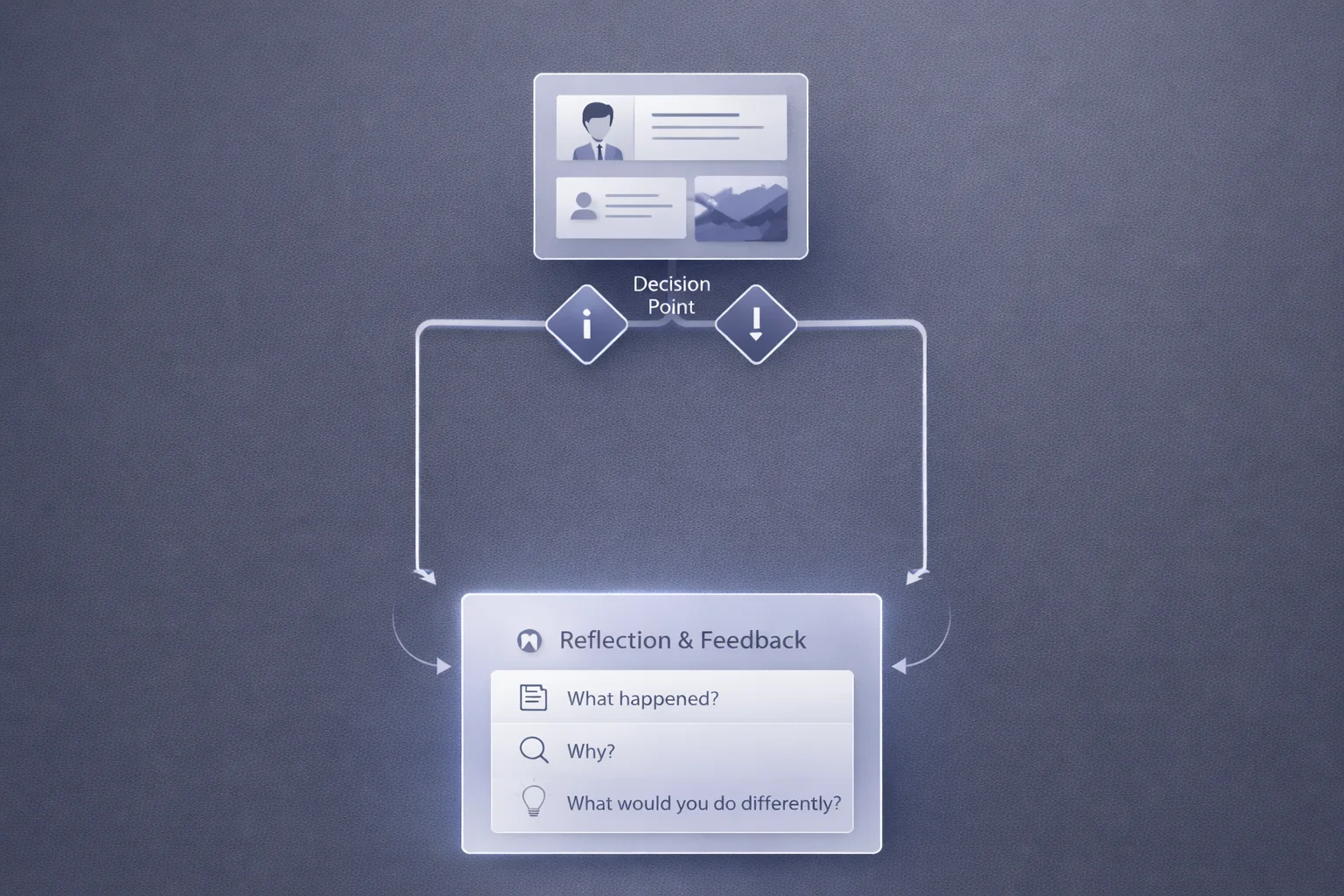
- “do” moments (practice, decisions, reflection)
- feedback
If your deck is a document dump, conversion won’t fix it.
Why do most PowerPoints fail as self-paced training?
Most corporate decks weren’t designed to teach. They were designed to:
- align stakeholders
- summarize decisions
- document processes
- show “we covered it”
Those are legitimate goals. They’re just not the same as helping someone do the thing correctly two days later.
When you convert a dense deck into self-paced training, you’re asking people to do interpret what the slide is trying to say and figure out what they’re supposed to do with it.
What’s the golden rule before you convert your deck?
Before you convert anything, run your deck through this test:
- Do you have 5 words or fewer per line?
- Do you have 5 lines (or bullets) or fewer per slide?
- Do you have no more than 5 text-heavy slides in a row?
This test quickly flags slides that are trying to be a script, a document, and a visual at once. If your deck fails any of these checks, fix it before converting. Aim to follow the 5–5–5 rule throughout.
The only scene rule you need
Once you’ve chunked by question, convert each chunk into short scenes:
- 30–60 seconds per scene
- one message per scene
- one engagement hook every few scenes
For example, if you have a deck on Expense Policy and it’s full of definitions, exceptions, and FAQs, restructure it like this:
- What counts as an expense (and what doesn’t)
- The 3 mistakes that get claims rejected
- Choose the right category (quick check placeholder)
- What to do when you’re not sure (where to look / who to ask)
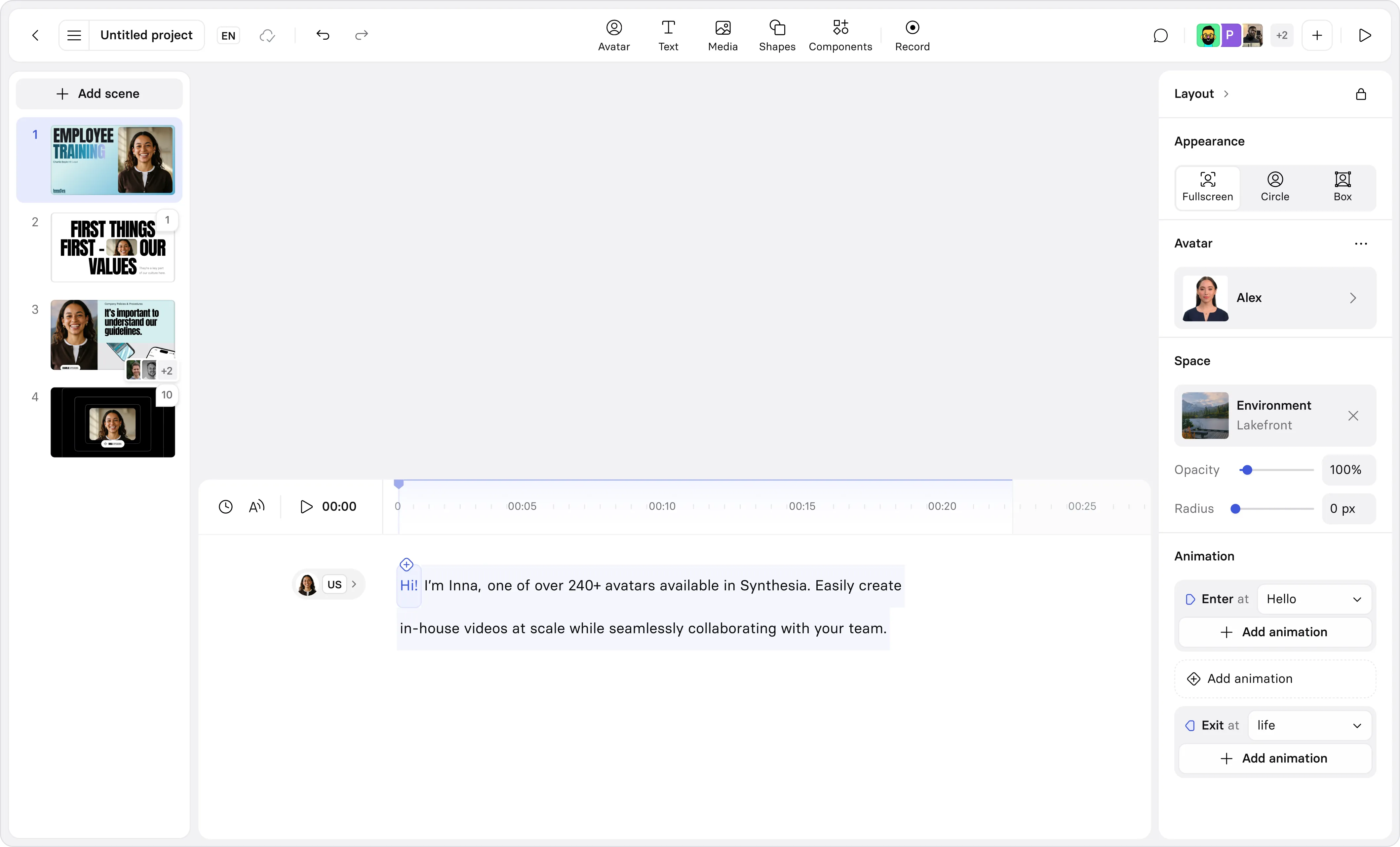
Step 2: Go to Synthesia's PowerPoint to video converter
Once you have a clean deck, conversion is easy. Upload your slides to our tool to get started.
Then, focus where you’ll get the biggest lift: one clear message per scene, no text you’d be tempted to read out loud, and a few engagement moments (a quick check, a decision, or “what would you do next?”).
💡Tip: Company decks already include the brand foundations you need — logos, fonts, color rules, and familiar layouts. Even if you rewrite most of the content, you can use the deck as a base layer to create a custom template and build from there.
Step 3: Publish and share your video:
Where should you publish it?
Need tracking or compliance? Publish in your LMS. Need people to actually use it at work? Publish short videos where work happens. Need both? Keep scenes short for reuse, then wrap them in an LMS module as a SCORM file when reporting matters.
💡Tip: When you’re ready to scale, you can localize versions for different regions and languages with Synthesia.
How do you measure if it worked?
Any rollout should come with some measurement, even if it’s lightweight. Pick one signal that shows people used it, one check that shows they understood it, and one outcome that shows work improved — and make sure that outcome ties back to a bigger business or capability goal (not just completion rates).
The only scene rule you need
Once you’ve chunked by question, convert each chunk into short scenes:
- 30–60 seconds per scene
- one message per scene
- one engagement hook every few scenes
For example, if you have a deck on Expense Policy and it’s full of definitions, exceptions, and FAQs, restructure it like this:
- What counts as an expense (and what doesn’t)
- The 3 mistakes that get claims rejected
- Choose the right category (quick check placeholder)
- What to do when you’re not sure (where to look / who to ask)
Key takeaways
- Conversion isn’t the hard part — design is.
A deck built for a presenter won’t magically work on demand without restructuring. - Make the shift from speaker-led to self-paced.
Self-paced learning needs a clear path, short scenes, and “do” moments. - Use the 5–5–5 rule before you upload anything.
If slides read like a script or a document, fix them first. - Think in scenes.
Aim for 30–60 seconds, one message per scene, and a simple engagement hook every few scenes. - Publish where work happens, then measure lightly.
Pick one usage signal, one understanding check, and one real-world outcome tied to the business.

Amy Vidor, PhD is a Learning & Development Evangelist at Synthesia, where she researches learning trends and helps organizations apply AI at scale. With 15 years of experience, she has advised companies, governments, and universities on skills.




Frequently asked questions
Can you really convert PowerPoint to eLearning automatically?
You can convert the format quickly, but learning effectiveness depends on slide quality, structure, and practice opportunities.
What makes a PowerPoint “good enough” to convert?
What’s the 5–5–5 rule for PowerPoint — and does it work for eLearning?
Is video better than slides for training?
How long should each eLearning video/module be?
How do I avoid “death by PowerPoint” when converting?
How do I convert PowerPoint to video using Synthesia?
Can I localize PowerPoint-based training at scale?
Yes, localization is a common need, and AI video workflows can reduce rework when you need to dub or subtitle content.