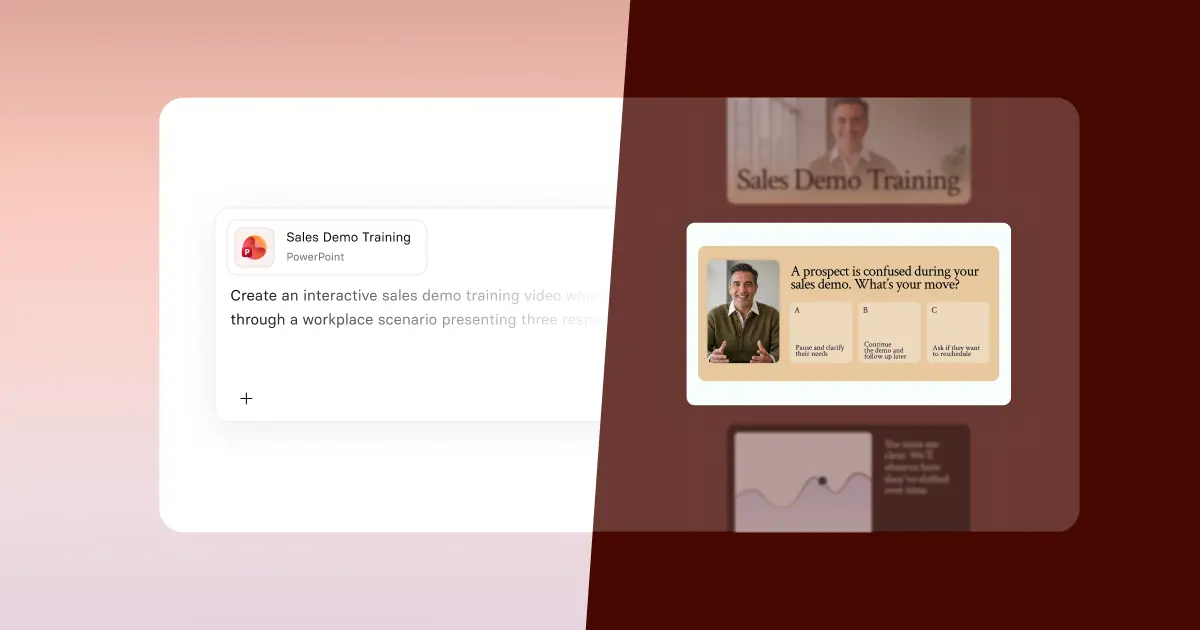




The 5 Best Tools for Converting PowerPoint to Video (2026)

Convert your PowerPoint slides into engaging videos
Summary
- Synthesia, 8.7: Best overall. Upload a PowerPoint, get an editable video with an Avatar and voiceover, and update it by editing the script. For L&D, comms, and enablement teams.
- HeyGen, 8.5: Best for avatar quality and creator-led video. PowerPoint and PDF import with 700+ stock avatars and 175+ languages. For marketers and solo creators.
- Google Vids, 7.9: Best for Google Workspace teams. Converts Google Slides into a Vid, with Gemini scripts, voiceover, and avatars. For teams already in Workspace.
- Microsoft PowerPoint (built-in export), 7.0: Best free option and the most faithful to your slides. Record narration, then File > Export > Create a Video. For one-off decks you can narrate yourself.
- Canva, 6.9: Best for design polish. Turn a presentation into a branded video with templates and motion. For social and marketing content.
When people look for PowerPoint to video tools, they can be looking for a variety of things:
- A tool that converts their slides into a silent or self-narrated video
- A tool that converts their slides into a video with an AI-generated narration
- A tool that rebuilds their slides into an engaging video with features like motion graphics, animations, avatars, and B-roll
Another feature that people often look for in a PowerPoint to video tool is that the video output is easily editable. This is a particularly important feature when it comes time to update your video.
In this post I'm going to compare five of the most popular PowerPoint to video tools based on my real, first-hand experience with the tools. I'll be sharing examples from each tool so that you can compare the outputs for yourself.
Scores and prices at a glance
Prices and limits verified October 2026 unless tagged. Ranks follow the tiers below: Tier 1 avatar-led tools are ranked 1 to 3, Tier 2 narrate-it-yourself tools 4 to 7.
Decision table
How I evaluated these PowerPoint to video tools
In order to evaluate these PowerPoint to video tools I tested converting these slides on workplace safety into a video.
.png)
Here's the criteria I used to evaluate each tool's PowerPoint to video workflow:
1. Synthesia: Best all-round PowerPoint to video tool
Quick summary
- Score: 9/10
- Entry price: $19/mo Starter, $89/mo Pro
- Metering: Credits shared across features
- Volume cliff: Starter adds up to about 12 minutes on top of the free 10; Pro adds up to about 60
- Free tier: $0, 10 minutes of video a month, watermarked
Test output
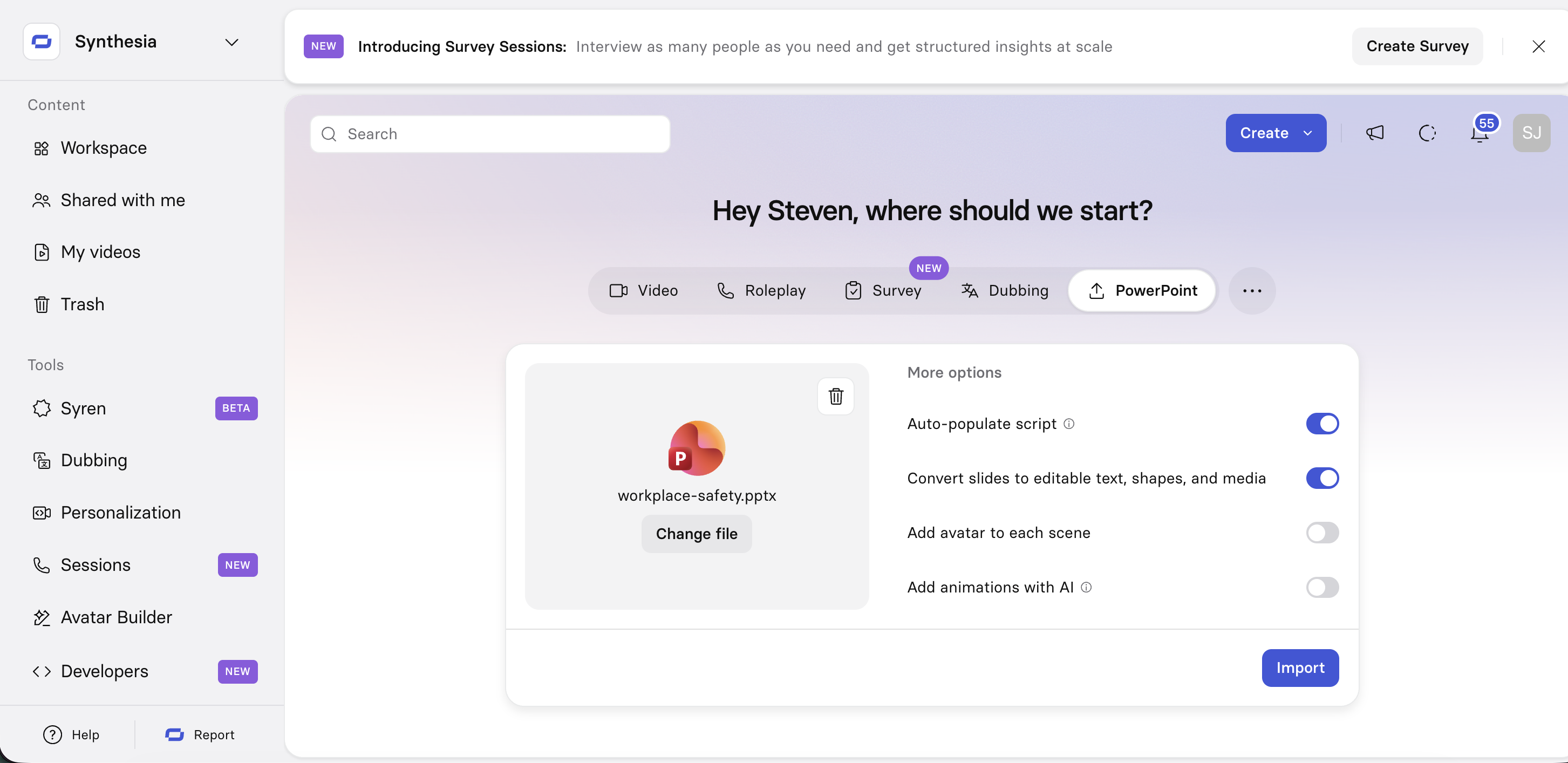
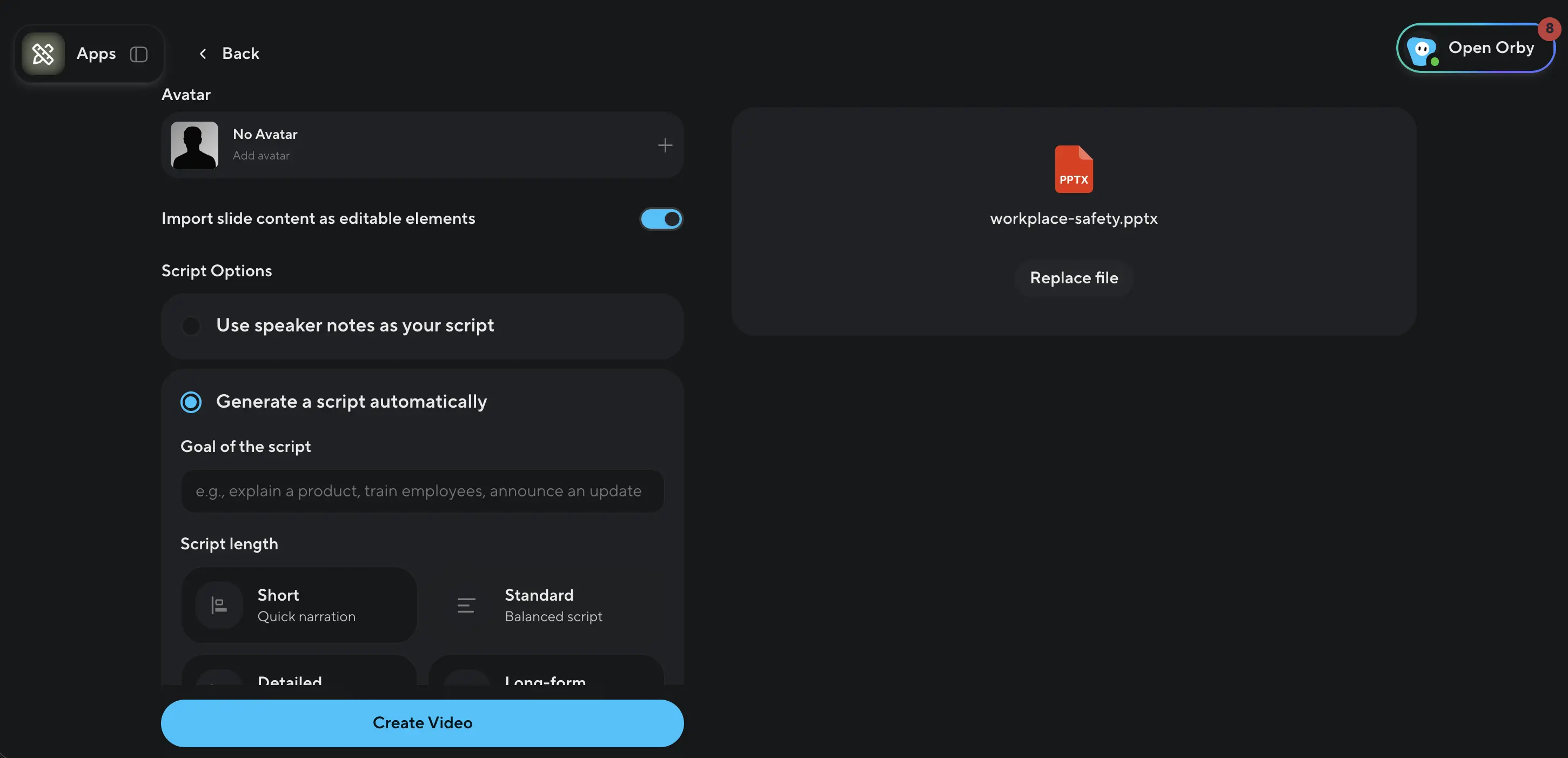
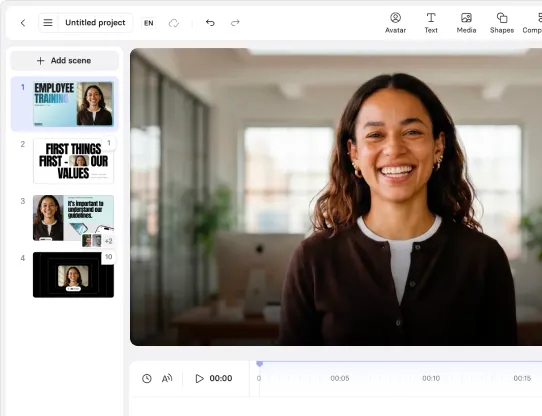
Synthesia offers two methods of converting your PowerPoint slides into video.
Option 1
The first option is best for those who just want to convert their slides into an editable video with an AI narration.
If your slides have speaker notes, your AI narration will use those by default. I didn't have any speaker notes so I selected the option to automatically generate a narration based on the contents of my slides.
There's also the option to add an AI avatar to present your slides, as well as adding automatically generated animations to your slide elements. I left both of these options unchecked for my test.
Here's what I got:
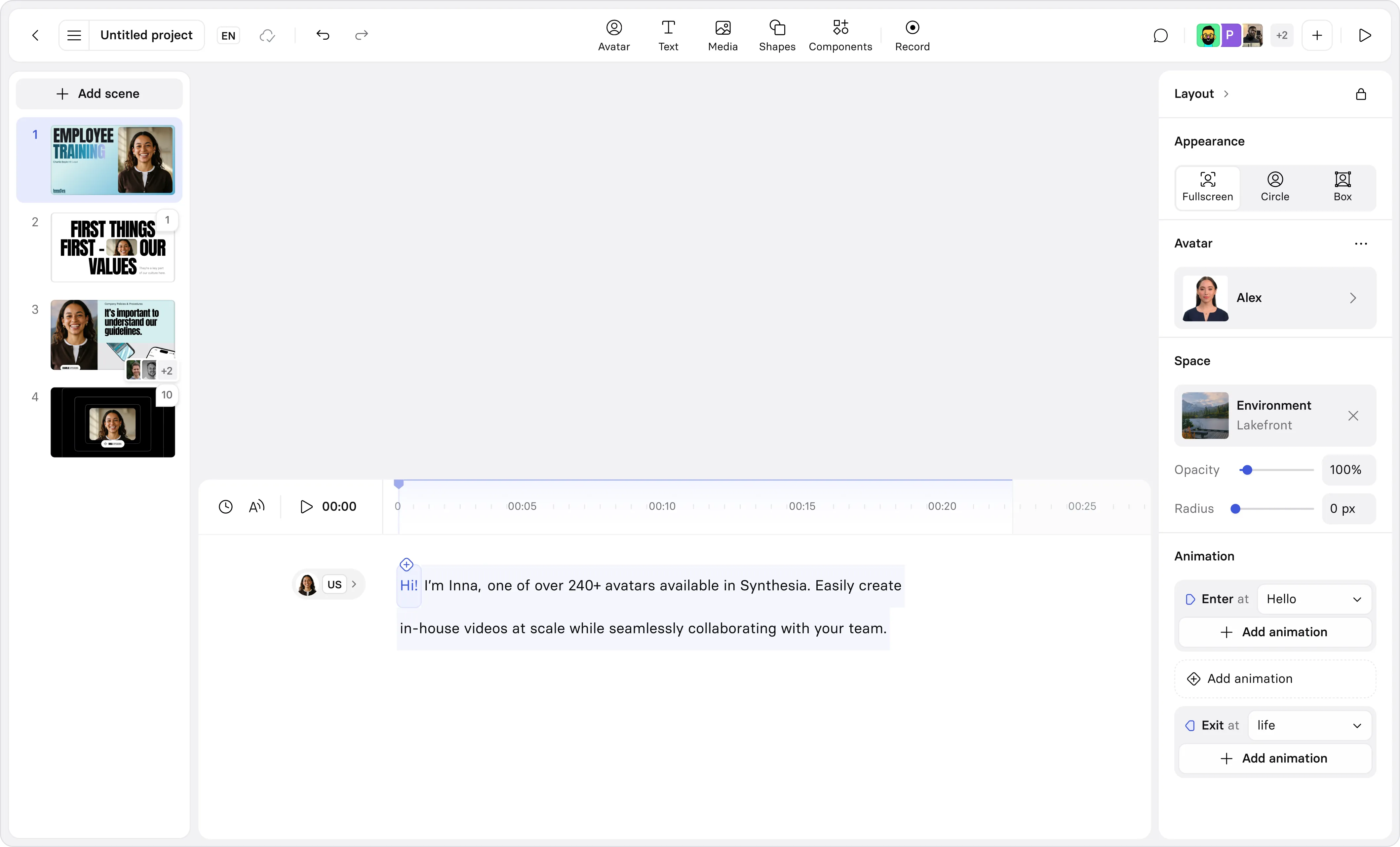
The import worked perfectly - my slides were perfectly preserved and I could edit every element (the script, images, and animations) once I got it into Synthesia's editor.
The quality of the AI narration is really high, with natural pauses and a conversational flow.
Option 2
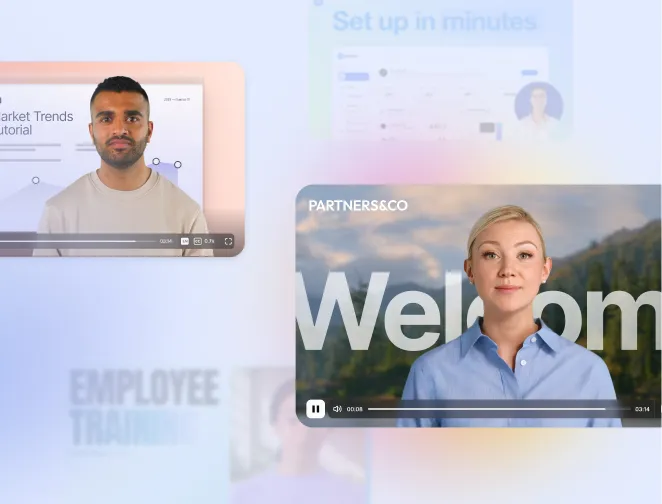
The second option offered by Synthesia allows you to transform your slides into an engaging video that fits your branding complete with avatars, voiceover, motion graphics, B-roll, music, and 3D effects.
You can then edit the video by selecting elements and describing the changes you want to the AI video agent.
I uploaded my slides and provided this prompt:
Make a short video using this slide deck. Include narration and on-brand animated scenes explaining the safety guidelines.
And this is what I got:
Regardless of which option you choose, Synthesia also gives you access to full video analytics so that you can track how many people watched and engaged with your video.
Synthesia supports video creation in 140+ languages.
Pros:
- Super reliable PowerPoint import functionality that converts your slides into an editable video
- Use your speaker notes as the narration script or generate a narration based on the contents of your slides
- High-quality narration with natural-sounding AI voices
- Easy to update with script and timeline-based editing options
- Optional high-quality AI avatars to present your video
- Add AI-generated animations to your video elements
- Support for 140+ languages
- Option to create an engaging video based on your slides with avatars, B-roll, motion graphics, music, and other effects
- Affordable $19/month starter price gives
Cons:
- Starter plan's roughly 22 total minutes a month might not be enough if you want to convert multiple PowerPoint slides into video each month
- Support for brand kits, SCORM, real-time collaboration, and interactivity are all gated behind interactivity
Category scores:
- Import 8.6
- Presenter 9.4
- Cost 7.4
- Updates 9.0
- Time 8.8
- Team 9.5
2. HeyGen: Best for
Quick summary
- Score: 8.5/10
- Entry price: $29/mo Creator (600 credits)
- Metering: Credits shared across features
- Volume cliff: 600 credits on Creator, 1,000 on Pro, 1,500 on Business
- Free tier: $0, 3 videos a month, up to one minute each, watermarked
Test output
HeyGen lists PowerPoint and PDF imports in its plan comparison, alongside 700+ stock Avatars, 1,000+ voices, and 175+ languages and dialects on paid plans. Creator and Pro videos run up to 30 minutes, and Business runs up to 60.
For teams, Business adds SCORM export, interactive quizzes, LMS integrations, and SSO at $149 a month plus $20 a seat. HeyGen's Avatar quality is a genuine strength, especially for marketing content.
Where it falls short: HeyGen's own pricing page doesn't say which plans include PowerPoint import, and credit burn per minute changes with the Avatar model you pick. [VERIFY]
Customer example: [Optional. Only use a verified HeyGen public example, or write "No verifiable client result with a time or cost delta was found" to match the original.]
Pros:
- 700+ stock Avatars and unlimited Photo Avatars on paid plans
- 175+ languages and dialects
- Interactive video, SCORM export, and LMS integrations on Business
- Credits roll over
Cons:
- Credit cost per minute varies by model, so budgeting needs a test video
- SCORM, SSO, and shared workspace sit on the $149 Business tier plus $20 a seat
Category scores:
- Import 8.2
- Presenter 9.3
- Cost 7.8
- Updates 8.4
- Time 8.8
- Team 8.4
3. Google Vids: Best for Google Workspace Teams
Quick summary
- Score: 7.9/10
- Entry price: Included with eligible Google Workspace plans; Business Standard around $14 a user a month [VERIFY]
- Metering: Seat license; per-user limits on avatar use
- Volume cliff: Per-user avatar limits, which Google hasn't published in the sources I reviewed
- Free tier: None for Workspace; consumer access through Google AI Pro and Ultra
Test output
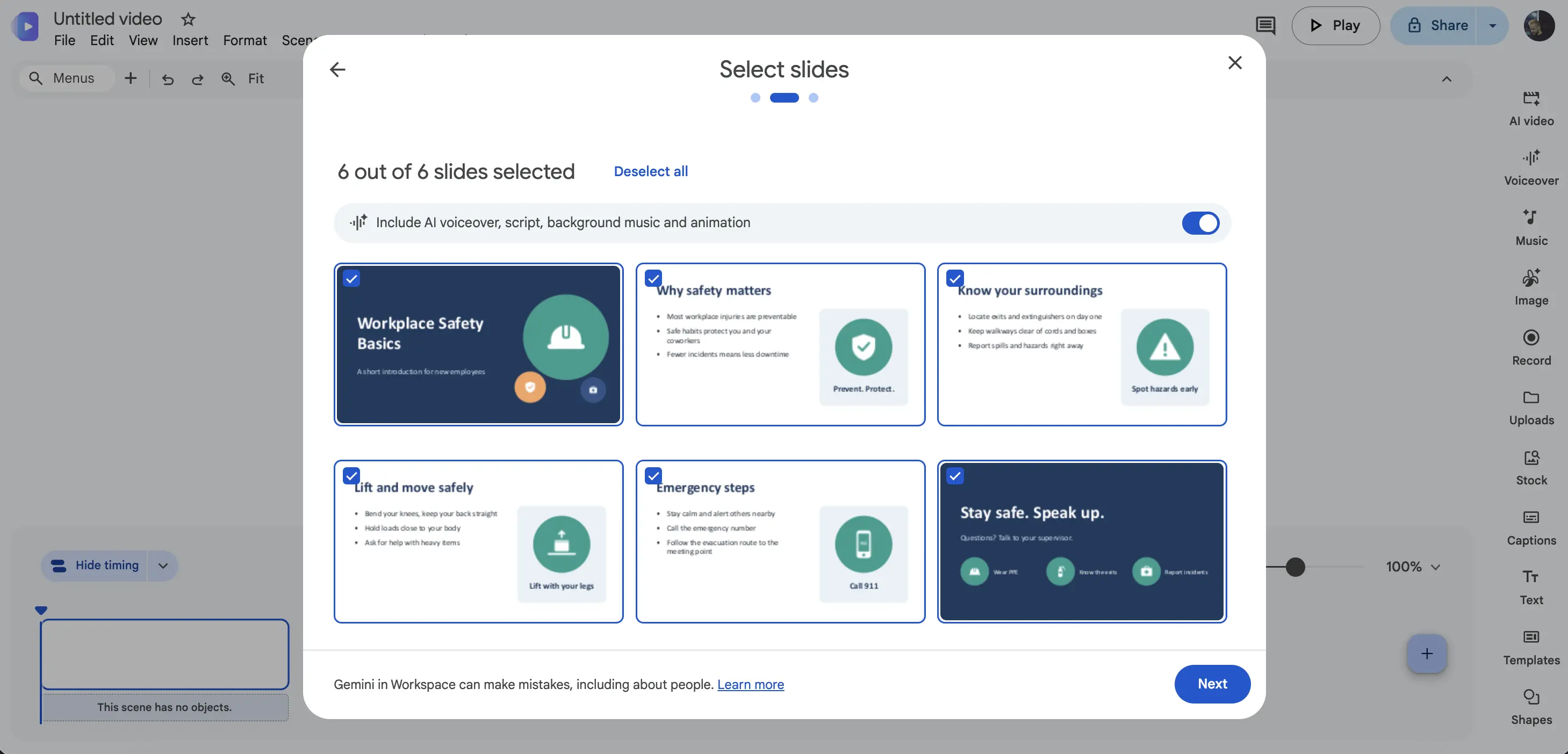
In Google Slides, choose File > Convert to Video. Every slide becomes a scene, and Gemini can generate scripts, voiceovers, and background music. Since May 2026, you can also add AI avatars as a spokesperson when you import.
Without a generated voiceover, imported scenes default to five seconds. Google says WordArt and embedded video files in Slides don't carry over.
Where it falls short: Google's promotional avatar limits ended July 1, 2026, and the per-user limits that replaced them weren't confirmable this month.
Customer example: No verifiable client result with a time or cost delta was found.
Pros:
- Slides to Vids conversion is built into Google Slides
- Gemini writes scripts, voiceovers, and music
- Avatars available at import on eligible Business, Enterprise, and Education plans
- No separate vendor or seat for Workspace teams
Cons:
- It needs a paid Workspace plan or Google AI Pro, so there's no standalone path
- Avatar limits per user aren't published, which makes volume planning a guess
Category scores:
Import 8.0 | Presenter 7.2 | Cost 8.0 | Updates 7.6 | Time 9.0 | Team 7.8
4. Microsoft PowerPoint (Built-In Export): Best Free Option
Quick summary
- Score: 7.0/10
- Entry price: Included with a PowerPoint license
- Metering: None
- Volume cliff: Your own time; one recording session per change
- Free tier: Not applicable; requires PowerPoint
Test output
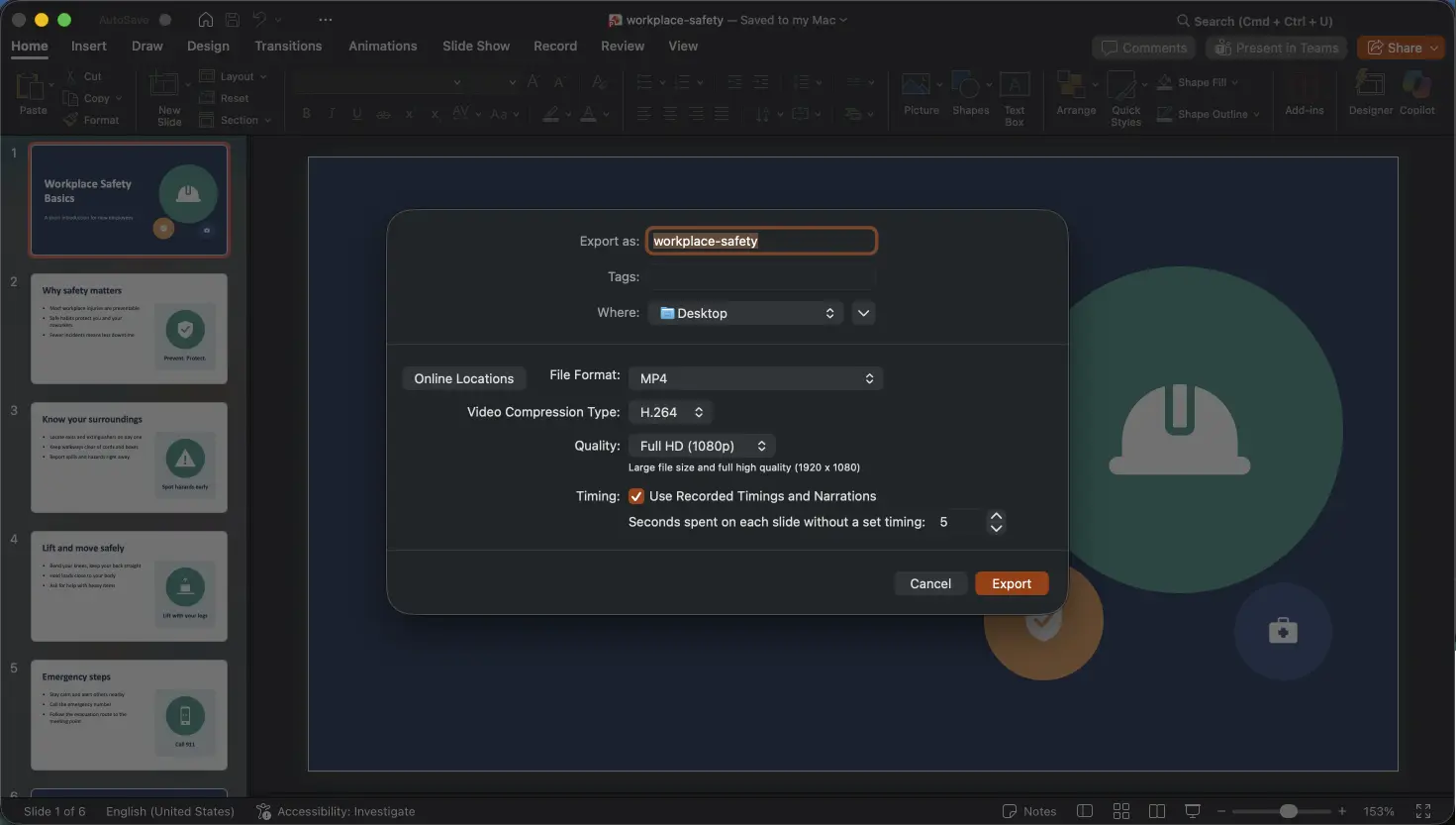
PowerPoint records narration in the desktop app (Slide Show > Record Slide Show), then exports an MP4 through File > Export > Create a Video. Check "Use Recorded Timings and Narrations" so your audio is included.
Nothing is converted, so slide fidelity is the best here. Per Microsoft's help article, only narration recorded in Slide Show plays in the export, and other embedded media files won't play.
Where it falls short: PowerPoint for the web doesn't export MP4 per Microsoft Community answers, and every change means re-recording that slide's narration. [VERIFY against Microsoft's current support page]
Customer example: No verifiable client result with a time or cost delta was found.
Pros:
- No new tool or subscription if you already have PowerPoint
- Perfect slide fidelity because nothing is converted
- Works offline in the desktop app
Cons:
- No presenter, no synthetic voice, and no translation, so you record every language yourself
- Updating one slide means re-recording it, which is the cost that matters at volume
Category scores:
- Import 9.8
- Presenter 3.5
- Cost 9.0
- Updates 6.0
- Time 7.0
- Team 6.5
5. Canva: Best for Design Polish
Quick summary
- Score: 6.9/10
- Entry price: $144/yr Pro for one person
- Metering: Monthly AI allowance shared across tools; Pro includes up to 200 Premium AI uses
- Volume cliff: AI allowance, with AI Pass available as an add-on
- Free tier: $0 with up to 20 AI uses
Test output
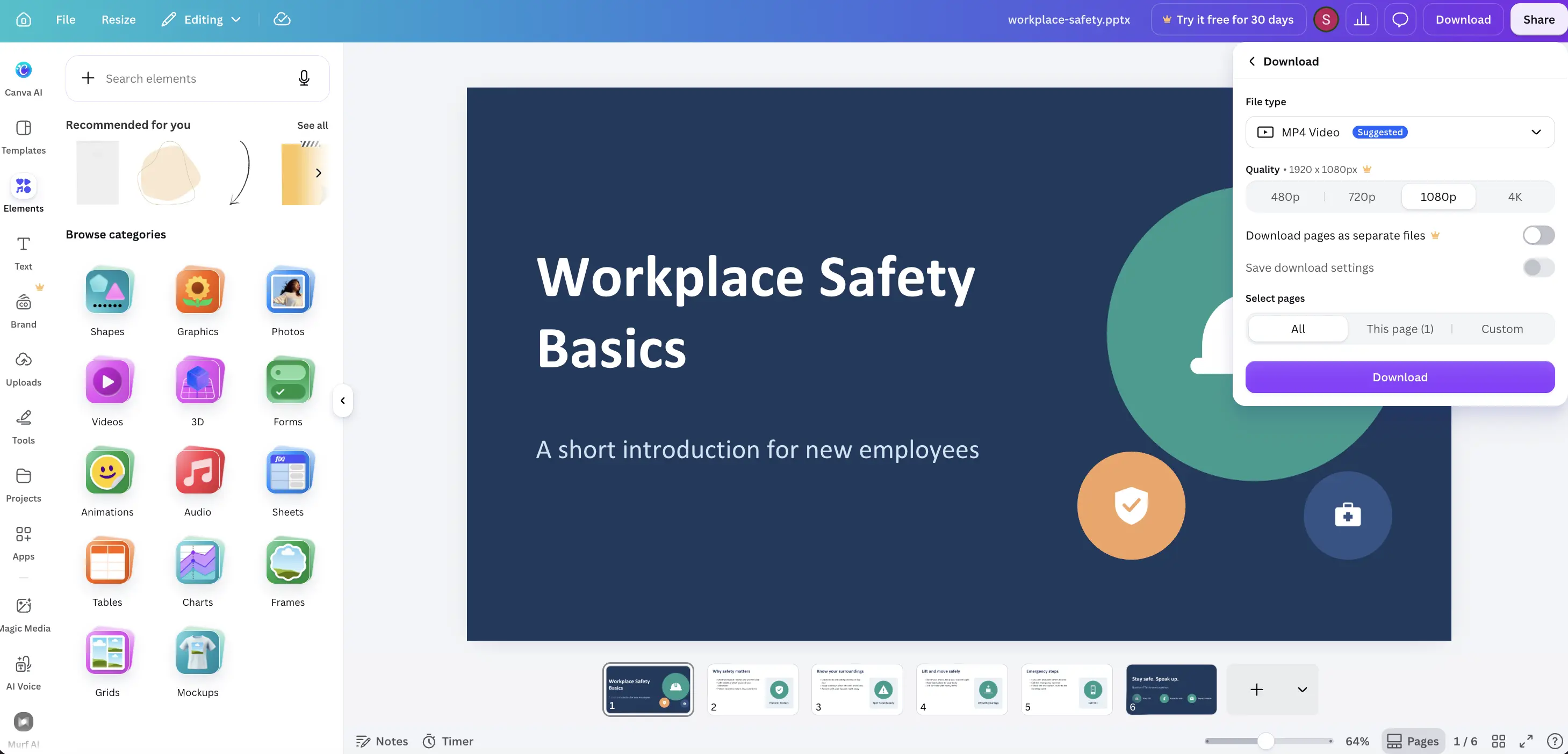
Canva lets you build a presentation with templates, brand kits, and motion, then export it as a video. Pro includes 5 Brand Kits and 3.6M+ templates, and Business adds approvals and team admin at $250 a year per person.
Canva is a design tool first. Its AI voice and video tools draw on a monthly allowance, and Canva doesn't list an Avatar presenter in the pricing sources I reviewed. [VERIFY: presentation to video export options and any voiceover limits]
Where it falls short: Canva has no PowerPoint-to-presenter workflow, so narration is your own recording or an allowance-metered voice tool.
Customer example: No verifiable client result with a time or cost delta was found.
Pros:
- Strong templates and brand kits for polished output
- Pro is a flat $144 a year
- Business adds approvals and multi-person admin
Cons:
- Pro is a single-person license, so teams need Business seats
- AI voice and video tools share a capped monthly allowance
Category scores:
- Import 6.8
- Presenter 5.0
- Cost 7.8
- Updates 6.8
- Time 8.0
- Team 7.5
What 50 Finished Minutes a Month Cost
The job: one creator turns ten decks a month into five-minute narrated videos, so 50 finished minutes a month. Rows marked "Full" include a presenter and voice; rows marked "DIY" don't. Verified October 2026 unless tagged.
Arithmetic for Synthesia: Pro includes 10 free minutes plus up to about 60 more from 6,000 credits, so about 70 minutes. 50 minutes fits. $89 x 12 = $1,068 billed monthly. Starter covers about 22 minutes, so it can't clear the job.
Crossover volume. Under about 22 minutes a month, Synthesia Starter at $29 is the cheapest full-presenter option. Above that, Pro at $89 is the first Synthesia plan that clears 50 minutes. If you only need an export and will narrate it yourself, PowerPoint costs nothing extra.
Hidden cost. The DIY rows look cheap because recording isn't on the invoice. Ten decks a month means ten recording sessions, plus a re-record for every update. That time is the main cost of the DIY tools.
Which tool is overpriced for its output. Synthesia costs $1,068 a year for this job, more than HeyGen's reported $588 and far more than Google Vids' seat. The extra money buys 140+ language translation, Video Analytics, and enterprise governance. For a solo marketer who needs one avatar video a month, that's more than needed. [Reconcile this paragraph with leadership before publishing: it concedes a price gap.]
Best PowerPoint to Video Tools 2026: Spec Comparison
All figures verified October 2026 unless tagged. Vendor claims are marked as such.
Head-to-Head: The Matchups People Search
Which One Is For You
By the work you are doing
- Quarterly training decks that change often go to Synthesia.
- An avatar-led product or marketing video goes to HeyGen.
- A Google Slides deck that needs a quick video goes to Google Vids.
- A single deck you'll narrate yourself goes to PowerPoint.
- A branded social video built from slides goes to Canva.
By budget
- At $0, export from PowerPoint, or use Synthesia's free 10 minutes a month.
- Under $50 a month, Synthesia Starter or HeyGen Creator covers short videos.
- Around $90 a month, Synthesia Pro covers about 70 minutes.
- Over that, or for governance and SCORM, Synthesia Enterprise or HeyGen Business.
By learning-curve tolerance
- A video today from a deck you already have: Google Vids or PowerPoint.
- An hour to learn a new editor: Canva or Adobe Express.
- A little setup for a lasting workflow: Synthesia.
Presenter or Export: Which One You Need
A presenter platform suits teams whose content changes. Synthesia and HeyGen generate the voice and the presenter from a script, so an update is an edit, not a recording session.
An export tool suits one-off decks. PowerPoint, Canva, and Adobe Express turn slides into video quickly, and you supply the narration.
Either way, tell viewers when a presenter is synthetic. The EU AI Act's Article 50 requires disclosure when people interact with an AI system, and the copy above should be checked with legal before you cite it for video. [VERIFY: Article 50 applies to recorded synthetic video as well as live interaction]
The Bottom Line
Synthesia is the best PowerPoint to video tool of 2026 because a deck update is a script edit, not a re-recording. HeyGen leads on avatar range, Google Vids suits Workspace teams, and PowerPoint's export is the free option for decks you'll narrate yourself. Synthesia's free plan includes 10 minutes of video a month, enough to test a full deck.
Kyle Odefey is a London-based filmmaker and Video Producer at Synthesia. His content has reached millions across TikTok, LinkedIn, and YouTube, even inspiring an SNL sketch, and has been featured by CNBC, BBC, Forbes, and MIT Technology Review.
Frequently asked questions
What is the best PowerPoint to video tool in 2026?
Synthesia, at 8.7 out of 10. It imports a PowerPoint, adds an Avatar and voiceover, and lets you update the video by editing the script.
Can PowerPoint turn a presentation into a video by itself?
Yes. In the desktop app, record narration with Slide Show > Record Slide Show, then use File > Export > Create a Video. PowerPoint for the web doesn't export MP4 per Microsoft Community answers.
Is there a free PowerPoint to video converter?
PowerPoint's built-in export is free if you have a license. Synthesia's free plan includes 10 minutes of video a month with a watermark.
Can Google Slides become a video?
Yes. In Google Slides, choose File > Convert to Video. Every slide becomes a scene, and you can add Gemini voiceover and AI avatars.
Which tool keeps my slide design intact?
PowerPoint's own export, because nothing is converted. Imports into other tools can change layouts, so check the first slide before you convert a full deck.
Can I translate a PowerPoint video into other languages?
Synthesia, HeyGen, and VEED offer translation or dubbing. PowerPoint's export has no translation, so you record each language yourself.
Can I add quizzes or track completion?
HeyGen's Business plan lists interactive quizzes and SCORM export. Synthesia offers SCORM export and Video Analytics, with SCORM on Enterprise.
What is the most common mistake with PowerPoint to video?
Comparing sticker prices and ignoring the update cost. A free export that needs a re-recording every quarter can cost more in hours than a paid tool that regenerates the voice from a script.


.webp)