



How to Convert Google Slides to Video for Free (in 1 Minute)

Convert your Google slides into engaging videos in 140+ languages.
Google Slides is a handy alternative to Microsoft PowerPoint that works really well for live presentations. However, it's not ideal when you need to share information asynchronously.
In those situations, a video version of your slides might be a better fit. Video allows you to add narration, visual continuity, and a human presence so that your audience can watch your presentation and learn when it suits them.
Google Slides doesn't currently offer any way to turn a deck into a narrated video with a presenter.
However, you can do this easily in Synthesia.
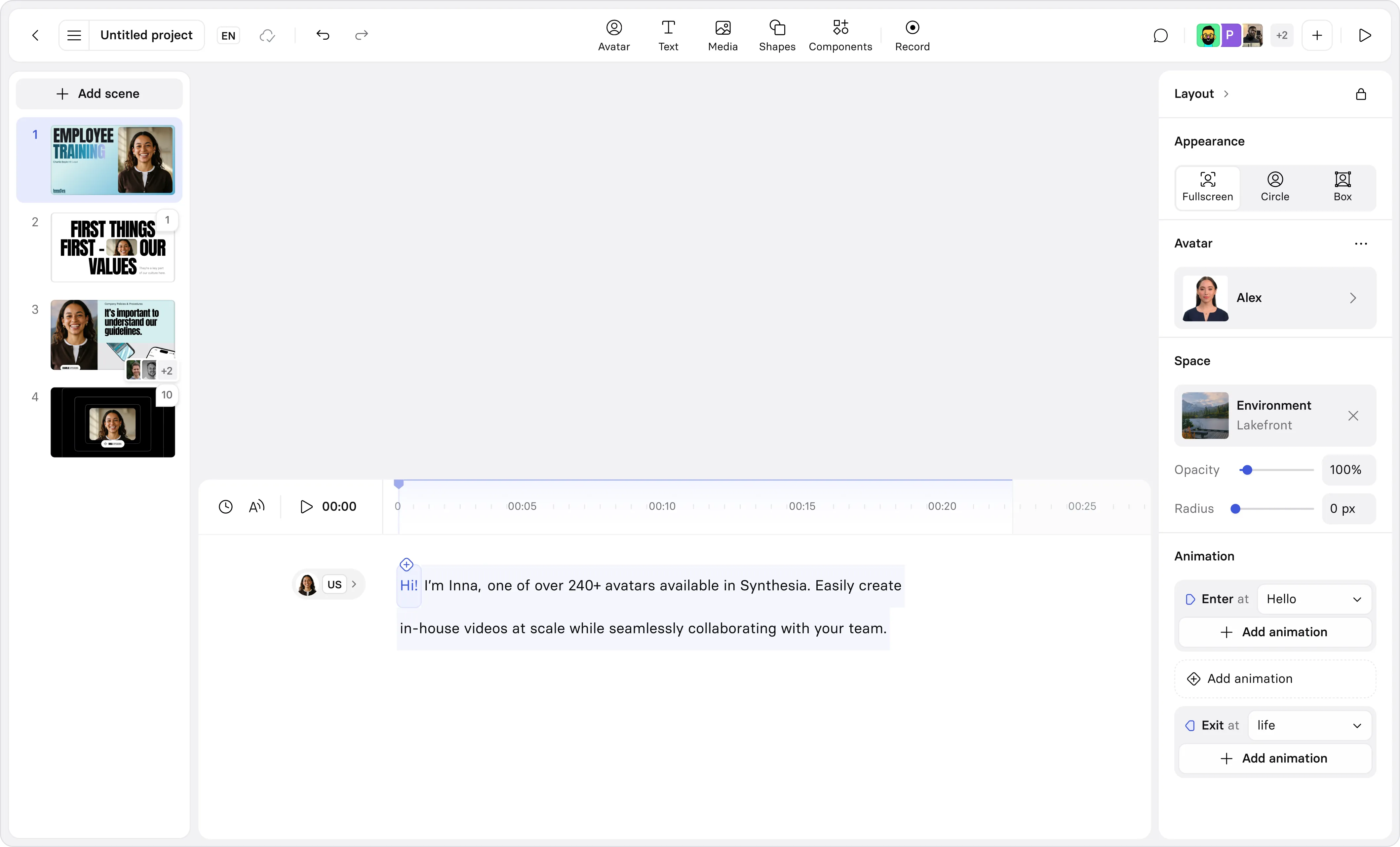
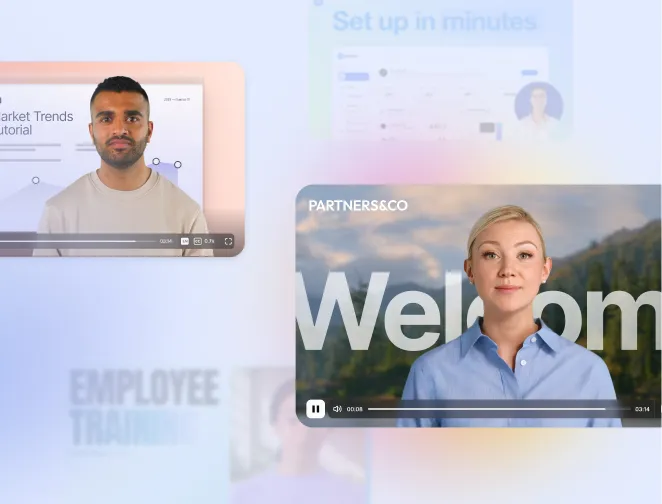
All you need to do is import your slides into Synthesia, and it will convert each slide into a scene with AI avatars, natural voiceovers, captions, and translation.
You can also add B-roll, motion graphics, interactivity, and screen recordings if you want to.
Here's how to convert Google Slides to video in just a few steps.
Step 1: Export your Google Slides as PowerPoint
Open your Google Slides presentation and go to File → Download → Microsoft PowerPoint (.pptx).
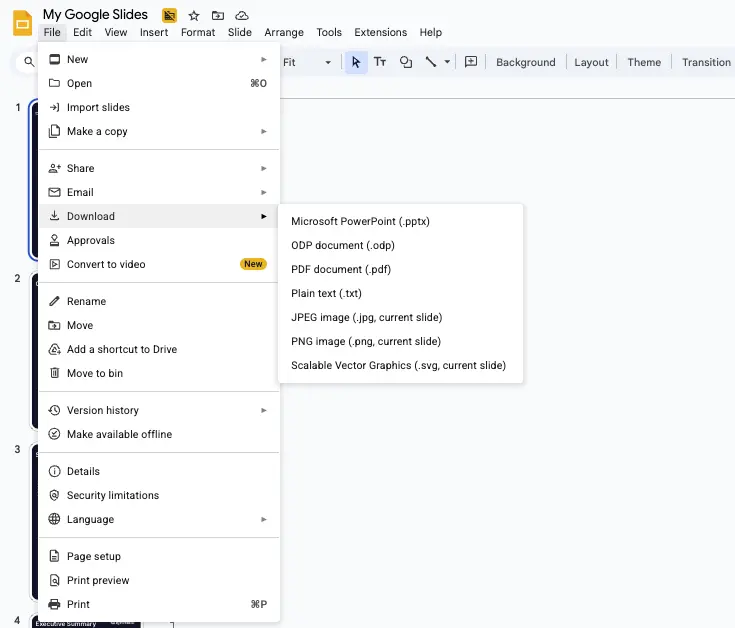
This will download your deck as a PowerPoint file, which will preserve your slides' layouts, images, and speaker notes.
We'll be using your speaker notes later on as your video script.
Step 2: Create a new video in Synthesia
Click here to log in or sign up for a free account.
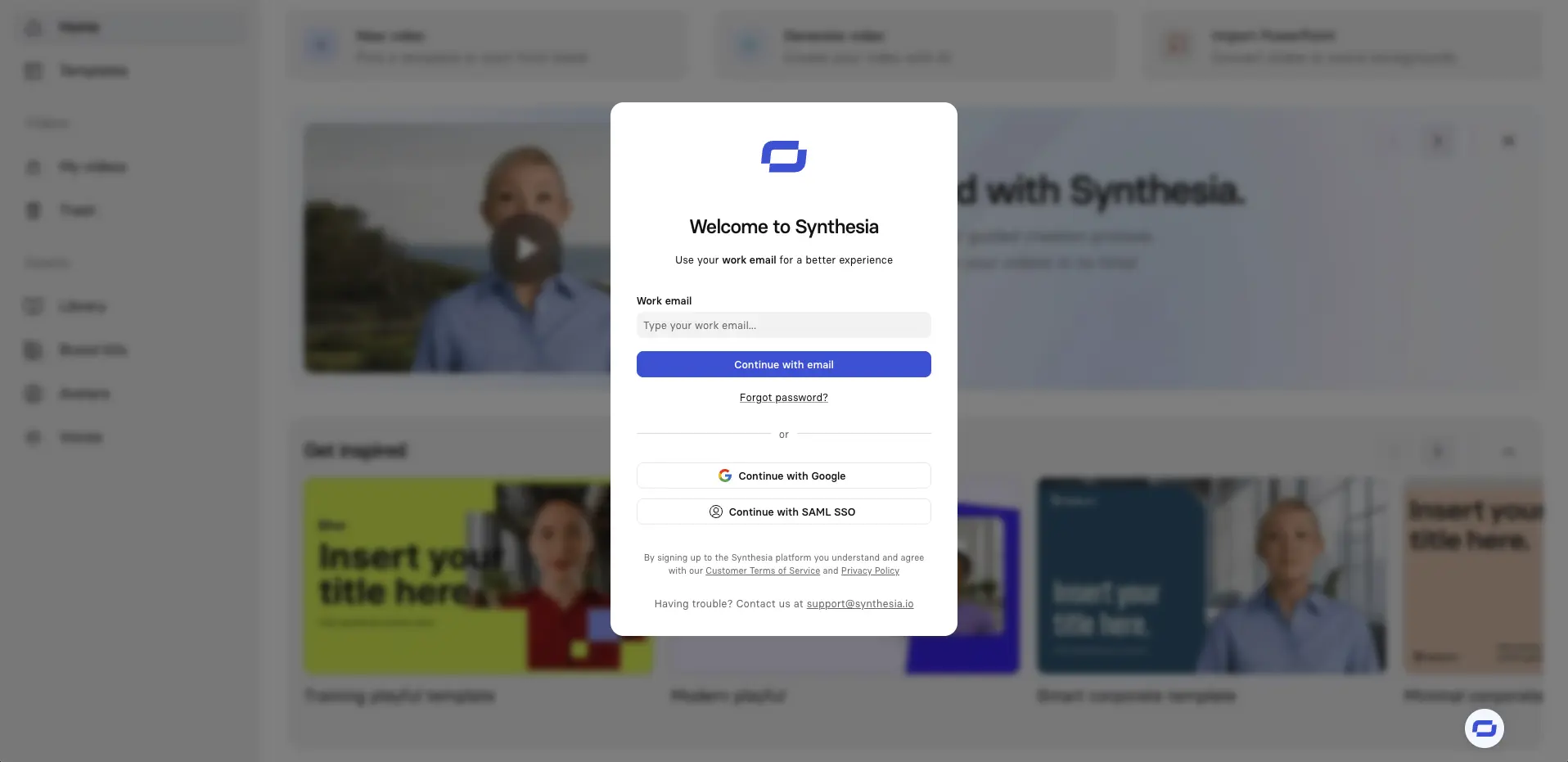
On the Synthesia homepage, choose the option to Import PowerPoint / PPTX to create a video from your slides.

Step 3: Upload your PPTX file
Upload the PowerPoint file you just downloaded from Google Slides.
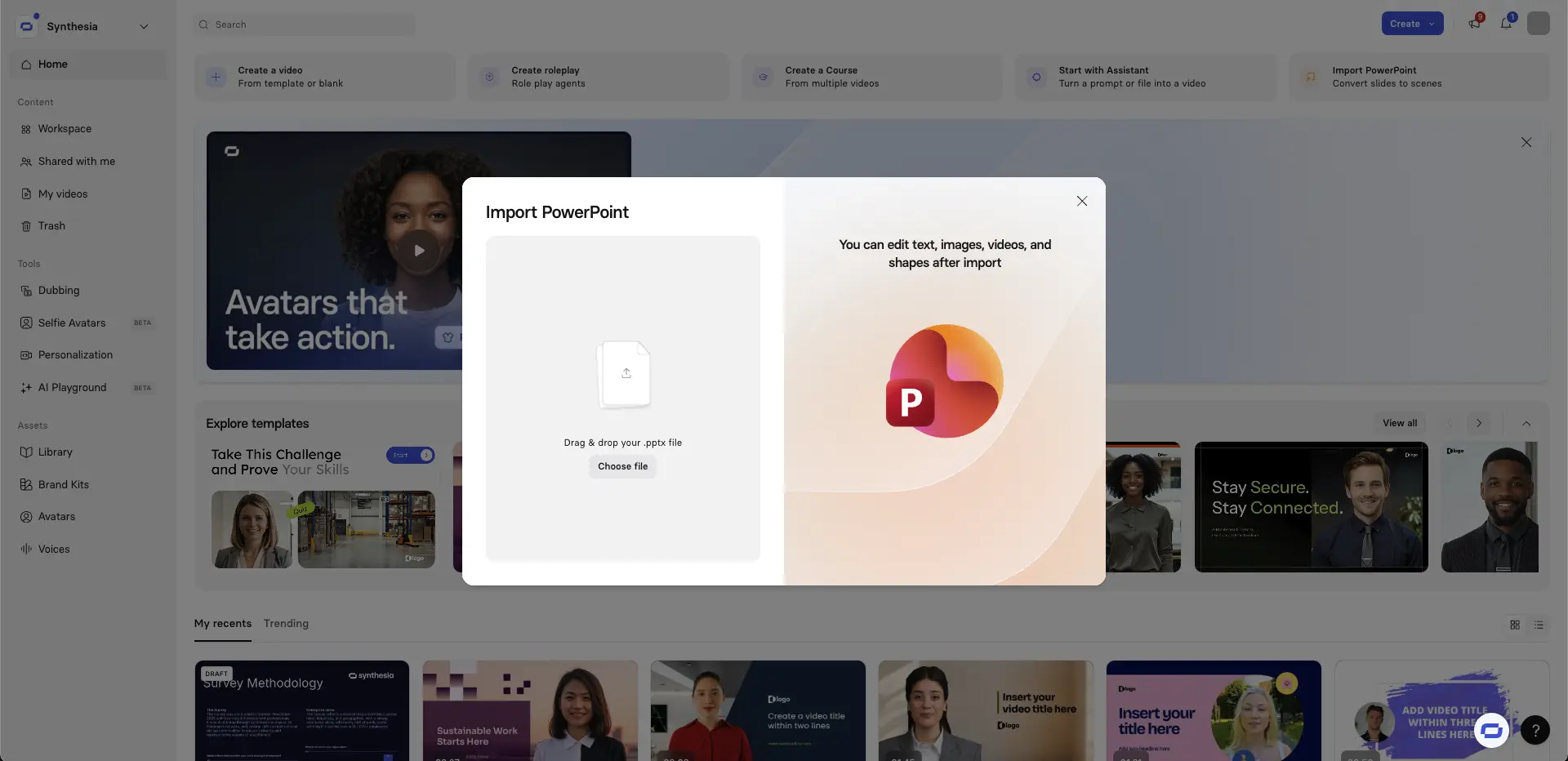
Synthesia will automatically detect each slide and prepare it as a video scene.
Step 4: Enable editable import
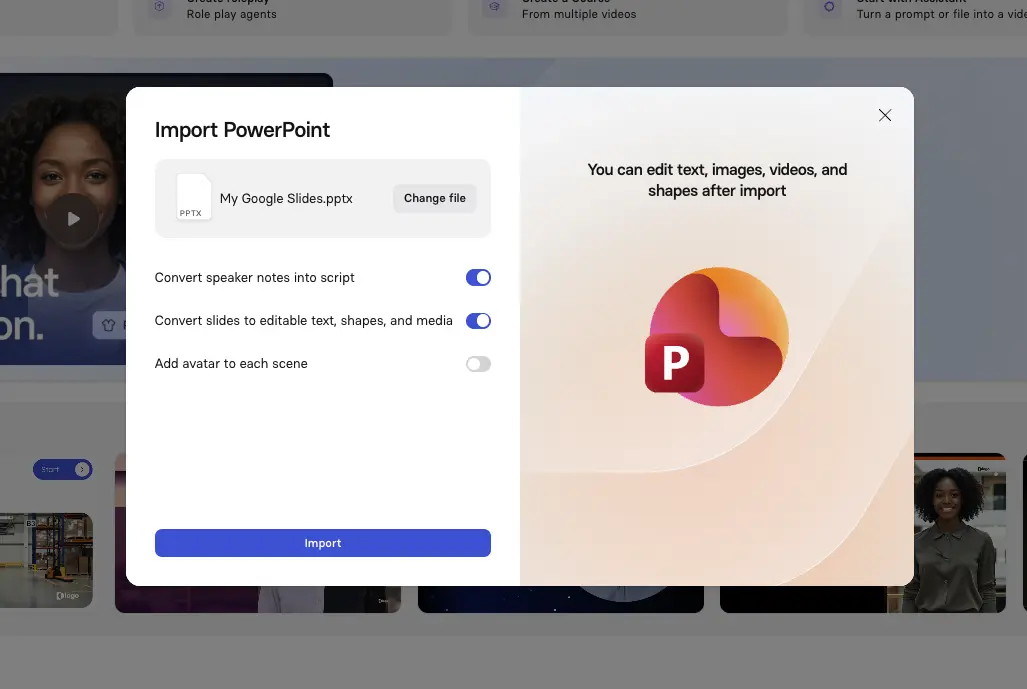
There are now 3 options. Here’s what each does:
- Convert speaker notes into script
- This option takes the speaker notes from each of your slides and turns them into the script for each scene in your Synthesia video.
- This script will then be read out by an AI avatar (or just narrated if you don't want to use an avatar)
- Convert slides to editable text, shapes, and media
- This option imports the contents of your slides as editable elements on the canvas (instead of as an uneditable image).
- That means that your text boxes will become editable text, and any shapes, images, and embedded videos will be imported as separate objects that you can move, resize, recolor, or replace.
- Add avatar to each scene
- Select this option if you want Synthesia to automatically place an AI avatar on every imported slide/scene.
- This option saves you from having to manually add an avatar after import.
Before clicking Import, make sure that at least the first two options are turned on (like you see in the image above).
Step 5: Let Synthesia process your presentation
Your deck will now be processed. This usually takes a few seconds, but larger presentations may take a bit longer.
Synthesia supports decks up to 100 slides or 1GB in size.
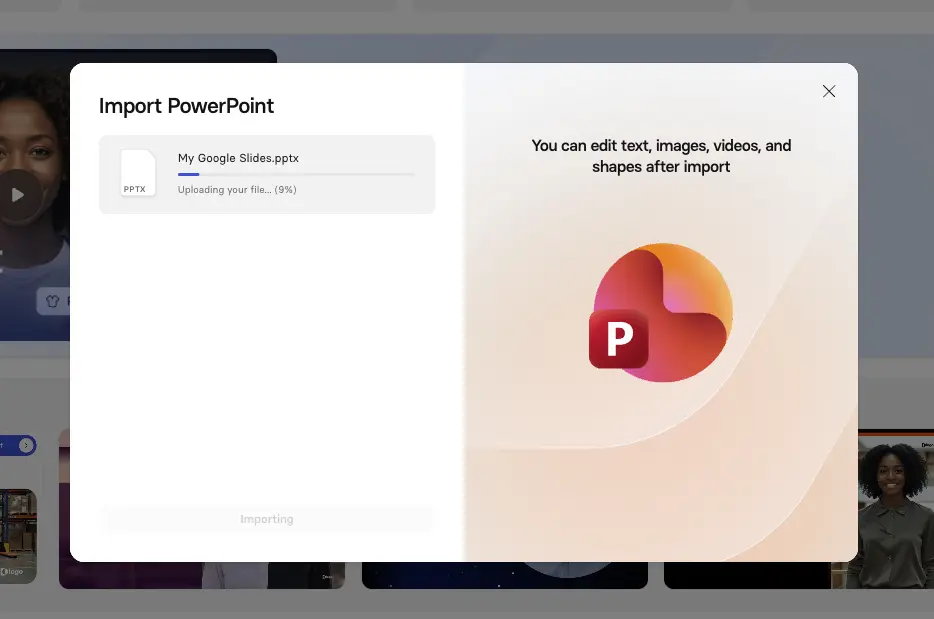
Step 6: Review and polish in the editor
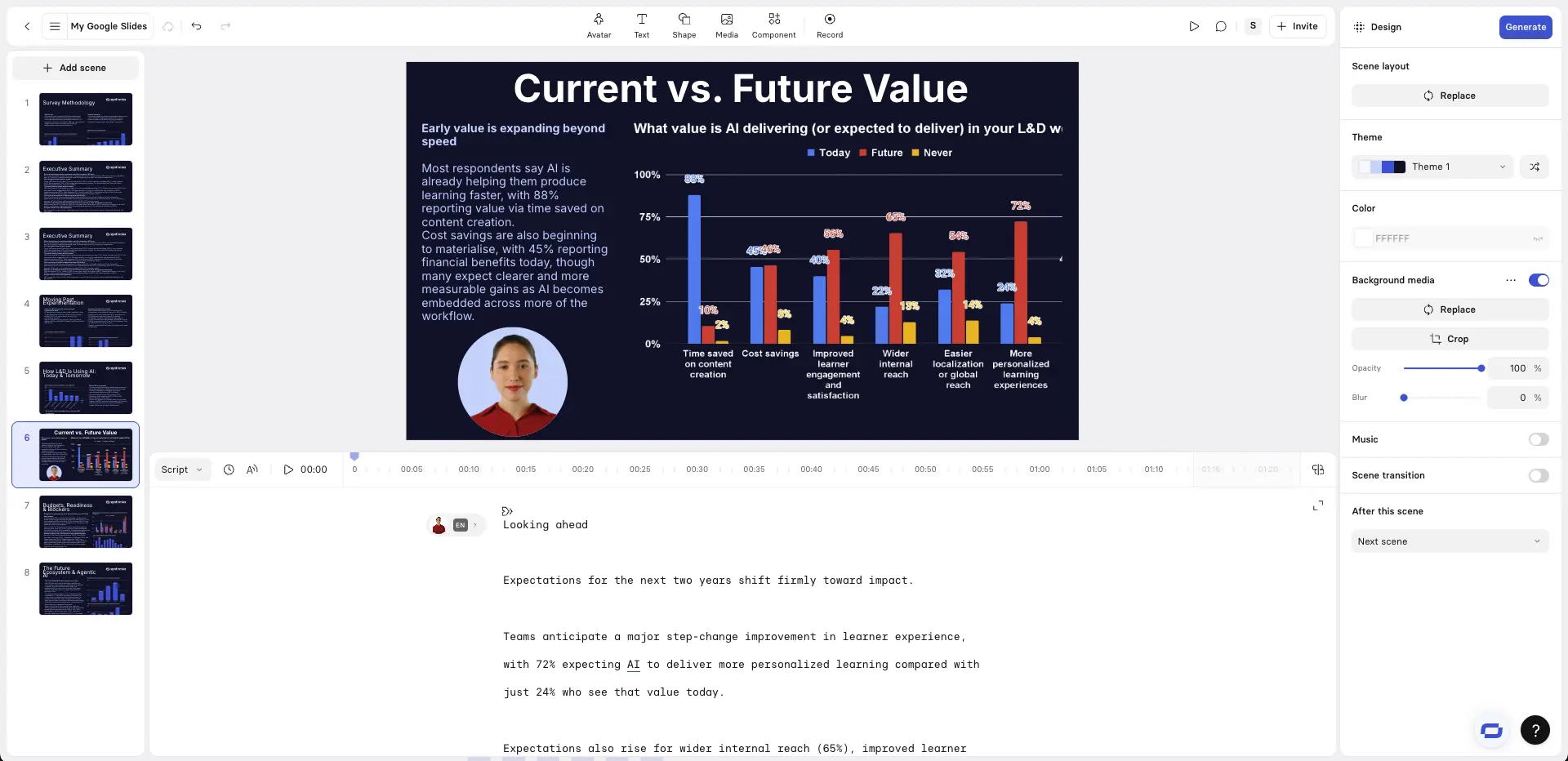
The next step is to transform your presentation into an engaging video by using the Synthesia editor to add:
- Realistic AI avatars and natural-sounding AI voiceovers to present each slide.
- Motion graphics from our range of templates or generated from your prompt.
- B-roll with AI-generated, stock, or uploaded video footage.
- Interactive video elements such as quizzes, CTAs, and branching scenarios.
- Screen recordings (if you want to demonstrate a tool or a process).
- Built-in captions and subtitles with fully editable timings.
Step 7: Generate and share your video
Now it's time to generate your video and share it with your team. You have a number of options for sharing your Synthesia video, including:
- Downloading your video and sharing it as an MP4
- Sharing a link directly to your video
- Embedding your video in your LMS, website, or knowledge base using an embed code (iframe)
- Exporting your video to your LMS via SCORM
Kyle Odefey is a London-based filmmaker and Video Producer at Synthesia. His content has reached millions across TikTok, LinkedIn, and YouTube, even inspiring an SNL sketch, and has been featured by CNBC, BBC, Forbes, and MIT Technology Review.
Frequently asked questions
Is there a way to convert Google Slides to video directly?
No, there's currently no native support in Google Slides for converting your presentations directly to video.
Is this available on the free plan?
Yes! Synthesia's PowerPoint import/PowerPoint to video feature is available on the Free plan.
Can I translate my Google Slides video into other languages?
Yes! Once you have your slides converted into a Synthesia video, you'll be able to translate it into over 140 languages with localized voiceovers and subtitles using our one-click translation feature.


.webp)