



The 7 Best Training Video Software of 2026 (Tried & Tested)

Create engaging training videos in 160+ languages.
I’m a seasoned instructional designer. I’ve created hundreds of training videos ranging from walkthroughs, software demos, onboarding modules, multilingual updates, and scenario-driven microlearning.
I've found that when it's time to create a training video, your choice of tool matters a lot. The wrong training video software can slow you down, whereas the right one removes friction and lets you focus on building the best learning experience possible.
My ranking of the best training video software
Here's my list of the best training video creation software in 2026. I've tried to highlight the best use case for each.
- Synthesia: For AI-generated training videos with avatars, motion graphics, and interactivity.
- Camtasia: For dependable step-by-step training.
- Vyond: For narrative-driven animated training videos.
- DaVinci Resolve: For precise editing of recorded footage for free.
- Adobe Premiere Pro: For editing recorded footage within the Adobe ecosystem.
- Descript: For easy but basic-looking training videos.
- Loom: For easy, effective knowledge sharing.
How I evaluated these tools
My test
In order to make this a fair test, I decided to try and use each of the tools to make the same onboarding video for a fictional company called "Horizon Systems". The video will cover the company's mission, values, as well as role expectations and first-week guidance.
I've chosen to test with an onboarding video since they typically require a lot of updates, and are one of the most common types of video-based training.
The idea is that by making the same onboarding module across all seven of the platforms I'm reviewing, I'll be able to evaluate the full training video lifecycle. That includes first drafts, revisions, branding, accessibility, localization, and long-term maintainability.
I tested each tool using the same video structure:
- Welcome intro
- Company mission
- Core values
- Role expectations
- First-week overview
Note: DaVinci Resolve and Adobe Premiere Pro are typically used (in a training video production context) to edit recorded training video footage, so I used some old footage I had from a previous onboarding video project I had worked on.
My evaluation criteria
I focused my evaluation on criteria that matter most in real L&D environments:
- Learning impact
- Ease of updates and revision cycles
- Localization workflows
- Accessibility features
- File format and LMS readiness
- SME collaboration
- Production speed
- Branding and template flexibility
- Cost-value fit
Synthesia
Quick summary
- Best for: AI-generated training videos with avatars, motion graphics, and interactivity
- Pricing: Free tier available; paid plans start at $18/month USD
- Production speed: 35-45 minutes from script to first draft
My experience
Pros
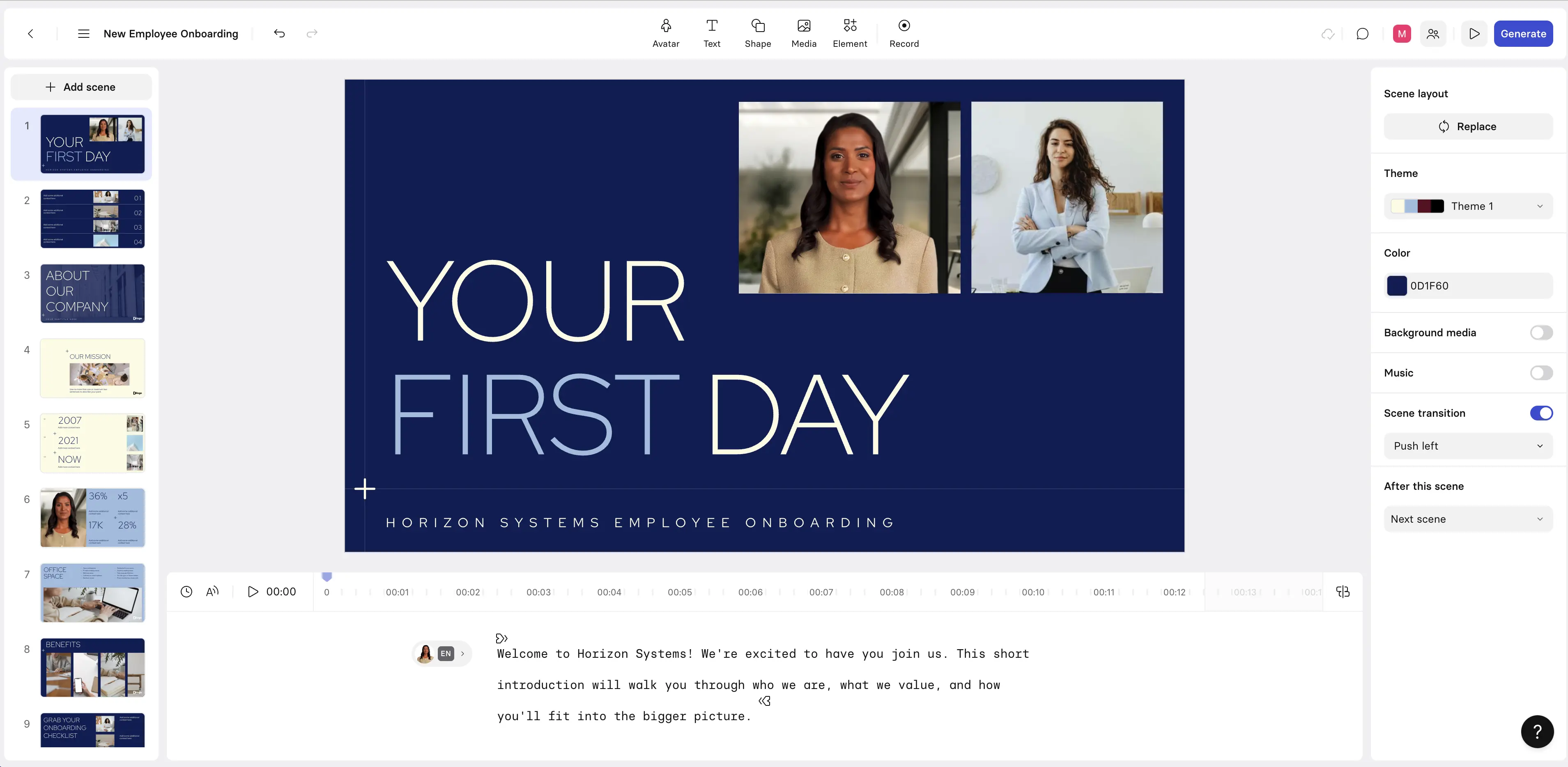
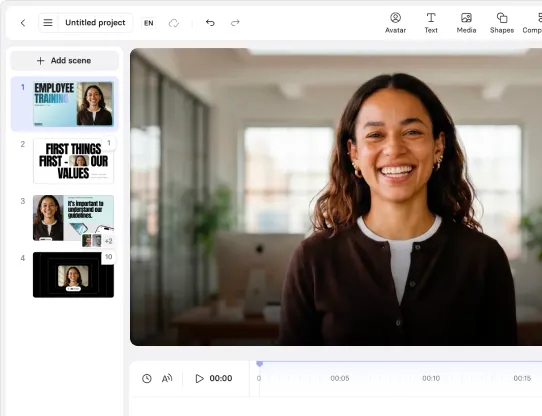
The Synthesia video editor is very easy to use (if you can use PowerPoint, it will feel familiar), and it helps you to make a high-quality, consistent training video very quickly. My test run took less than 45 minutes.
I found the training video templates that Synthesia offers to be a big help, as they provide you with a consistent base that makes the video creation process much quicker while also ensuring that your video follows learning design principles. The platform supports brand kits too, so you can easily get your video looking consistent with your company's branding.
I didn't work with an SME when making my test training video, but I can see how the real-time collaboration feature would make it easy to iterate on your training video with an SME or with another Instructional Designer.
Synthesia's support for localization is one of its strengths. It was super easy to create my training video in English and then use the one-click translation to convert it to Spanish. I speak Spanish and I can vouch for the quality of translation - it sounds super natural.
I found that Synthesia's AI avatars were realistic and added to the video without distracting from the information I was trying to transmit to the learner.
Another positive was Synthesia's interactivity options. It's not a platform for making complex simulations, but it lets you easily add quizzes, branching scenarios, and clickable hotspots, which I think is more than enough interactivity for most training video use cases.
Synthesia also has a solid screen recording feature that comes in handy if you are doing a product walkthrough or a software tutorial. Synthesia also supports SCORM exports, which allows for seamless integration with your LMS.
Cons
The main downside with Synthesia is that not all training video projects are suitable for avatars. Having said that, the platform does offer high-quality motion graphics and AI-generated B-roll and images, which help expand the type of training videos that you can create.
My verdict
I think that Synthesia is a great fit when you want to quickly and easily generate a high-quality training video. It's also a great option if you think that you will need to frequently update your video, or localize your training video across multiple languages. It's not a good fit if you need very advanced interactivity or if, for whatever reason, you don't want to use AI avatars.
Camtasia

Quick summary
- Best for: Dependable step-by-step training
- Pricing: $180–$250/yr USD for the subscription version; around $300 USD for a permanent license
- Production speed: 60-90 minutes
My experience
Pros
Camtasia is primarily known for offering high-quality screen recordings, and I think it performed pretty well with my test onboarding module.
The screen recording was crisp, and the platform has a nice selection of brand themes to choose from.
I found the timeline-based editor intuitive and easy to use, and I also liked the cursor effects and callout options.
Camtasia supports SCORM exports to your LMS.
Cons
The downside I found with Camtasia was that it turned out to be a very manual workflow. I had to take quite a hands-on approach to editing, which resulted in a longer video production process. It took me about 90 minutes to get to a pretty basic first draft.
Camtasia also doesn’t offer many animation or storytelling features, so I think my module came out pretty run-of-the-mill.
My verdict
I think Camtasia produced a clear onboarding module. I think it’s a good fit if you want to create a screen recording-heavy step-by-step training video.
I don’t see it as a particularly strong option if you value speed in your training video production since I found the production process to be slightly clunky. I also don’t think it’s a great option if you want to create a particularly creative or interactive training video.
Vyond
Quick summary
- Best for: Narrative-driven animated training videos
- Pricing: Starts from $58/month USD
- Production speed: 90+ minutes
My experience
Pros
Vyond is best-known for being a platform that helps you to create engaging animated videos without any animation chops. I think that animated training video content can be a really good fit for some training video formats, such as microlearning and scenario-based content.
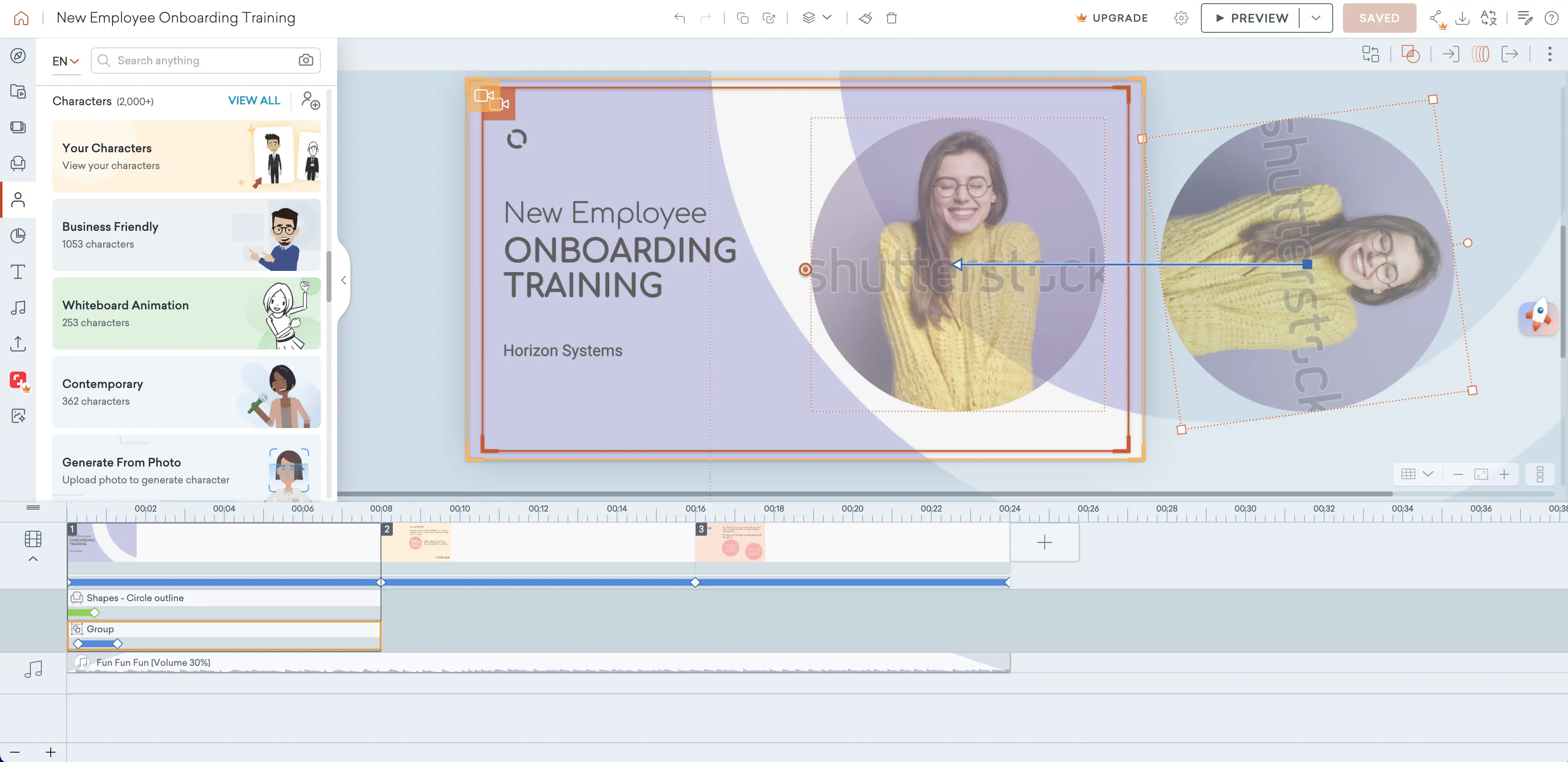
The platform works as a drag-and-drop editor, and makes it easy to start assembling your animated video. I really liked creating a character-driven scenario, and that’s where I see Vyond’s biggest strength - it’s a tool that was made for storytelling.
The structured templates and flexible scene editing made my module look really good without being a Vyond expert, and I liked that the final result seemed very human-centered.
Vyond supports SCORM exports to your LMS.
Cons
I think the main downside of Vyond is production speed. It took me quite a long time (more than 90 minutes) to get to a usable first draft. All of the staging is manual (i.e. you have to build and arrange each scene yourself, rather than being able to rely on any form of automation).
I also found that branding isn’t automatically applied, so I had to manually configure my fictional company’s brand kit. Because of this, it took a while before I felt like the module was at a point where it’d be ready for commercial delivery.
The final downside I’d point out is that animation might not always be the best option for your training video project. Despite the video quality itself being great, I think it could look slightly unprofessional in certain scenarios.
My verdict
I think the onboarding module I made with Vyond came out pretty well. Overall I think Vyond is a good fit when you want narrative-driven animated training. I could see it working well when behavior or company culture are the focus of your training.
I would not recommend Vyond when you need fast production, rapid updates, or if you are covering topics where animation doesn’t work, such as technical training, or other more serious topics.
DaVinci Resolve

Quick summary
- Best for: Precise editing of recorded footage for free
- Pricing: A free plan is available, Studio tier is a one-time $295 USD payment
- Production speed: 2+ hours
My experience
Pros
I tested DaVinci Resolve by building my onboarding video with previously recorded footage.
The first advantage to call out is that DaVinci Resolve has a very powerful free version. There’s a premium Studio tier too, but you can definitely create a training video with the free version alone.
It’s a full video editor platform, so as you’d expect it allows very precise editing and professional-grade visuals. I loved the effects and transitions that I was able to create, and I think that my test module came out looking shiny with the pristine colors and motion quality.
I also found it easy to add branded elements that fit my fictional company’s brand kit.
Cons
There are several downsides to using a standard video editor which aren’t related to DaVinci Resolve specifically. Firstly, you need the recorded footage, which means you need cameras, actors, and the time and money to do a video shoot that produces good-quality recorded footage. This also makes updates super slow and expensive, and collaboration much more difficult.
Using a full professional-grade video editor also means that there is a very steep learning curve. I have a bit of experience using the platform and pre-recorded footage and it still took me slightly more than 2 hours to get a decent first draft together.
I think that the biggest downside with DaVinci Resolve itself is that it doesn’t offer any video templates. As a result, I had to start my training video essentially from scratch after uploading my recorded footage. There are third-party templates available elsewhere on the web though.
Since DaVinci Resolve is primarily a video editor, it doesn’t support SCORM exports to your LMS, so that means no easy packaging, launching, or tracking of your training video.
My verdict
Some training scenarios call for live-action recorded training videos, and if that’s the situation you find yourself in, then DaVinci Resolve is a super powerful editor that can help you get the job done for free, which is a pretty amazing selling point.
However, you’ll deal with all the downsides of that form of training video production: slow and expensive production, difficult updates and revisions, and tricky localization.
Adobe Premiere Pro
Quick summary
- Best for: Editing recorded footage within the Adobe ecosystem
- Pricing: $22.99/month USD
- Production speed: 90-120 minutes
My experience
Pros
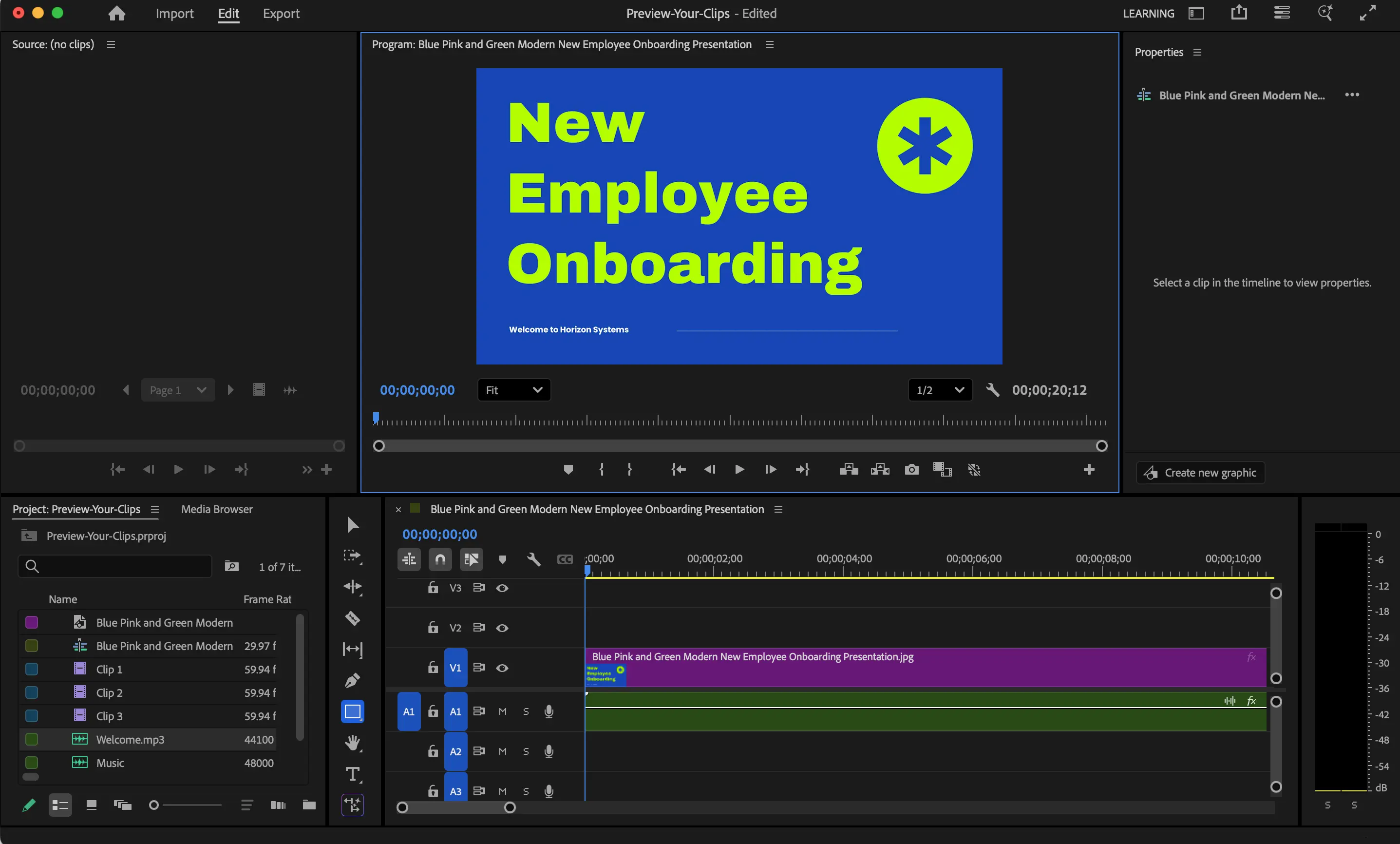
Adobe Premiere Pro is the second “pure” video editor on this list, so once again I was testing it by creating our test onboarding module using previously recorded video footage.
Adobe Premiere Pro did a brilliant job creating my corporate module. I have previous experience using the platform and I found it easy to get my test video looking professional, clean (you can add some really nice assets, effects, and transitions), and following the brand guidelines of my fictional company.
I’d say the learning curve is slightly less steep with Adobe Premiere Pro compared to DaVinci Resolve. You also get the benefit of the platform being integrated with Adobe’s ecosystem, which in a training video context typically means creating B-roll assets in Photoshop or Illustrator, or generating assets with AI via Adobe Firefly.
Cons
I’ll state it again: recording footage and then editing it is a slow and expensive way to create training videos, and the output is hard to update and localize.
Focusing on platform specifics, I found myself thinking “If I wasn’t familiar with Adobe, would I know how to use this tool to its full potential?”, and I think the answer really is “no”.
Adobe Premiere Pro isn’t that intuitive, so the editing process might be quite long. I’d also add that compiling your final video takes a long time as well.
Like DaVinci Resolve, Premiere Pro is also primarily a video editor, which means it doesn’t support SCORM exports to your LMS.
My verdict
Adobe Premiere Pro is probably the most widely-used platform for editing training videos. I’ve also often used it to add final touches to videos I’ve created on other platforms. It really is the go-to professional-grade choice for video editing, and that’s also the case in the instructional design world too.
I also think there's an argument that Adobe Premiere Pro should be your natural pick if you’re already working a lot with other Adobe products.
Just to make the point one final time though - recording video footage and editing it is not the fastest option for training videos, and I think that nowadays there are other tools that can produce equally impressive training videos in a lot shorter time for a lot less money.
Descript
Quick summary
- Best for: Easy but basic-looking training videos
- Pricing: Free plan available; paid plans start at $16/month USD
- Production speed: 30-45 minutes
My experience
Pros
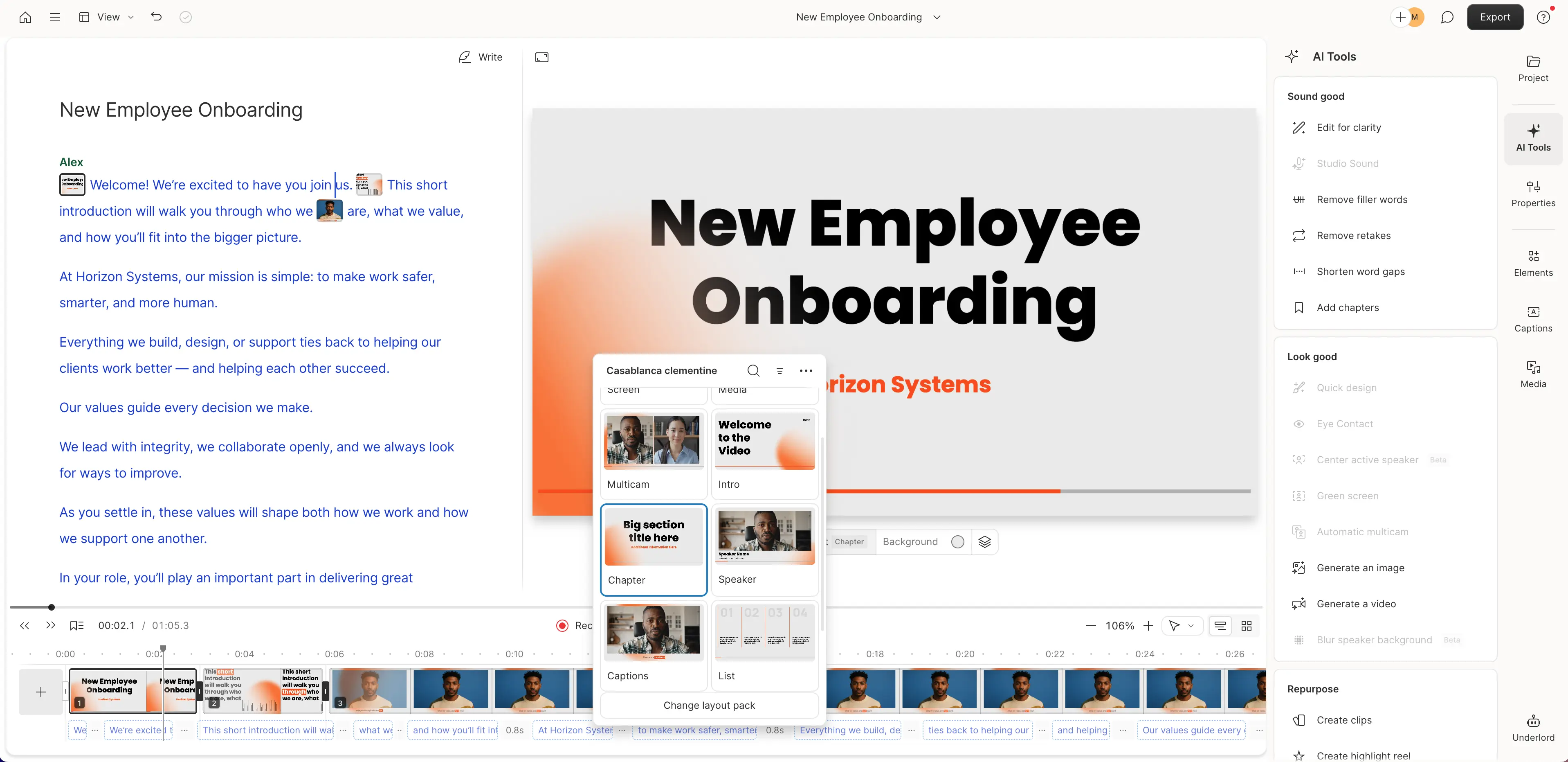
Descript is probably my go-to on the list for quick and low-cost training video content when you want a quick result and you’re not prioritizing visual quality. I was able to make the test onboarding module in less than 45 minutes.
The platform is an easy-to-use, text-based (script-driven) video editor that lets you easily add AI narration. I found the voice quality was decent enough for it to not be distracting for your learners. There’s also a simple screen recording feature which comes in handy if you need to demonstrate a process.
I also really like editing in Descript. It was easy to iterate on my onboarding module again and again without breaking elements or getting lost in the process.
Cons
The visuals that you can create in Descript are super basic. The platform really isn’t suitable for anything that needs to look professional or high-quality.
Descript also doesn't support SCORM exports to your LMS.
My verdict
Descript wins when you need efficiency. The tool made it super easy to review and update my test module (both the narration as well as the text content). It’s really a straightforward trade-off between visual quality and simplicity and speed.
Loom
Quick summary
- Best for: Easy, effective knowledge sharing
- Pricing: Free plan available; paid starts at $15/month USD
- Production speed: 10-20 minutes
My experience
Pros
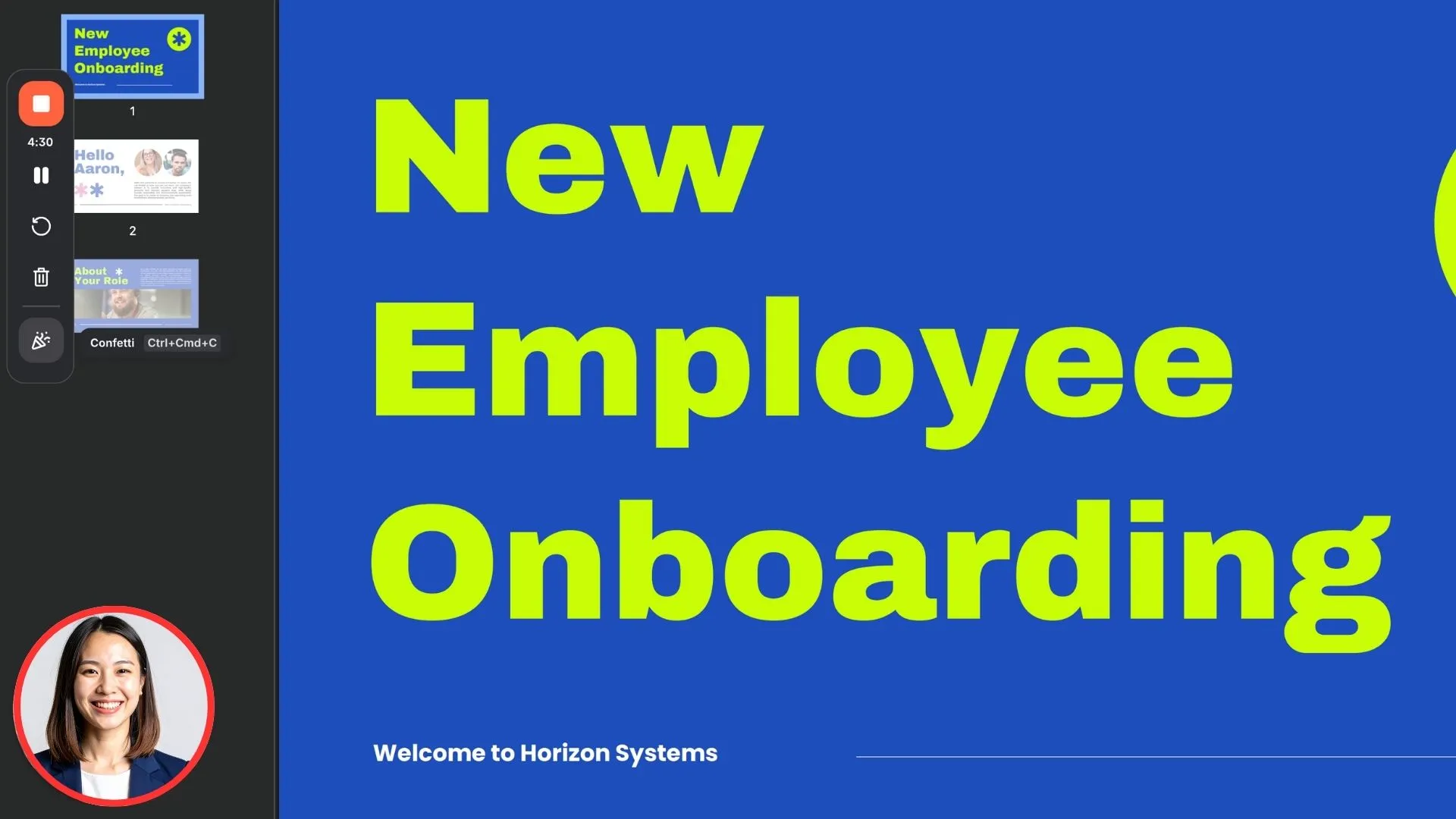
Loom is known as a platform for quick knowledge sharing via easily shareable screen recording videos. I think that it’s definitely the fastest record-to-share workflow on this list.
I was able to create the test onboarding module, package it, and send it out in a few minutes. The camera bubble recording allowed me to add a personalized explainer video to my module, which is a nice humanizing touch.
My typical workflow if I needed to update a Loom video would be just to record the section of the video again and then replace it, which works pretty well.
Loom also offers auto-captioning which is a nice feature to improve accessibility.
Cons
The obvious trade-off is that since Loom is great for quick knowledge sharing, it means that the platform doesn’t come with many editing options, and it also isn’t easy to add branding to the video output.
While I found it easy and quick to complete and package my test onboarding module quickly, it definitely lacked some polish and personality. As a result, I don’t think it’s a platform that is suitable for creating formal, professional training.
Loom isn’t really a platform specialized for instructional designers. As a result, it doesn’t support SCORM exports to your LMS.
My verdict
Loom is great to use because of its usability and speed. It’s really a tool for creating quick internal knowledge sharing and/or SME recordings, rather than for professional-standard training video creation.
Comparison table
Below is a summary cross-comparison of the seven tools I tested, looking at the best use case for each tool, along with production speed and difficulty.
Final thoughts
Before you sign up to any of these tools, I suggest that you take some time to experiment with the free plans. That way you can see which aligns best with your existing workflows and which introduce friction.
In a nutshell, I recommend picking the tool that you think will help you to quickly build high-quality training content that you can easily update. You don't want to be rebuilding your videos from scratch every time something changes.
Ultimately, I think that the best training video software really depends on the training type, your L&D team's size, your update cycles, your branding expectations, and how global your training needs to be.
Kevin Alster is a Strategic Advisor at Synthesia, helping enterprises apply generative AI to learning, communication, and performance. With over a decade in education and media, he’s built programs for General Assembly, NYT School, and Sotheby’s.
Frequently asked questions
What is the easiest training video software for beginners?
For beginners, I'd recommend tools like Synthesia, Descript, and Loom. These are the easiest to get started with since they offer intuitive interfaces. They are ideal for non-L&D professionals and instructional designers who are just getting started and want to create a training video without learning advanced video editing skills.
Which training video software is the fastest to create a finished video?
Loom and Descript are probably the fastest options, but Loom is really for basic knowledge sharing, and Descript won't produce a professional-looking training video. Synthesia offers rapid training video production while also maintaining a higher visual quality.
What's the best training video software for enterprise L&D teams?
Synthesia is probably the best option for enterprise L&D teams and instructional designers, because it supports brand kits, easy localization, interactivity, and easy updates. Pure video editors like Adobe Premiere Pro are also common choices when an enterprise L&D team has a lot of resources and wants to edit recorded training video footage.
What's the difference between AI video tools and traditional video editors for making training videos?
AI-powered video tools like Synthesia can automate a lot of the production process, whereas traditional editors like Premiere Pro or DaVinci Resolve require that you upload recorded footage which you then manually edit. This takes a lot more time and effort.
Which is the best tool for creating interactive training videos?
On this list, the best tool for adding interactivity to your training videos is Synthesia. It supports adding clickable elements, knowledge-check quizzes, and branching scenarios. If you need advanced interactivity (i.e. think technical simulations), you might want to look at another authoring tool like Adobe Captivate, but it's not really a tool built for easy training video creation.
What's the best tool for making animated training videos?
The best tool for making animated training videos is Vyond. I think these make a lot of sense when you want to add storytelling to your training video. Vyond's animated style might also make sense for scenario-based learning and soft skills training videos.
What factors should I consider when choosing training video software?
I suggest that you focus on criteria like production speed, ease of updates, ease of localization, interactivity features, brand kit support, and whether you want to edit recorded footage or prefer to go the AI-generated route.



content

Where Synthesia can help
Video training is useful when demonstration and consistency matter. Use it to show “what good looks like,” support managers with reusable coaching moments, and keep guidance current as processes change. Keep videos short, then tie them to a pathway, a checklist, or a role milestone so they stay connected to outcomes.
See examplers here