

How to Create Engaging Training Videos in Minutes

Written by
Kevin Alster
March 3, 2026

Create engaging training videos in 160+ languages.

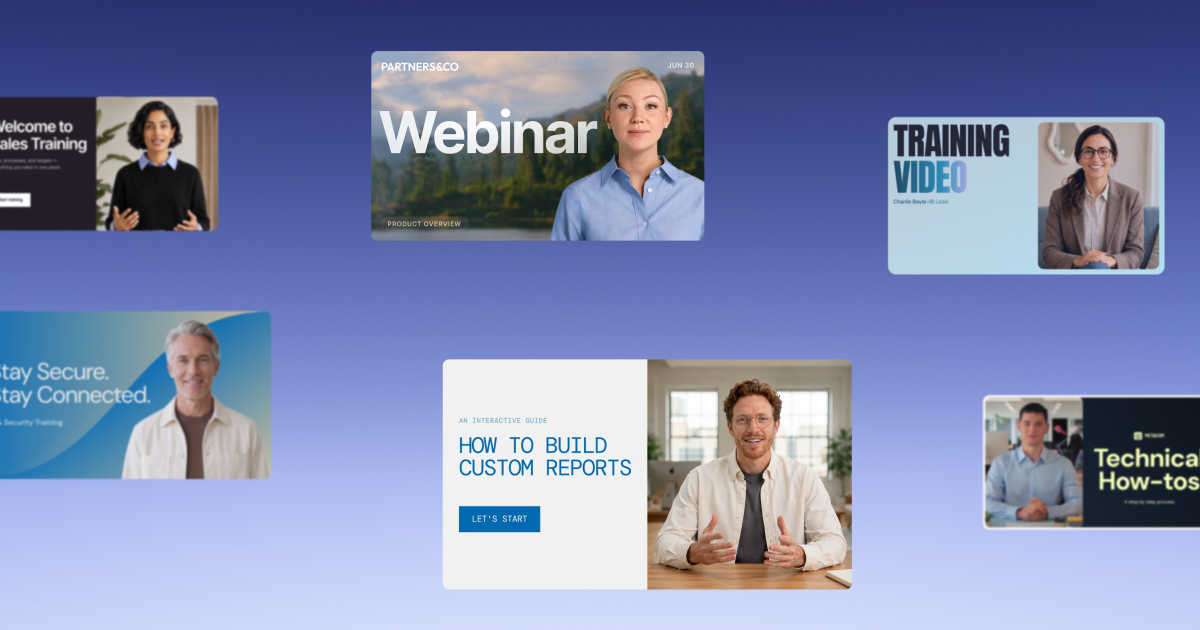
Training videos are short, role-specific videos that teach someone how to complete a task, follow a process, or meet a standard at work.

They have become one of the most effective ways to teach skills at scale. Instead of repeating the same training sessions or maintaining long documentation, teams can create videos that employees can watch, pause, and revisit whenever they need help.

Traditionally, however, producing training videos has been slow and expensive. Recording equipment, voiceovers, editing, and production cycles often turn even small updates into time-consuming projects.

Today, that process is changing. In our AI in Learning & Development Report 2026, 84% of the L&D managers we surveyed said AI helps them speed up content production, and 52% reported using AI for video creation.

How to create a training video in minutes

In this guide, I'll show you how to create an engaging training video quickly and easily with Synthesia for free.

Step 1: Head to Synthesia

Go to Synthesia's AI video generator.

Step 2: Provide your script, prompt, or training materials

Choose the option that matches what you already have:

  • Idea: If you have an idea for a training video, click Idea and enter a short prompt describing what the video should teach.
  • Script: If you already have a training video script, click Script and paste it into the editor.
  • File: If you have existing training materials, click File and upload them. You can upload PDFs, PowerPoint slides, Word documents, text files, or a URL.

Step 3: Outline your training video

You'll now see an overview of your video's scenes and the script for each scene. You can add, remove, or edit scenes, or recreate the outline entirely.

Select a template that matches your video style and tweak settings for video duration, language, tone, objective, audience, and speaker.

Once you're ready to proceed, click Continue in editor.

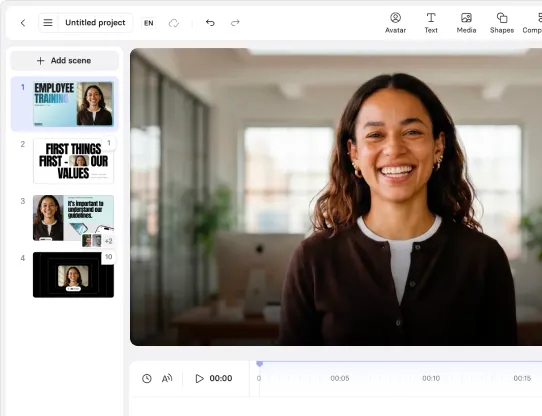
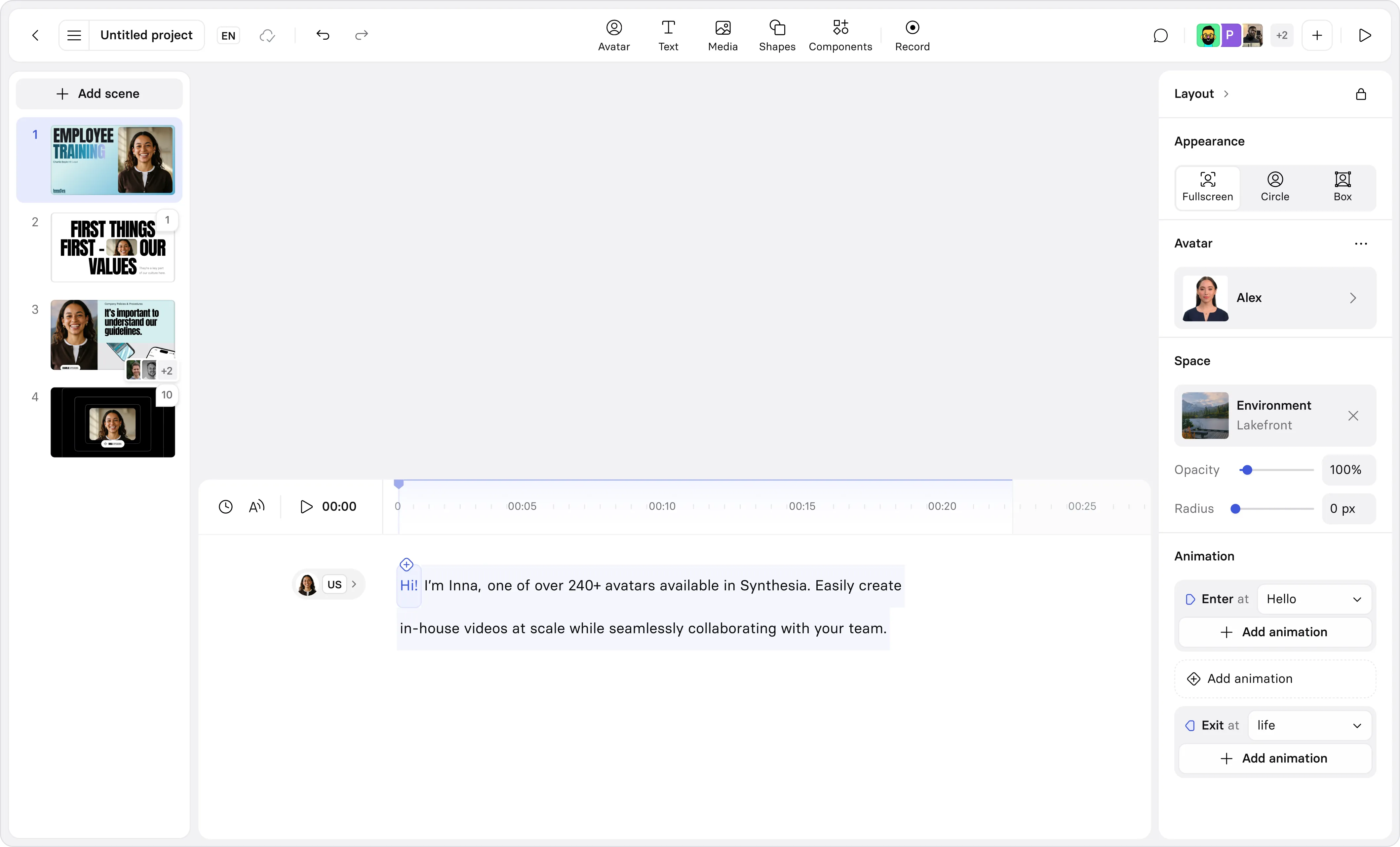
Step 4: Edit your training video

Now it's time to edit your training video. You can:

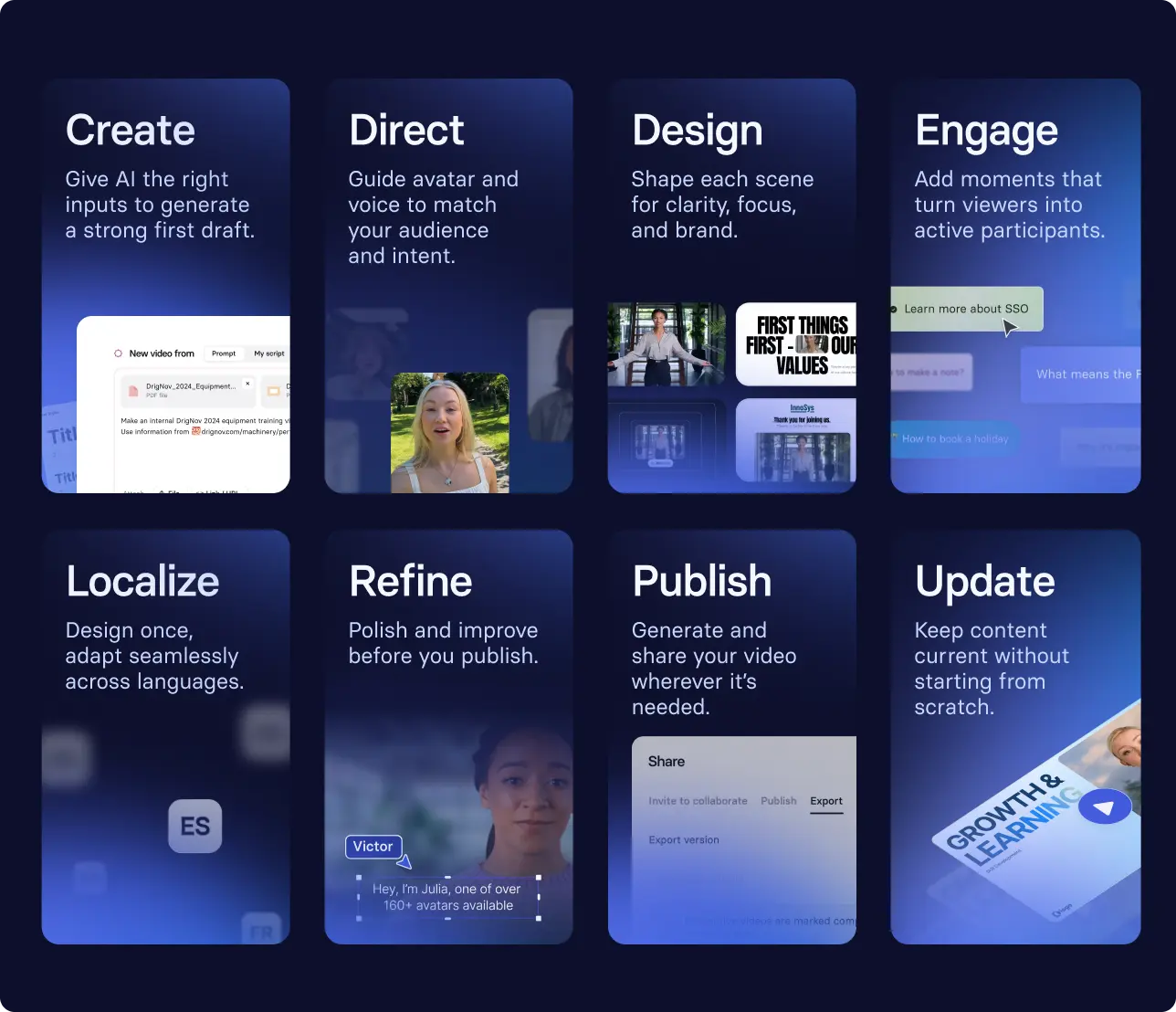
  • Add scenes: Build your video by adding, duplicating, and reordering scenes.
  • Add B-roll: Upload or generate custom B-roll (background video) to make your video more engaging.
  • Choose an avatar and adjust the script: Select an AI presenter and edit the on-screen script that drives the narration.
  • Design the layout: Add and position text, images, shapes, and backgrounds.
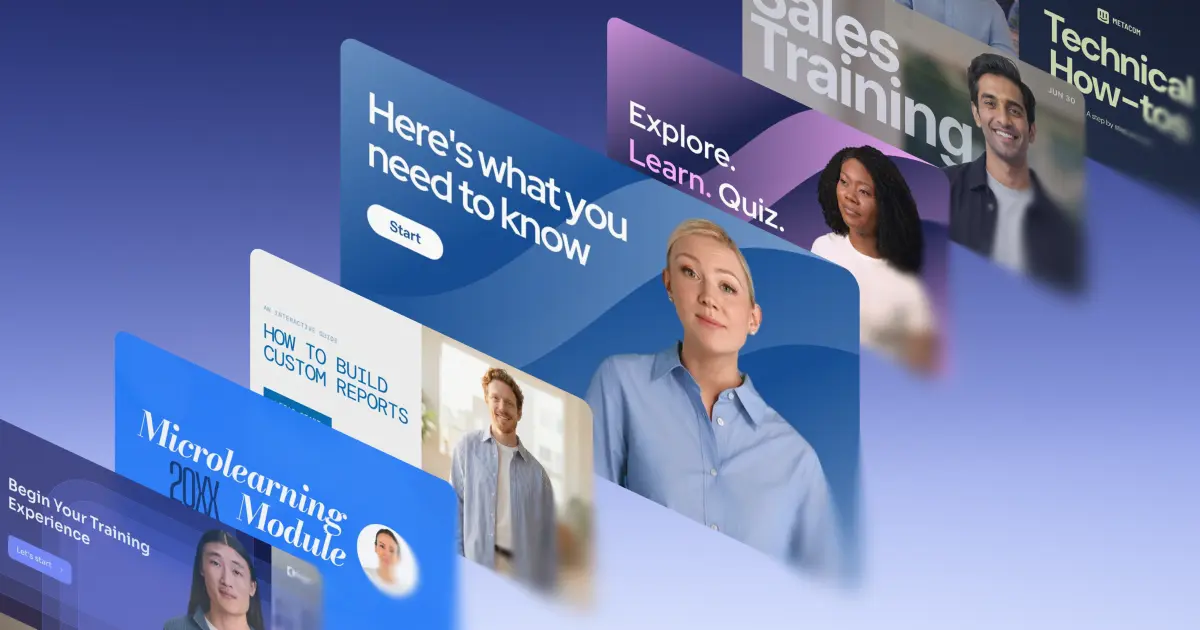
  • Apply templates and branding: Use pre-built layouts, colors, fonts, and logos for consistency.
  • Add interactivity: Insert buttons, quizzes, or branching paths for learner engagement.
  • Add screen recordings: Add a recording of your screen for walkthroughs and software tutorials

Step 5: Generate your video

Hit Generate in the top right corner to generate your video.

You can then download your training video as an MP4, get a shareable link, embed your video on a webpage, or download a SCORM version of your video and upload it to your LMS.

You can also translate your video into more than 160 languages.

What are the most common types of training videos?

How-to videos

Step-by-step tutorial videos that show learners how to complete a task or use a tool. These are one of the most common formats in training because they provide clear, practical instructions.

Screencasts

Videos that record a computer screen to demonstrate software, digital workflows, or online systems. They are widely used in software training videos.

Presenter-led training videos

Videos where a trainer or instructor explains a topic directly to the audience. This format is common in corporate learning, lectures, and expert explanations.

Microlearning videos

Microlearning videos are short, focused training videos (usually 1–5 minutes) that teach a single concept or skill. These are increasingly popular in modern digital learning.

Scenario-based training videos

Videos that present realistic workplace situations where learners see how decisions or actions play out. This format is often used for compliance, leadership, and customer service training videos.

Interactive training videos

Interactive training videos allow learners to answer questions, make decisions, and choose different paths.

What are the benefits of training videos?

Training videos help organizations scale knowledge without depending on perfect live delivery. They make guidance easier to access in the flow of work, and they reduce message drift by showing the same standard across roles, locations, and time zones.

  • Engagement: Engagement improves when training is designed for action. Clear structure, purposeful visuals, and a concrete next step help people follow along and apply the guidance.
  • Knowledge retention: Retention improves when training includes reinforcement and “do it now” cues. Short, rewatchable videos make reinforcement practical because learners can return at the moment of need.
  • Standardization and consistency of messaging: Training videos make standards easier to communicate consistently, especially for procedural work, onboarding, and compliance refreshers. With governance and version control, updates don’t create drift, and learners reliably land on the current version.
  • Time savings: Faster creation and updates reduce bottlenecks and keep training current, even when processes change frequently.
  • Cost reduction: Reuse and faster iteration reduce operational load and repeated delivery, while maintaining a consistent learner experience.
  • Scalability and remote learning enablement: Video scales across time zones without relying on facilitator availability. It also supports distributed teams by making training accessible on demand.
  • Accessibility: Captioned, mobile-friendly training videos support different learner needs and devices. For global teams, localization becomes a force multiplier when meaning stays consistent across languages.
  • Customer satisfaction: Training videos can improve customer experience when they function as fast, in-the-moment self-service, especially for common workflows and repeat questions.
  • Business impact: Training video programs matter most when they translate into execution improvements. The strongest programs connect each video to a business outcome and keep improving the content as work changes.

When is video the right training medium?

Video works best when you need instruction that holds up across teams and stays usable in the flow of work. It’s easy to revisit, easy to distribute, and well suited to short, tightly scoped lessons. With AI, teams can also create role- or region-specific variants and iterate faster when they learn where people get stuck.

Format Choose this when… (typical use cases) Strengths Watch-outs
Video (micro lessons, explainers, walkthroughs) You need repeatable guidance people can use during work, especially for onboarding, software walkthroughs, SOP refreshers, enablement updates, and recurring questions. Consistent delivery, rewatchable, easy to distribute across teams and time zones, supports faster iteration. Needs tight structure; long videos reduce completion; requires governance so updates don’t create drift.
Live workshop (in person or virtual) The goal is practice, discussion, judgment calls, or role-play, such as leadership training, sales conversations, and safety scenarios. High interaction, coaching, immediate feedback, alignment for complex change. Hard to scale; inconsistent delivery; time-zone and scheduling constraints.
Documentation (SOPs, KB, playbooks) People need a reference they can scan and search quickly, especially for edge cases, policies, and troubleshooting. Fast to update, searchable, easy to maintain, great for exceptions. Harder to demonstrate workflows; adoption varies; can feel abstract without examples.
Interactive modules (quizzes, simulations) You need checks for understanding, compliance requirements, or skill reinforcement, often with completion requirements. Active recall, measurable assessment, can gate completion. Higher build effort; needs upkeep when processes change.
On-the-job coaching (manager/peer) Skills require judgment, nuance, or behavior change over time, such as management, customer handling, and complex decision-making. Contextual, tailored, supports habit formation. Doesn’t scale evenly; outcomes depend on manager capability and availability.
Blended path (video + live practice + reference docs) You want consistent baseline instruction plus practice and reinforcement, especially for onboarding, compliance, and role readiness. Video sets the baseline, live time is reserved for practice, docs support recall. Requires coordination; benefits depend on clear ownership and version control.

When are training videos most effective?

These benefits show up most clearly when the goal is repeatable execution and the content will benefit from being revisited. Training videos work well for onboarding that needs consistency across managers and cohorts, procedural training where people need to copy steps, and enablement updates where teams need the “what changed and what to do now” message quickly.

They’re also a strong fit for compliance refreshers that require clear, consistent policy communication, and for customer-facing roles where scenarios and decision points can be practiced safely. When the topic requires coached practice, discussion, or live feedback, video works best as baseline instruction, with live time reserved for practice and edge cases.

The structure behind engaging training videos

FOCA is a four-part framework for designing training videos:

  • Foundation: Define one outcome and the audience. Write for the moment of need so viewers can apply the steps immediately in the flow of work. Split multi-topic training into a short series.
  • Organization: Make the structure obvious. Sequence steps in the order they should be performed, keep scenes short, and use labels that match internal terminology. Decide where role, region, or system variants are required.
  • Content: Let visuals carry the instruction. Show clicks, fields, decision points, and common mistakes. Keep on-screen text readable and avoid repeating the script in full paragraphs. Add one checkpoint where it changes behavior.
  • Action: End with the next step. Tell viewers what to do now, where the source of truth lives, and how to get help. Keep the update path clear so learners always reach the current version.

FOCA sets the design standard. Next is execution. This workflow keeps production fast without losing instructional quality, review discipline, or update control.

What are the best platforms for making training videos?

The “best” training video platform is the one that fits your workflow and holds up at scale. Start by choosing the right category of tool, then compare platforms based on how well they support reuse, updates, and distribution.

Synthesia

What it is: An AI video creation platform for producing training videos with AI presenters, without cameras, actors, or recording equipment.

Best for: Scalable corporate training, onboarding, enablement, and global training programs that need fast updates and localization.

Why teams choose it: Script-first creation, repeatable structure via templates, and workflows that support controlled updates and localization at scale.

Watch-outs: Not designed for heavy, timeline-first filmmaking edits.

Pricing: Starter is $29/month (or $264/year on annual).

Camtasia

What it is: A screen recording + editing suite designed for creating software tutorials and step-by-step instructional videos.

Best for: Screencasts, tool walkthroughs, and training videos that rely on showing on-screen actions with annotations and edits.

Why teams choose it: Strong screen capture + editing in one place, with features that support instructional clarity (e.g., callouts, cursor effects).

Watch-outs: Less suited to scaling the same training across many languages or versions without added process discipline.

Pricing: TechSmith lists Essentials at $179.88/year, with other tiers above that.

Vyond

What it is: An animated video creation platform focused on building scene-based videos with characters, props, and templates.

Best for: Concept explanations, policy communication, and scenario-style training where animation improves clarity or storytelling.

Why teams choose it: Template-driven production, animated storytelling, and scene building without traditional animation skills.

Watch-outs: Less effective for training that requires precise tool demonstration unless paired with screen capture workflows.

Pricing: Vyond lists Starter at $58/month billed annually (and a higher monthly price if billed monthly).

Adobe Premiere Pro

Best for: High-production training content, multi-camera footage, and teams with editing expertise and established production workflows.

Why teams choose it: Deep editing capability, effects, and integration across Adobe creative tools.

Watch-outs: More time-intensive; relies on filming/asset pipelines and skilled editors compared to script-first training tools.

Pricing: Adobe lists Creative Cloud Pro for teams at $99.99/month per license (annual, billed monthly).

Descript

What it is: A video/audio editing platform that lets teams edit by editing text (transcript-based), with AI tools for captions and cleanup.

Best for: Webinar edits, talking-head training, voice-heavy content, and quick iteration on recorded material.

Why teams choose it: Faster editing workflow for spoken content and teams that want less traditional timeline editing.

Watch-outs: Not a full replacement for advanced motion graphics or complex video production workflows.

Pricing: Paid plans start at $16/month.

Loom

What it is: A lightweight screen/camera recording tool designed for quick async communication and simple walkthroughs.

Best for: Quick internal walkthroughs, lightweight training clips, feedback videos, and “show-and-tell” process explanations.

Why teams choose it: Speed and simplicity: record and share instantly with minimal production overhead.

Watch-outs: Best for informal training; less suited to governed, programmatic training libraries without additional process.

Pricing: Loom lists a Starter plan at $0.

How to assess training video platforms (works for any tool)

When you compare platforms, prioritize what makes training reliable at scale. The right tool supports repeatable structure, controlled updates, and measurable improvement over time.

1) Speed to first draft and reuse: Can teams get to a usable first version quickly, then reuse scenes, layouts, and assets across a series? Look for templates, duplication, and the ability to update one step without rebuilding the whole video.

2) Video-first instructional design support: Does the platform make good structure the default? Favor scene-based editing, clear pacing controls, and workflows that encourage short, rewatchable segments with a clear next action.

3) Governance and change control: Can you assign owners, run reviews and approvals, and keep versions traceable? Check how the tool handles “update vs publish new,” prevents outdated content from circulating, and supports consistent standards across teams.

4) Localization and variants: Can you scale across regions without breaking meaning? Evaluate language coverage, translation quality, terminology control, and how role or region variants are managed so versions stay organized and owned.

5) Distribution fit: Can you publish where people will actually watch, such as an LMS or LXP, intranet, Teams, email, or a knowledge base? Look for embed options, share links, and LMS compatibility when required.

6) Security and access: Can you control who can view content and what happens when links are forwarded? Confirm access settings match your internal requirements and content sensitivity.

7) Measurement and iteration: Can you see what’s working and improve it? Look for analytics that help you spot drop-off, reuse, and completion, and confirm the platform makes it easy to act on insights with governed updates.

A workflow for producing training videos

Use this workflow regardless of which video tool you choose. It keeps production fast without losing instructional quality, review discipline, or update control.

  1. Define the outcome and audience. Write one sentence: “After watching, the viewer can ____.” Identify who it’s for and when they’ll use it. If the topic includes multiple jobs-to-be-done, split it into a short series.
  2. Choose the best video format. Match the format to the task: screencasts for tools, SOP walkthroughs for repeatable processes, presenter-led explainers for concepts and policy, scenarios for judgment calls, and interactive checks when verification matters.
  3. Script for clarity and rewatching. Draft in short scenes, each tied to one step or idea. Use job-relevant language and build for “watch, do, return,” so learners can find the exact moment later.
  4. Storyboard the visuals. Plan what the viewer needs to see in each scene to perform correctly. Use visuals that carry instruction (captures, labels, highlights, examples) and avoid full paragraphs on screen.
  5. Produce a first draft and add one engagement moment. Create the first version quickly, then add a single reinforcement point where it changes behavior, such as a checkpoint question, a prompt to practice, or a short scenario at a decision point.
  6. Review, approve, and localize. Validate accuracy with the process owner, confirm terminology and edge cases, and localize in a way that preserves meaning. Keep role or region variants traceable and owned.
  7. Publish and plan updates. Publish where people will actually watch, assign ownership for upkeep, set a review cadence, and define the standard for “update the current version” versus “publish a new version.” Measure one outcome and iterate.

Once the workflow is clear, execution becomes a choice of starting point. Below are three ways to get to a first draft in minutes with Synthesia, depending on what you have today: start from a prompt, convert existing materials, or begin with a template. Each path supports the same quality standard, including review, approvals, and controlled updates.

How do you scale training videos?

At scale, training videos succeed or fail on what happens after creation: where you publish them, how you measure impact, and how you iterate without losing control. Before you publish, decide the surface, security, and stability plan, then choose one metric you’ll use to improve the next update, such as time-to-proficiency, error rate, or support tickets.

The publishing triangle

Start at the base and work up. Distribution only holds when surface, security, and stability are designed together.

🔺 Stability: Keep content correct over time with review cycles, approvals, versioning, and clear standards for “update” versus “publish a new version.”

🔺🔺 Security: Control who can access the video and what happens when links are shared or forwarded.

🔺🔺🔺 Surface: Choose where people will actually watch, such as your LMS or LXP, intranet, Teams, email, or a knowledge base.

Build an iteration loop

Video improves when you treat it as a product. Ship a baseline version, then refine it using signals from learners and the business. Look for patterns in the questions people ask after watching, where viewers drop off, and which steps create mistakes on the job. Iteration works best when each change is scoped, reviewed by an owner, and released through a consistent update standard.

Measure what matters

Measure training videos using outcomes tied to performance, not only views. Define one success signal per video, then choose metrics that match the goal:

  • For readiness and onboarding, track time-to-proficiency and early performance indicators
  • For procedural training, track error rates, rework, and support tickets
  • For compliance, track completion and comprehension checks
  • For enablement, look at adoption signals and consistency of execution.

Those metrics only help if you can act on them. To improve training over time, the platform has to make change safe and repeatable, with governed updates, reliable distribution to the right surfaces, and feedback loops that show what to fix next.

Key Takeaways

Engaging training videos come from video-first instructional design: clear sequencing, job-relevant context, and steps people can apply immediately in the flow of work. FOCA sets the standard for creating videos that are rewatchable and consistent, even as processes change. Use the platform-agnostic workflow to plan, script, storyboard, and review content with accuracy and governance in mind.

From there, choose the fastest starting point for your situation: start with the AI Video Assistant, convert existing materials, or use templates to keep structure consistent across a series. Before rollout, decide your surface, security, and stability plan so distribution and updates stay controlled. Measure one outcome per video, then iterate based on where people get stuck and what the business needs next.

About the author

Strategic Advisor

Kevin Alster

Kevin Alster is a Strategic Advisor at Synthesia, where he helps global enterprises apply generative AI to improve learning, communication, and organizational performance. His work focuses on translating emerging technology into practical business solutions that scale.He brings over a decade of experience in education, learning design, and media innovation, having developed enterprise programs for organizations such as General Assembly, The School of The New York Times, and Sotheby’s Institute of Art. Kevin combines creative thinking with structured problem-solving to help companies build the capabilities they need to adapt and grow.

Go to author's profile
Book a demo

Get a personalized demo tailored to your use case.

faq

Frequently asked questions

What is a training video?

A training video is a short, role-specific video that teaches someone how to complete a task, follow a process, or meet a standard at work. Teams use training videos for onboarding, compliance, SOPs, product training, and ongoing enablement because they keep guidance consistent across locations, time zones, and managers.

How long should a training video be?

A training video should be long enough to achieve one clear objective and no longer. For most workplace topics, 2 to 6 minutes is a strong target, and software walkthroughs often work best as 30 to 90 seconds per step. If the topic is larger, split it into a short series and use clear titles or chapters so learners can find the exact moment they need.

What should be included in a training video?

A strong training video includes the objective upfront, the minimum context someone needs to succeed, and a clear demonstration of the steps in the order they should be performed. It should also show what “good” looks like, call out common mistakes, and end with a recap plus the next action, such as where to find the SOP, who to ask, or what to do in the system. Captions and readable on-screen text help with accessibility, mobile viewing, and global teams.

How do you create a training video in minutes?

You can create a first draft in minutes by starting from a template or converting existing materials like slides, docs, and SOPs into a script-based video. Once the draft exists, the fastest path to quality is a tight edit pass that clarifies the goal, trims filler, and adds only the visuals learners need to perform the task. For enterprise teams, build in a quick review step so updates remain accurate and consistent across versions.

What are the best training video formats for employees?

The best format depends on the job to be done. Screencasts work well for tools and workflows, presenter-led explainers are useful for concepts and policy, and SOP videos are ideal for repeatable processes that must be performed the same way every time. Scenario-based videos help when judgment matters, such as customer conversations or safety decisions, and interactive videos are effective when you need practice or checks tied to completion.

How do you measure whether training videos are working?

Training videos are working when they improve a specific outcome, not just when people press play. Start by defining one measure of success per video, then track a mix of learning signals and performance signals, such as completion and rewatch rates, quiz results, time to proficiency, error rates, support tickets, or manager-reported readiness. The most useful measurement is the one that connects viewing to fewer mistakes, faster ramp time, or more consistent execution.

VIDEO TEMPLATE